





PC overheating during gaming: diagnose causes & improve cooling?
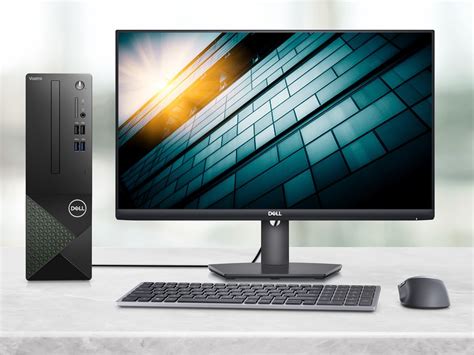
There’s nothing more frustrating than your high-performance gaming PC stuttering, lagging, or even crashing in the middle of an intense gaming session. Often, the silent culprit behind these performance woes is overheating. Understanding why your PC gets too hot and what steps you can take to cool it down is crucial for maintaining optimal performance and extending the lifespan of your valuable hardware.
Recognizing the Signs of PC Overheating
Before you can fix the problem, you need to confirm it exists. Common indicators of an overheating PC include:
- Performance Throttling: Sudden drops in frame rates or system slowdowns during demanding tasks.
- Loud Fan Noise: Fans spinning at maximum RPM trying to dissipate heat.
- System Crashes/Freezes: The PC might unexpectedly shut down or freeze to prevent thermal damage.
- Visual Artifacts: Glitches, distortions, or colored squares on the screen, especially during GPU-intensive games.
- Hot Chassis: The computer case feels unusually warm to the touch.
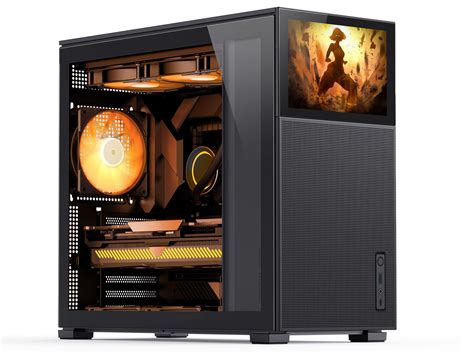
Common Causes of Overheating During Gaming
Several factors can contribute to your PC’s temperature rising to dangerous levels. Identifying the specific cause is the first step towards a solution.
Dust Accumulation
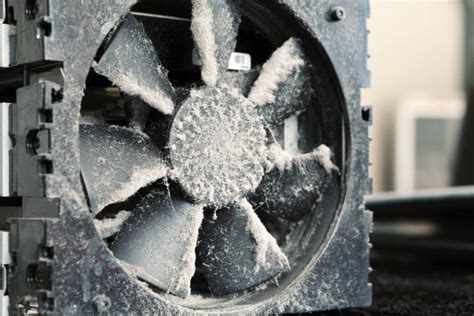
Over time, dust, pet hair, and other debris can build up on heatsinks, fans, and vents, acting as an insulating layer that traps heat and obstructs airflow. This is arguably the most common cause of overheating.
Poor Airflow and Cable Management
A cramped PC case with tangled cables can impede the natural flow of air, preventing cool air from entering and hot air from exiting efficiently. Insufficient or poorly placed case fans also exacerbate this issue.
Failing or Inefficient Fans
CPU, GPU, and case fans can degrade over time, losing RPM or failing entirely. An underperforming fan won’t move enough air to keep components cool.
Dried Out Thermal Paste
Thermal paste sits between your CPU/GPU and their respective heatsinks, facilitating heat transfer. After years of use, this paste can dry out and lose its effectiveness, creating an air gap that traps heat.
Overclocking
While overclocking can boost performance, it also significantly increases heat output. If your cooling solution isn’t robust enough to handle the extra heat, overheating is inevitable.
High Ambient Temperature
If your room is excessively hot, your PC’s cooling system will struggle to dissipate heat effectively, as the “cool” air it draws in is already warm.
Diagnosing Your PC’s Temperature Issues
To pinpoint the exact problem, you’ll need to monitor your system’s temperatures and perform some physical checks.
Software Monitoring
Use monitoring software like HWMonitor, MSI Afterburner, or Core Temp to check CPU and GPU temperatures while gaming. Healthy gaming temperatures typically range from 60-75°C for both, with spikes up to 80-85°C being acceptable but not ideal for prolonged periods. Consistent temperatures above 90°C are a red flag.
Visual Inspection
Power down your PC, unplug it, and open the side panel. Look for:
- Heavy dust buildup on heatsinks, fans, and vents.
- Fans that aren’t spinning or are spinning slowly when the PC is on.
- Obstructed airflow due to poor cable routing or components.
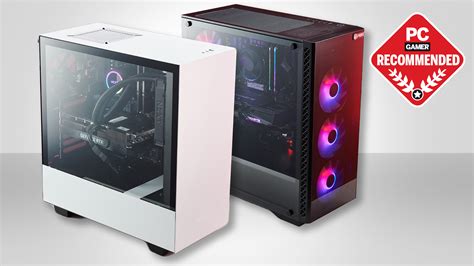
Effective Cooling Solutions and Improvements
Once you’ve diagnosed the cause, it’s time to implement solutions to bring those temperatures down.
Clean Your PC Thoroughly
Using compressed air, carefully blow out dust from heatsinks (CPU and GPU), fans, and all case vents. Hold fan blades gently to prevent them from spinning too fast and damaging their bearings. Do this outdoors or in a well-ventilated area.
Improve Airflow and Cable Management
Rearrange cables to keep them away from fan intake/exhaust paths. Ensure your case fans are installed correctly for optimal airflow – typically front intake, rear/top exhaust. Consider adding more case fans if your case has available slots and poor airflow.

Replace Thermal Paste
If your PC is a few years old or you suspect dried thermal paste, carefully clean off the old paste from your CPU/GPU and heatsink, then apply a fresh, high-quality thermal compound. This can significantly reduce core temperatures.
Upgrade Your Cooling System
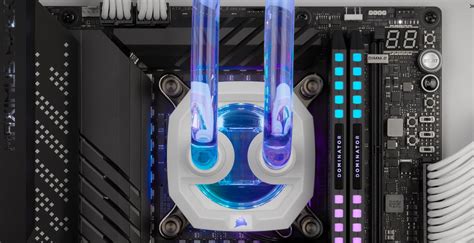
For persistent issues or if your current cooler is underperforming, consider upgrading. This could mean a more powerful air cooler for your CPU, an All-in-One (AIO) liquid cooler, or even an aftermarket GPU cooler. Ensure compatibility with your case and motherboard.
Adjust Settings and Undervolt
If overclocking is the culprit, dial back your overclocks. You can also try undervolting your CPU or GPU – reducing the voltage supplied to them while maintaining performance, which directly reduces heat output. This requires careful testing.
Control Ambient Temperature
Ensure your gaming space isn’t excessively hot. Use air conditioning or fans to keep room temperatures reasonable, especially during summer months.
Conclusion
Maintaining proper thermal conditions for your gaming PC isn’t just about preventing crashes; it’s about unlocking stable performance and maximizing the longevity of your components. By regularly cleaning your system, optimizing airflow, and upgrading cooling solutions where necessary, you can ensure your PC stays cool under pressure, allowing you to enjoy uninterrupted, high-fidelity gaming for years to come.


