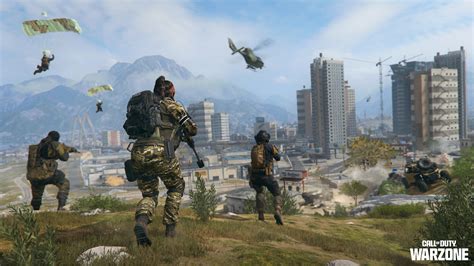
Optimize PC settings for max FPS in Warzone & smooth competitive play?

The Competitive Edge: Why Every FPS Matters in Warzone
In the high-stakes world of Call of Duty: Warzone, every frame per second (FPS) can be the difference between a glorious win and a frustrating defeat. Higher FPS not only makes the game feel smoother but also reduces input lag, allowing for quicker reactions and a more consistent visual experience. For competitive players, optimizing PC settings isn’t just a recommendation; it’s a necessity. This guide will walk you through the essential adjustments to squeeze every possible frame out of your system, ensuring you’re always performing at your peak.
In-Game Graphics Settings: Your First Line of Defense
The most significant FPS gains often come from tweaking Warzone’s in-game graphics settings. The general rule is to prioritize performance over visual fidelity. Here’s a breakdown of the key settings to adjust:
- Display Mode: Always use Fullscreen Exclusive. This gives Warzone priority access to your GPU, reducing input lag.
- Render Resolution: Keep this at 100%. Lowering it will make the game look blurry, and increasing it will tank your FPS. If you absolutely need more frames, consider lowering your display resolution instead.
- Aspect Ratio: Automatic.
- V-Sync: Disable this. V-Sync introduces input lag, even if it eliminates screen tearing. Instead, use G-Sync or FreeSync if your monitor supports it, or cap your FPS just below your monitor’s refresh rate.
- Custom Frame Rate Limit: Set to Unlimited or cap it just below your monitor’s refresh rate if you experience screen tearing without G-Sync/FreeSync.
- Display Gamma: 2.2 (sRGB).
- Brightness: Adjust to personal preference.
- Field of View (FOV): While higher FOV (100-120) is generally preferred for competitive play to see more, it can reduce FPS. Test what works best for your system and playstyle.
- Stream Quality: Normal or Low.
- Texture Resolution: Low. This is a major FPS killer if set too high without sufficient VRAM.
- Texture Filter Anisotropic: Low or Normal.
- Particle Quality: Low.
- Bullet Impacts & Sprays: Disabled.
- Shader Quality: Low.
- Tessellation: Disabled.
- On-demand Texture Streaming: Disabled. This can cause stutters.
- Shadow Map Resolution: Low or Lowest. Shadows are demanding.
- Cache Spot Shadows & Cache Sun Shadows: Enabled. This preloads shadows to prevent stutters.
- Particle Lighting: Low.
- DirectX Raytracing: Disabled. Raytracing is a huge FPS hit.
- Ambient Occlusion: Disabled.
- Screen Space Reflection (SSR): Disabled.
- Static Reflections: Low.
- Weather Grid Volumes: Disabled.
- Volumetric Quality: Low.
- Order Independent Transparency: Disabled.
- Post Process Anti-Aliasing: SMAA T2X or Filmic SMAA T2X. FXAA is blurry, Filmic has slight blur, SMAA T2X is a good balance.
- Depth of Field: Disabled.
- World Motion Blur & Weapon Motion Blur: Disabled. These make the game look blurry during movement.
- Film Grain: 0.00.
NVIDIA & AMD Control Panel Settings
Beyond in-game options, your GPU’s control panel offers crucial optimizations.
NVIDIA Control Panel:
- Manage 3D settings > Program Settings > Add Warzone:
- Image Sharpening: Off (or use in-game sharpening if preferred).
- Low Latency Mode: Ultra (reduces input lag significantly).
- Power Management Mode: Prefer maximum performance.
- Texture filtering – Quality: High performance.
- Vertical sync: Off (handled by in-game or G-Sync).
AMD Radeon Software:
- Gaming > Warzone profile:
- Radeon Anti-Lag: Enabled.
- Radeon Boost: Disabled (can cause visual artifacts).
- Radeon Image Sharpening: Disabled (or use in-game if preferred).
- Wait for Vertical Refresh: Off, Unless application specifies.
- Texture Filtering Quality: Performance.
- Tessellation Mode: AMD Optimized.
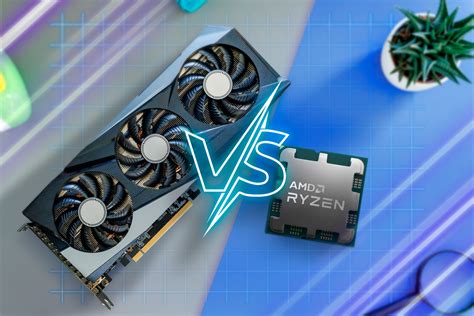
Windows Optimizations for Gaming Performance
Your operating system can also be a bottleneck. Clean up Windows to dedicate more resources to Warzone.
- Game Mode: Ensure Windows Game Mode is ON (Settings > Gaming > Game Mode).
- Background Apps: Turn off unnecessary background apps (Settings > Privacy > Background apps).
- Power Plan: Set to High Performance or Ultimate Performance (Search ‘Edit power plan’ > Power Options).
- Notifications: Disable notifications during gameplay (Focus Assist).
- Startup Apps: Disable non-essential programs from launching with Windows (Task Manager > Startup tab).
- Graphics Settings (Windows 10/11): Add Warzone and set it to ‘High Performance’ (Settings > System > Display > Graphics Settings).
- Clean Temporary Files: Regularly clear temporary files using Disk Cleanup.
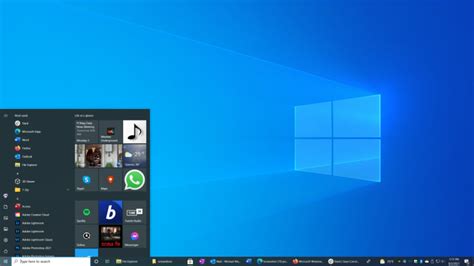
Driver Updates and Hardware Health
Keeping your system up-to-date and healthy is fundamental.
- GPU Drivers: Always update to the latest WHQL-certified graphics drivers from NVIDIA or AMD. These often include game-specific optimizations. Use Display Driver Uninstaller (DDU) for a clean install if experiencing issues.
- Chipset Drivers: Ensure your motherboard chipset drivers are up to date.
- BIOS/UEFI: While not frequent, checking for BIOS updates can sometimes improve stability and performance.
- RAM Speed: Ensure XMP (Intel) or DOCP (AMD) is enabled in your BIOS to run your RAM at its advertised speed.
- Storage: Install Warzone on an SSD. NVMe is ideal, but any SSD is vastly superior to an HDD for loading times and preventing stutters.
- Cooling: Monitor your CPU and GPU temperatures. Overheating components will throttle performance. Ensure good airflow and clean dust from your PC regularly.
Conclusion: Test, Tweak, and Dominate
Optimizing your PC for Warzone is an iterative process. After making changes, jump into a match and observe your FPS using an in-game counter or monitoring software like MSI Afterburner. If a setting doesn’t yield the desired results or introduces undesirable visual trade-offs, revert it. Experiment with slight variations to find the perfect balance for your specific hardware configuration and personal preference. With these optimizations, you’ll be well on your way to achieving peak performance, a smoother competitive experience, and ultimately, more victories in Warzone.