





How to optimize Windows settings for maximum FPS in competitive PC games?
In the fiercely competitive world of PC gaming, every frame per second (FPS) counts. A higher, more stable FPS can mean the difference between victory and defeat, offering smoother visuals, reduced input lag, and a more responsive gaming experience. While powerful hardware is fundamental, even the most beastly rig can be held back by unoptimized Windows settings. This comprehensive guide will walk you through the essential adjustments to fine-tune your operating system for maximum gaming performance, specifically for competitive titles.
1. Update Your Drivers and Windows OS
This is the bedrock of any performance optimization. Outdated graphics drivers, chipset drivers, or even Windows itself can introduce performance bottlenecks and stability issues.
Graphics Drivers:
- NVIDIA: Download GeForce Experience and use it to keep your drivers updated.
- AMD: Use AMD Radeon Software to manage and update your drivers.
- Intel: For integrated graphics, visit Intel’s official support site or use their Driver & Support Assistant.
Always perform a clean installation of new graphics drivers to avoid conflicts with previous versions.
Windows Updates:
While some updates can occasionally cause issues, keeping Windows up-to-date generally ensures you have the latest performance enhancements and security fixes. Just be mindful of large feature updates and consider delaying them until stable.
2. Leverage Windows Game Mode and Graphics Settings
Windows 10 and 11 offer built-in features designed to prioritize gaming performance.
Enable Game Mode:
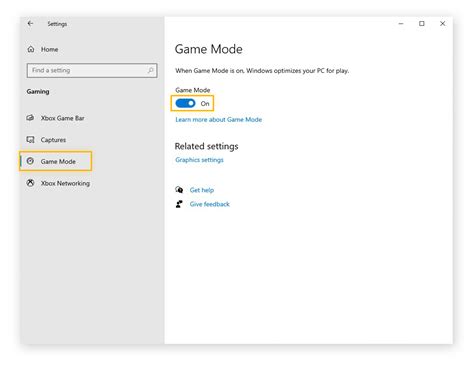
Go to Settings > Gaming > Game Mode and ensure it’s turned On. Game Mode aims to optimize your PC for play by preventing Windows Update from installing drivers and sending restart notifications, and by helping to achieve a more stable frame rate depending on the specific game and system.
Graphics Settings:
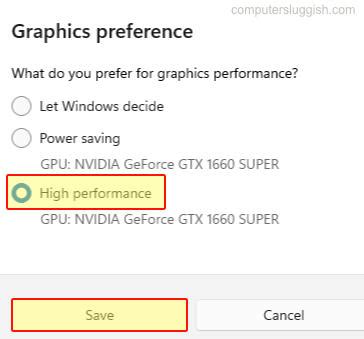
Within Settings > System > Display > Graphics (or Settings > Gaming > Game Mode > Graphics on older versions):
- Click “Browse” and add your game’s executable file (e.g.,
csgo.exe,valorant.exe). - Once added, click on the game, select “Options”, and choose “High performance”. This ensures your GPU is fully utilized for that specific application.
- Optionally, enable “Hardware-accelerated GPU scheduling” if available (under Graphics settings). This can reduce latency and improve performance on supported hardware.

3. Optimize Your Power Plan
Default power plans often prioritize energy saving over raw performance. For competitive gaming, you want every ounce of power.
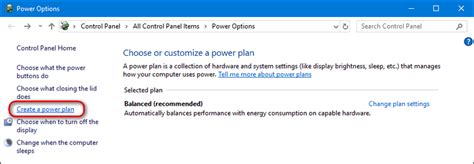
Go to Control Panel > Hardware and Sound > Power Options.
- Select “High performance”.
- If you don’t see it, click “Show additional plans”.
- On some systems, you might find an “Ultimate Performance” plan, which removes even more micro-management of hardware for maximum sustained performance. To enable it via Command Prompt (run as administrator):
powercfg -duplicatescheme e9a42b02-d5df-448d-aa00-03f1474967adthen refresh Power Options.
Once selected, click “Change plan settings” and then “Change advanced power settings”. Ensure that “Minimum processor state” is set to 100% under “Processor power management.”
4. Disable Unnecessary Visual Effects and Notifications
Windows is full of fancy visual effects that consume system resources without aiding gaming performance.
Adjust Visual Effects:
Search for “Adjust the appearance and performance of Windows” in the Start Menu. In the Performance Options window:
- Select “Adjust for best performance”. This will uncheck most visual effects.
- You can then manually re-enable a few that you find essential (e.g., “Smooth edges of screen fonts” for readability), but generally, fewer are better for FPS.
Turn Off Notifications and Focus Assist:
Pop-up notifications can be distracting and consume minor resources. Focus Assist can prevent these, but it’s better to manage them directly.
- Go to
Settings > System > Notificationsand turn off notifications for apps you don’t need alerts from during gaming. - Go to
Settings > System > Focus assistand choose “Off” or configure it to activate only during specific times.
5. Manage Background Apps and Startup Programs
Many applications run silently in the background or launch automatically with Windows, hogging valuable CPU, RAM, and even network bandwidth.
Background Apps:
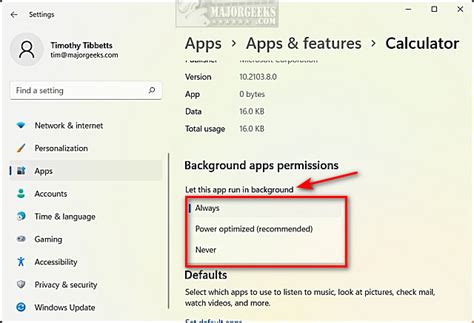
Go to Settings > Privacy > Background apps. Turn off “Let apps run in the background” entirely, or individually disable apps you don’t need running constantly.
Startup Programs:
Open Task Manager (Ctrl+Shift+Esc), go to the “Startup” tab. Disable any programs that you don’t need to launch immediately with Windows. Only keep essential drivers or security software enabled. Right-click and select “Disable” for non-essential items.
6. Advanced Network Tweaks (Optional)
For online competitive games, reducing network latency (ping) can be just as crucial as FPS.
Disable Nagle’s Algorithm:
This TCP/IP algorithm bundles small packets of data to improve network efficiency but can introduce minor delays. Disabling it can reduce latency for some games. This requires editing the Windows Registry and should be done with caution. (Instructions for this are often found in advanced gaming guides).
Ethernet over Wi-Fi:
Always prefer a wired Ethernet connection over Wi-Fi for competitive gaming. It provides a more stable, lower-latency connection.
Conclusion
Optimizing Windows for maximum FPS is an ongoing process. While these settings provide a strong foundation, remember to regularly update your drivers, monitor background processes, and test changes in-game to see their impact. By taking these steps, you’ll ensure your PC is operating at its peak potential, giving you the best possible advantage in your favorite competitive titles. Go forth and dominate!


