My gaming PC overheats. What are the top 3 cooling upgrades or setup tweaks?
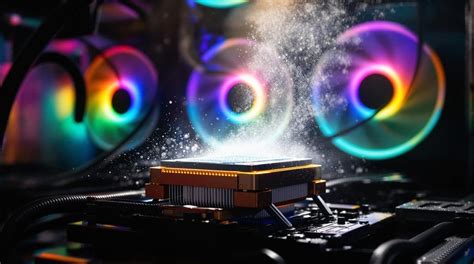
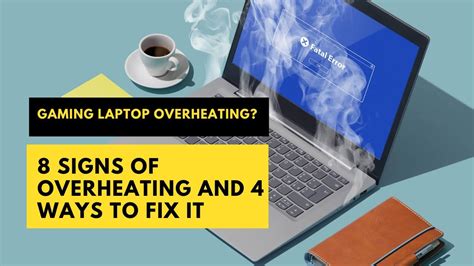
An overheating gaming PC isn’t just an annoyance; it can severely impact performance, lead to system instability, and even shorten the lifespan of your valuable components. When temperatures rise, your CPU and GPU will “throttle” their performance to prevent damage, resulting in frustrating frame drops and stuttering during intense gaming sessions. Addressing overheating proactively is crucial for maintaining optimal performance and protecting your investment.
Why Does My PC Overheat?
Before diving into solutions, it’s helpful to understand the common culprits behind high temperatures. Dust accumulation is a primary offender, acting as an insulating blanket on heatsinks and fans. Poor case airflow, often due to improper fan placement or cable clutter, traps hot air inside the chassis. Lastly, stock CPU coolers might struggle to keep up with the demands of modern, powerful processors, especially when overclocked or under heavy load.
Top 3 Cooling Upgrades & Setup Tweaks
1. Optimize Case Airflow and Fan Configuration
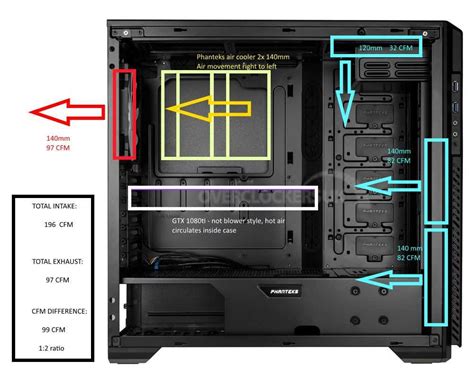
The flow of air through your PC case is fundamental to effective cooling. Many users overlook the importance of a balanced intake and exhaust system. Generally, you want cool air pulled in from the front and bottom of the case, and hot air pushed out from the top and rear.
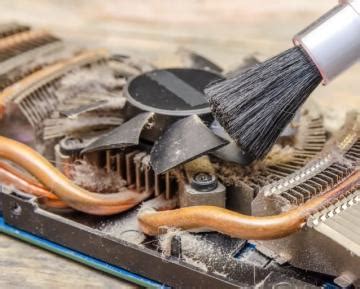
- Cleanliness is Key: Regularly clean dust from fan blades, vents, and heatsinks using compressed air. Dust acts as an insulator, trapping heat.
- Fan Placement: Ensure you have intake fans (pulling air in, typically at the front/bottom) and exhaust fans (pushing air out, typically at the rear/top). A slightly positive pressure (more intake than exhaust) can help prevent dust ingress.
- Upgrade Case Fans: Stock case fans are often basic. Upgrading to larger (e.g., 120mm or 140mm) or higher-quality fans with better static pressure and airflow can significantly improve thermal performance. Look for fans designed for airflow or static pressure depending on their location (static pressure for restricted areas like radiators).
- Cable Management: Untidy cables obstruct airflow. Route cables neatly behind the motherboard tray or out of the direct path of air, allowing for unrestricted movement of cool air to components.
2. Upgrade Your CPU Cooler
The CPU is one of the hottest components, and its stock cooler often isn’t sufficient for demanding gaming. Upgrading your CPU cooler is arguably the most impactful cooling improvement you can make.
- Aftermarket Air Coolers: These come in various sizes and designs, featuring larger heatsinks and more powerful fans than stock options. They are generally reliable, cost-effective, and provide excellent cooling performance for most CPUs. Ensure it fits your case and doesn’t interfere with RAM.
- All-in-One (AIO) Liquid Coolers: For higher-end CPUs or overclocking, AIO liquid coolers offer superior performance by circulating coolant through a radiator. They can be quieter under load and often have a sleeker aesthetic. However, they are typically more expensive and require careful installation.
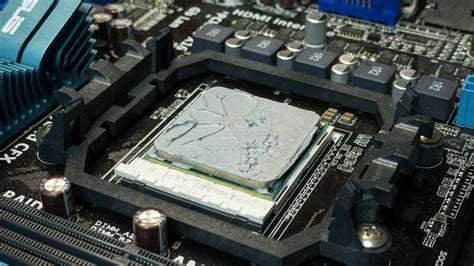
- Reapply Thermal Paste: Whether you’re upgrading your cooler or not, ensure the thermal paste between your CPU and heatsink is fresh and properly applied. Old, dried-out thermal paste loses its conductivity, hindering heat transfer. A pea-sized dot in the center of the CPU is a common and effective application method.
3. Improve GPU Cooling and Consider Tweaks
Your graphics card is another major heat generator, especially during gaming. While you can’t easily replace its cooler, you can optimize its operating environment and make some software tweaks.
- Ensure Direct Airflow: Make sure your case fans are providing adequate cool air to your GPU, particularly if it’s a large, multi-fan card. Sometimes, adding an intake fan at the bottom of the case, directly blowing towards the GPU, can make a significant difference.
- Clean GPU Heatsink and Fans: Like your CPU cooler, dust can accumulate on your GPU’s heatsink fins and fan blades. Carefully clean them with compressed air.
- Monitor GPU Fan Curves: Use software provided by your GPU manufacturer (e.g., MSI Afterburner, ASUS GPU Tweak) to monitor temperatures and adjust fan curves. You can set the fans to spin faster at lower temperatures to pre-emptively manage heat, though this will increase noise.
- Consider Undervolting: For advanced users, undervolting your GPU can significantly reduce its power consumption and, consequently, its heat output, often with minimal to no performance loss. This involves reducing the voltage supplied to the GPU core at specific clock speeds. Research your specific GPU model for best practices.
- Lower Ambient Temperature: While not a PC upgrade, ensuring your room isn’t excessively hot will give your PC’s cooling system less work to do.
Conclusion
Addressing an overheating gaming PC is a multi-faceted task, but focusing on these top three areas—optimizing case airflow, upgrading your CPU cooler, and fine-tuning your GPU’s thermal environment—will yield the most significant improvements. Regular cleaning and monitoring are also crucial for long-term health. By investing a little time and effort, you can ensure your gaming rig runs cool, stable, and performs at its peak for years to come.