How to effectively detail game performance issues in reviews?

The Critical Role of Performance in Game Reviews
In the vast landscape of video games, a title’s technical performance can often be as crucial to its reception as its gameplay or story. A captivating world can be marred by relentless stuttering, and an engaging combat system made frustrating by input lag. For reviewers, simply stating “the game runs poorly” isn’t enough. To truly serve your audience and provide valuable insight, detailing game performance issues effectively is paramount. This goes beyond subjective feelings, diving into observable data and specific scenarios that paint a clear picture for potential players.
Key Metrics and Observations to Quantify
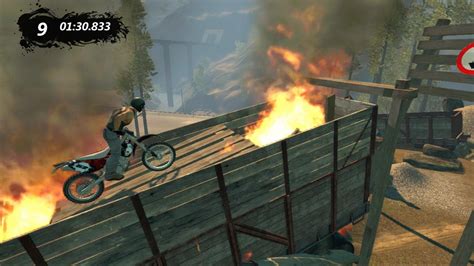
To provide actionable feedback, focus on quantifiable metrics and precise observations. Start with Frame Rate Per Second (FPS). Don’t just give an average; discuss the consistency. Does it dip severely in specific areas, during intense combat, or while loading new assets? Note the resolution and graphical settings used during your testing. Was it running at 1080p, 1440p, or 4K? Were settings on ‘High,’ ‘Ultra,’ or a custom mix?
Beyond raw FPS, address other common performance pitfalls. Look for micro-stuttering, inexplicable freezes, and significant input lag that can ruin responsiveness. Monitor loading times – are they excessively long, breaking immersion, or frequently encountered? Crashes are another critical point; document their frequency, the circumstances under which they occur, and any error codes reported.
Providing Essential Hardware Context
A performance review is incomplete without a clear understanding of the test system. Readers need to know if the issues are universal or specific to certain hardware configurations. Always list your system’s specifications:
- CPU: Processor model and generation (e.g., Intel Core i7-12700K, AMD Ryzen 7 5800X).
- GPU: Graphics card model and VRAM (e.g., NVIDIA GeForce RTX 3080 10GB, AMD Radeon RX 6800 XT 16GB).
- RAM: Amount and speed (e.g., 32GB DDR4-3600MHz).
- Storage: Type and capacity (e.g., 1TB NVMe SSD, 2TB SATA HDD).
- Operating System: Version (e.g., Windows 10, Windows 11).
- Drivers: The specific version of graphics drivers used (e.g., NVIDIA Game Ready Driver 537.42).
This detailed information allows readers to compare your experience to their own potential setup, providing invaluable context.
![Hardware specifications [14] | Download Table](/images/aHR0cHM6Ly90czMubW0uYmluZy5uZXQvdGg/aWQ9T0lQLkVqWW9sZ0laTE1ST1F1WEJOeF91M2dIYUhhJnBpZD0xNS4x.webp)
Pinpointing Specific Problem Areas
General statements like “the game runs badly” are unhelpful. Instead, identify and describe precise scenarios where performance issues manifest. Does frame rate tank only in crowded city centers, or during particular boss fights? Are cutscenes poorly optimized, showing noticeable judder? Do certain visual effects trigger significant drops? The more specific you are, the more useful your review becomes to both potential players and developers seeking to improve their product.
Tools and Techniques for Accurate Assessment
Leverage readily available tools to gather objective data:
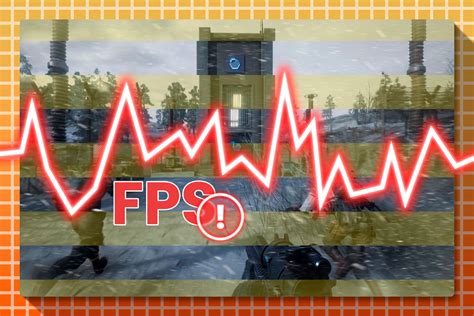
- FPS Monitoring Software: Programs like MSI Afterburner (with RivaTuner Statistics Server), Fraps, or even in-game FPS counters provide real-time and logged frame rate data.
- Video Capture: Recording gameplay allows you to revisit problematic sections, verify stuttering, and provide visual evidence if necessary (though for a text review, detailed descriptions are key).
- System Information Utilities: Tools like CPU-Z, GPU-Z, or simply the Windows System Information panel help accurately document your hardware.
Remember to test across various settings if possible. Does lowering shadow quality or disabling ray tracing significantly improve performance without major visual degradation? This insight can be crucial for players with less powerful systems.
Structuring Your Performance Section for Clarity
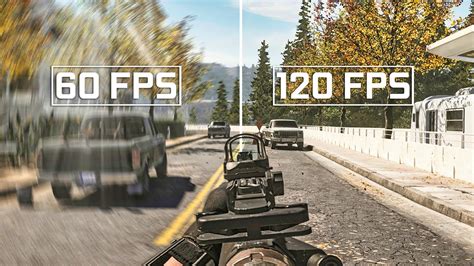
Integrate your performance analysis seamlessly into your review. Consider a dedicated “Performance” or “Technical Aspects” section. Start with an overall summary, then dive into specifics. Use clear, concise language, avoiding jargon where possible or explaining it if necessary. Comparisons to other games in the same genre or previous titles by the same developer can also provide useful context for expected performance.
Be objective and avoid overly emotional language. While frustration is understandable, a factual description of the issue (“FPS dropped from 60 to 25 during this sequence”) is far more impactful than “the game was an unplayable mess.” Always mention if you’ve tested any patches or updates that were released during your review period, as these can drastically alter a game’s technical state.

Conclusion: Empowering Informed Decisions
By meticulously detailing game performance issues, you elevate your review from a mere opinion to an invaluable resource. You empower readers to make informed purchasing decisions, helping them determine if their hardware can handle a title or if they should wait for optimizations. Moreover, comprehensive performance feedback can implicitly (or explicitly) pressure developers to address critical technical flaws, ultimately contributing to a better gaming experience for everyone. A thorough performance section is not just good reviewing; it’s a service to the gaming community.