





How to safely find & install community mods without common pitfalls or game issues?

Embracing the World of Community Mods Safely
Community modifications (mods) offer an incredible way to extend the life, enhance the graphics, add new features, or even completely transform your favorite video games. From subtle quality-of-life improvements to expansive new quests and worlds, mods are a testament to the creativity of gaming communities. However, diving into the world of modding without proper precautions can lead to frustrating game crashes, corrupted saves, or even security risks. This guide will walk you through the essential steps to safely find, install, and manage community mods, ensuring a smooth and enjoyable experience.
Where to Find Reputable Mods and Communities
The first step to safe modding is knowing where to look. Not all sources are created equal, and some can pose risks to your game files or system. Sticking to well-established platforms is crucial.
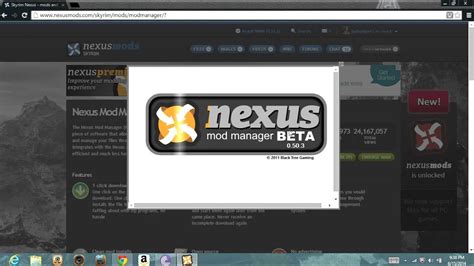
- Nexus Mods: Arguably the largest and most popular modding site, especially for single-player RPGs like Skyrim, Fallout, and Cyberpunk 2077. It offers extensive mod pages, user reviews, forums, and a robust mod manager (Vortex).
- Steam Workshop: Integrated directly into Steam, the Workshop provides a simple, one-click installation process for many games (e.g., Garry’s Mod, RimWorld, Cities: Skylines). While convenient, not all games support it, and its features can be more limited than dedicated mod sites.
- Official Game Forums & Discord Servers: Many game developers host official forums or Discord servers where mod creators share their work. These are often reliable sources, as they are moderated and have direct links to the community.
- Dedicated Modding Sites: Some games have their own specialized modding websites (e.g., ModDB for various older titles, CurseForge for Minecraft and World of Warcraft). Always verify the legitimacy and activity of such sites.
Avoid: Random websites, unverified file-sharing platforms, or forums with little activity and poor moderation. These can harbor outdated, broken, or malicious files.

Pre-Installation Checklist: Preparation is Key
Before you even think about downloading a mod, a little preparation can save you a lot of headaches later.
- Backup Your Game Files: This is perhaps the most critical step. Before installing any mods, especially if it’s your first time, create a backup of your game’s installation folder and your save files. If anything goes wrong, you can easily revert to a working state.
- Read Mod Descriptions Carefully: Every reputable mod will have a detailed description. Pay close attention to:
- Requirements: Does the mod need other mods (dependencies) or specific game versions/DLCs to work?
- Compatibility: Does it conflict with other popular mods? Are there patches available for conflicts?
- Installation Instructions: Mod authors often provide specific steps for installation, which can vary widely.
Installing Mods: Methods and Best Practices
The method of installation largely depends on the game and the mod itself.
Using Mod Managers
For complex games with many mods (e.g., Bethesda titles), mod managers are indispensable. They automate installation, track files, manage load order, and simplify uninstallation.
- Vortex (Nexus Mods): User-friendly and integrates directly with Nexus Mods for easy downloads and updates.
- Mod Organizer 2 (MO2): More advanced, it uses a ‘virtual file system’ that keeps your game directory pristine, making it ideal for experienced modders who frequently add/remove mods.
Always follow the mod manager’s instructions for setup and mod installation.
Manual Installation (Use with Caution)
Some smaller mods or games without robust manager support may require manual installation. This usually involves dragging and dropping files into specific game folders. If you must install manually:
- Follow Instructions Precisely: Deviating from the author’s steps can lead to issues.
- Understand File Structure: Know where the game expects certain file types to be.
- Keep Notes: Write down which files you added and where, making uninstallation easier.
Managing Load Order and Avoiding Conflicts
When multiple mods are installed, especially those that alter the same game assets or scripts, their ‘load order’ becomes crucial. The order in which mods are loaded determines which changes take precedence.
- Automatic Sorting Tools: Mod managers often come with built-in tools (like LOOT for Bethesda games) that automatically optimize your load order. Always run these after adding new mods.
- Manual Adjustments: Sometimes, manual tweaks are necessary, especially if you encounter conflicts. Mod authors often specify where their mod should be placed in the load order.
- Patching: Some conflicts can be resolved with compatibility patches, which are mini-mods designed to make two conflicting mods work together.
Common Pitfalls and Troubleshooting
Even with careful planning, issues can arise. Knowing how to troubleshoot is key.
- Game Crashes: The most common issue.
- Identify the Culprit: Install mods one by one or in small batches, testing the game after each. If a crash occurs, the last mod installed is likely the cause.
- Check Crash Logs: Many games or modding tools generate crash logs, which can point to specific files or mods causing the problem.
- Disable and Re-enable: Use your mod manager to temporarily disable suspect mods.
- Monitor FPS: Keep an eye on your frame rate.
- Adjust Graphics Settings: Lower in-game settings or reduce the number of visual mods.
- Verify Game Files: Use Steam’s ‘Verify integrity of game files’ feature to restore any corrupted original files.
- Revert to Backup: If all else fails, restore your game from the backup you made.

Conclusion: Enjoying a Stable Modded Experience
Modding can breathe new life into your favorite games, offering countless hours of additional fun and discovery. By following these guidelines for finding reputable sources, preparing meticulously, installing carefully with mod managers, and knowing how to troubleshoot, you can navigate the exciting world of community mods safely and avoid the common pitfalls. Remember, patience and a methodical approach are your best allies for a stable and enhanced gaming experience.

