





How to optimize GPU settings for higher FPS in competitive PC games?
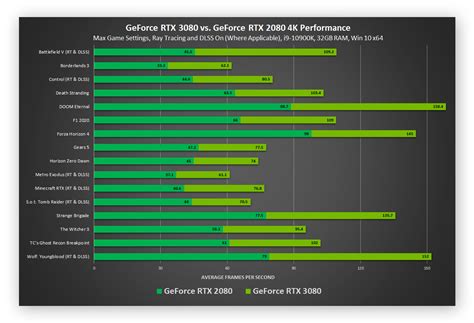
Competitive PC gaming demands not just skill, but also a system that performs flawlessly. One of the most critical factors influencing your performance and enjoyment is your Frames Per Second (FPS). Higher FPS translates to smoother gameplay, reduced input lag, and a significant edge over opponents. This guide will walk you through optimizing your GPU settings to squeeze every possible frame out of your hardware, ensuring you’re always playing at your peak.
Update Your Graphics Drivers Regularly
The foundation of any GPU optimization strategy begins with ensuring your graphics drivers are up to date. Both NVIDIA and AMD frequently release new drivers that include performance enhancements, bug fixes, and optimizations for the latest games. Running outdated drivers can significantly hinder your GPU’s potential and even cause stability issues.
- NVIDIA: Use GeForce Experience or download directly from the NVIDIA website.
- AMD: Use AMD Software: Adrenalin Edition or download from the AMD website.

Master Your GPU Control Panel Settings
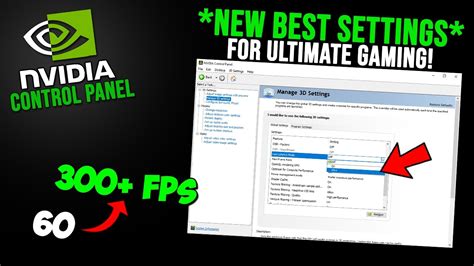
Your GPU’s control panel (NVIDIA Control Panel or AMD Software) offers a wealth of global and program-specific settings that can drastically impact your FPS. Tweaking these carefully can yield substantial gains without compromising too much on visual quality.
NVIDIA Control Panel Key Settings:
- Power Management Mode: Set to “Prefer Maximum Performance.” This ensures your GPU always runs at its highest clock speeds.
- Texture Filtering – Quality: Set to “High Performance.” This prioritizes FPS over texture detail.
- Low Latency Mode: Experiment with “On” or “Ultra.” This reduces input lag but can sometimes cause stuttering on older GPUs.
- Vertical Sync (VSync): Set to “Off” for competitive gaming. VSync introduces input lag, even if it eliminates screen tearing. If tearing is unbearable, consider G-Sync/FreeSync monitors.
- Shader Cache Size: Set to “Unlimited” or a high value to prevent stutters.
AMD Software Key Settings:
- Radeon Anti-Lag: Enable this to reduce input lag.
- Radeon Chill: Disable this, as it limits FPS to save power.
- Radeon Boost: Experiment with this. It dynamically lowers resolution during fast motion to increase FPS.
- Image Sharpening: Can be enabled for a crisper image, but use sparingly if FPS is critical.
- Texture Filtering Quality: Set to “Performance.”
Optimize In-Game Graphics Settings
This is where the most significant FPS gains can often be found. Every game has its own set of graphics options, and understanding which ones are resource-intensive is key. Prioritize settings that offer a competitive advantage (like view distance) and reduce or disable those that are purely aesthetic.
- Resolution: Always aim for your monitor’s native resolution. Lowering it can make the image blurry, but if desperate for FPS, it’s a powerful lever.
- Shadow Quality: One of the biggest FPS killers. Reduce to Medium or Low.
- Anti-Aliasing (AA): Techniques like MSAA are very demanding. FXAA or TAA are less impactful, or disable it entirely if you prefer sharp edges over smooth ones.
- Post-Processing Effects: Bloom, depth of field, motion blur, and lens flares are often unnecessary for competitive play and consume significant resources. Disable them.
- Texture Quality: This depends heavily on your GPU’s VRAM. If you have enough VRAM (e.g., 8GB+), you can often keep this on High without much FPS impact. If VRAM is limited, lower it.
- View Distance/Draw Distance: While demanding, this can be crucial for spotting enemies. Balance it against other settings. Keep it high if possible, then lower others.
- Environmental Detail/Foliage: Reduce these as they often add clutter and reduce visibility without much competitive benefit.

Consider GPU Overclocking (Advanced)
For advanced users, overclocking your GPU can provide a moderate increase in FPS. This involves increasing the GPU’s core clock and memory clock frequencies. However, it comes with risks, including increased heat, system instability, and potential hardware degradation if not done carefully. Use tools like MSI Afterburner or EVGA Precision X1, and only proceed after thorough research and understanding of the risks.
Monitor Your Performance and Test Thoroughly
Optimizing is an iterative process. You need to monitor your FPS to see the impact of your changes. Tools like MSI Afterburner (with RivaTuner Statistics Server), NVIDIA GeForce Experience’s FPS overlay, or AMD’s Performance Overlay can help you track FPS, GPU usage, and temperatures in real-time. Test your settings in various scenarios (e.g., busy firefights, open areas) to ensure stability and consistent performance.
System Maintenance and Background Processes
Beyond GPU-specific settings, ensure your entire system is optimized:
- Close Background Applications: Web browsers, streaming apps, and other software can consume CPU and RAM, impacting overall system performance.
- Keep OS Updated: Windows updates often include performance improvements.
- Disk Defragmentation/TRIM: Ensure your SSDs are using TRIM (usually automatic) or defragment your HDDs for optimal read/write speeds.
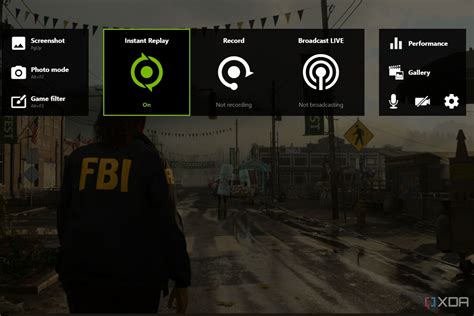
- Disable Game Bar/Overlays: Windows Game Bar and other in-game overlays can sometimes introduce overhead.

Conclusion
Achieving higher FPS in competitive PC games is a multi-faceted endeavor, combining driver maintenance, meticulous control panel adjustments, smart in-game settings, and overall system hygiene. By systematically applying these optimization techniques, you can unlock your GPU’s full potential, ensuring a smoother, more responsive gaming experience that can directly translate into improved competitive performance. Remember to make changes incrementally and test thoroughly to find the perfect balance for your specific setup and game of choice.


