Optimal GPU driver settings for stable gaming FPS and minimal input lag?
The Crucial Role of GPU Driver Settings in Gaming Performance
For PC gamers, achieving stable frames per second (FPS) and minimizing input lag are paramount to an enjoyable and competitive experience. While powerful hardware is a solid foundation, the software that orchestrates it – your GPU drivers – plays an equally critical role. Properly configured driver settings can transform your gaming experience, providing a noticeable boost in fluidity and responsiveness. This guide will walk you through the optimal settings for both NVIDIA and AMD graphics cards to help you strike that perfect balance.
Before diving into specific settings, it’s essential to understand a few general principles. Always perform a clean installation of new drivers, especially when upgrading your GPU or encountering performance issues. Using tools like Display Driver Uninstaller (DDU) can ensure no residual files interfere with the new installation. Furthermore, while the latest drivers often bring performance improvements and bug fixes, sometimes a slightly older, more stable version might offer better consistency for your specific setup. Experimentation is key.
NVIDIA Control Panel: Maximizing Performance and Responsiveness
NVIDIA users have a robust suite of options within the NVIDIA Control Panel. Here are the settings to prioritize:
- Low Latency Mode: Set this to ‘Ultra’ for games that are CPU-bound. This mode queues frames just-in-time for the GPU, significantly reducing input lag. For GPU-bound games, ‘On’ or ‘Off’ might be better, but Ultra is generally the go-to for competitive play.
- Max Frame Rate: Capping your FPS slightly below your monitor’s refresh rate (e.g., 141 FPS for a 144Hz monitor) when using G-Sync/FreeSync can prevent tearing and further reduce input lag by allowing G-Sync to operate within its optimal range.
- Power Management Mode: Set to ‘Prefer maximum performance’. While this might consume slightly more power, it prevents your GPU from downclocking during intense gaming sessions, ensuring consistent performance.
- Texture Filtering – Quality: Choose ‘High Performance’. This prioritizes FPS over minor visual fidelity in texture filtering, which is often imperceptible during fast-paced gameplay.
- Vertical Sync (V-Sync): Generally, keep this ‘Off’ in the driver settings and manage it in-game, or rely on G-Sync/FreeSync. V-Sync can introduce significant input lag if not handled correctly.
- G-Sync/FreeSync (Adaptive Sync): Ensure this is enabled in both the NVIDIA Control Panel (or AMD Radeon Software) and your monitor’s settings if you have a compatible display. This dynamically matches your monitor’s refresh rate to your GPU’s frame rate, eliminating tearing without the input lag of traditional V-Sync.
AMD Radeon Software: Fine-Tuning for Smooth Gameplay
AMD users can leverage the Radeon Software to optimize their gaming experience. Here are the key settings:
- Radeon Anti-Lag: Enable this feature. Similar to NVIDIA’s Low Latency Mode, Anti-Lag helps reduce input lag by dynamically adjusting the pace of CPU work to ensure the GPU is always busy.
- Radeon Boost: This feature dynamically lowers the resolution in fast-motion scenes, allowing for higher frame rates and a smoother experience without a noticeable drop in visual quality. Enable it for an FPS boost in supported games.
- Radeon Chill: If you’re looking to save power or keep your GPU cooler without sacrificing too much performance, Radeon Chill allows you to set a minimum and maximum FPS range. This is less about competitive advantage and more about efficiency.
- Enhanced Sync / FreeSync: Ensure Enhanced Sync is enabled in conjunction with FreeSync if your monitor supports it. Enhanced Sync aims to provide a tear-free experience similar to V-Sync but with less input lag when FreeSync is not active or outside its range.
- Power Efficiency: Disable this. Similar to NVIDIA’s Power Management, disabling Power Efficiency ensures your GPU operates at its full potential during gaming, preventing unnecessary downclocking.
Beyond Driver Settings: Monitor and In-Game Optimization
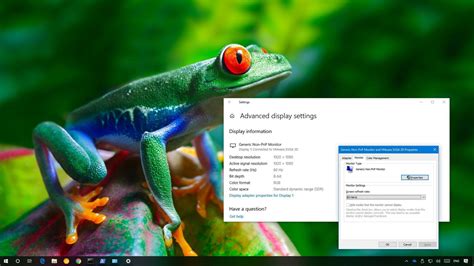
Driver settings are just one piece of the puzzle. Ensure your monitor is set to its highest refresh rate in Windows Display Settings. For instance, if you have a 144Hz monitor, make sure Windows isn’t defaulting to 60Hz. Additionally, many modern games include their own graphics options for input lag reduction, such as an in-game frame rate limiter or specific low-latency modes. Always check these settings and integrate them with your driver configurations.
Testing and Conclusion
Optimizing GPU driver settings is not a one-size-fits-all solution. What works perfectly for one gamer might not be ideal for another due to differences in hardware, games played, and personal preferences. After adjusting your settings, it’s crucial to test them in your most frequently played games. Use in-game FPS counters or external monitoring tools (like MSI Afterburner) to observe the impact on frame rates, frame times, and overall responsiveness. Don’t be afraid to revert changes if they negatively affect your experience. By methodically tweaking and testing, you can achieve a stable, high-FPS gaming experience with minimal input lag, giving you the edge you need.