





How to optimize my 144Hz gaming monitor for competitive FPS titles on Windows?

Introduction: The Competitive Edge of 144Hz
For competitive FPS players, every millisecond counts. A 144Hz monitor offers a significant advantage over standard 60Hz displays, providing smoother visuals and reduced input lag. However, simply owning a 144Hz monitor isn’t enough; proper optimization is crucial to fully harness its capabilities on Windows for that coveted competitive edge.
Verifying Your 144Hz Refresh Rate
Before diving into advanced optimizations, ensure your monitor is actually running at 144Hz. Many users mistakenly leave their monitor at default settings.
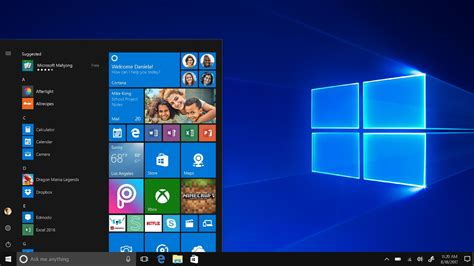
Windows Display Settings:
- Right-click on your desktop and select “Display settings.”
- Scroll down and click “Advanced display settings.”
- Under “Choose a refresh rate,” select 144Hz (or the highest available).
NVIDIA Control Panel / AMD Radeon Software:
It’s also wise to confirm this in your GPU’s control panel:
- NVIDIA: Right-click desktop > NVIDIA Control Panel > Display > Change resolution. Ensure 144Hz is selected under the resolution you’re using.
- AMD: Right-click desktop > AMD Radeon Software > Display. Verify the refresh rate.
Optimizing In-Game Settings
The settings within your game are paramount for high FPS and low latency.
- Refresh Rate: Always ensure the in-game display settings match your monitor’s 144Hz refresh rate.
- Resolution: Stick to your monitor’s native resolution (e.g., 1920×1080) for the sharpest image and best performance.
- Graphics Quality: For competitive FPS, prioritize performance over visual fidelity. Set most graphics options (shadows, anti-aliasing, textures, post-processing) to Low or Off. This maximizes your frame rate, ensuring you consistently hit or exceed 144 FPS.
- V-Sync: Disable V-Sync in-game. While it prevents screen tearing, it introduces input lag, which is detrimental in competitive play.
Fine-Tuning Monitor Settings
Many 144Hz monitors come with their own OSD (On-Screen Display) settings that can impact performance.
- Response Time / Overdrive: This setting controls how quickly pixels change color. Experiment with ‘Medium’ or ‘Fast’ settings. Too aggressive (‘Fastest’ or ‘Ultra Fast’) can introduce inverse ghosting or overshoot, while too low can cause motion blur.
- Low Input Lag Mode: If your monitor has a specific ‘Low Input Lag’ or ‘Game Mode’ option, enable it. This bypasses certain image processing to reduce latency.
- Black Equalizer / Dynamic Contrast: Adjust carefully. While Black Equalizer can help spot enemies in dark areas, over-adjusting can wash out details. Disable Dynamic Contrast as it can cause distracting brightness shifts.
GPU Driver Configuration (NVIDIA & AMD)
Your graphics card drivers offer powerful optimization tools.
NVIDIA Specifics:
- G-Sync / FreeSync (Adaptive Sync): For competitive FPS, many players prefer to disable G-Sync/FreeSync if they can consistently maintain FPS above their refresh rate (144 FPS). This completely removes any potential input lag introduced by frame synchronization. If your FPS dips below 144 consistently, G-Sync/FreeSync can provide a smoother experience without tearing, but ensure you also cap your FPS slightly below 144 (e.g., 141-143 FPS) for optimal G-Sync performance without added latency.
- Low Latency Mode: Set to ‘Ultra’ in the NVIDIA Control Panel for applicable games to reduce render queue frames, minimizing input lag.
- Power Management Mode: Set to ‘Prefer maximum performance.’
AMD Specifics:
- Radeon FreeSync: Similar to G-Sync, consider disabling it if you maintain high FPS, or cap FPS slightly below 144 for optimal FreeSync operation.
- Radeon Anti-Lag: Enable this to reduce input lag by dynamically adjusting CPU work to ensure it doesn’t get too far ahead of the GPU.
- Radeon Chill: Disable this, as it caps your FPS to save power, which is counterproductive for competitive play.
Windows-Level Optimizations
Don’t forget the operating system itself needs a little tweaking.
- Game Mode: Ensure Windows Game Mode is enabled (Settings > Gaming > Game Mode). It prioritizes system resources for your game.
- Disable Fullscreen Optimizations: For some games, this can introduce input lag. Navigate to your game’s executable, right-click > Properties > Compatibility tab, and check “Disable fullscreen optimizations.”
- Power Plan: Set your Windows power plan to ‘High Performance’ (Control Panel > Hardware and Sound > Power Options).
- Background Apps: Close unnecessary background applications and processes that consume CPU or GPU resources.
Monitor Calibration and Clarity
While not directly affecting FPS, proper calibration ensures clear vision.
- Brightness, Contrast, Gamma: Adjust these settings to your preference and lighting conditions. Aim for clear visibility without washing out details.
- Color Temperature: A ‘Standard’ or ‘User’ setting is usually best. Avoid overly warm or cool presets.
Many online tools and guides can help with monitor calibration for optimal visual clarity.
Conclusion
Optimizing your 144Hz monitor for competitive FPS on Windows is a multi-layered process involving display settings, in-game configurations, GPU drivers, and Windows tweaks. By methodically adjusting these settings, you can ensure your system is running at peak performance, providing you with the smoothest visuals and lowest input lag possible. This attention to detail will translate directly into a more responsive and ultimately, more competitive gaming experience.


