





Gaming PC overheating? What are key GPU temps & actionable cooling solutions?
Understanding Your GPU’s Thermal Comfort Zone
Your graphics processing unit (GPU) is the heart of your gaming PC, working tirelessly to render the stunning visuals you enjoy. However, this hard work generates heat, and excessive heat can lead to performance degradation, system instability, and even permanent damage. Understanding what constitutes a ‘healthy’ GPU temperature is the first step in maintaining your system.
Generally, for most modern GPUs, the following temperature ranges apply:
- Idle: When your PC is at rest or performing light tasks, your GPU should ideally sit between 30°C and 50°C.
- Gaming Load: During intense gaming sessions, temperatures between 60°C and 80°C are typically considered safe and normal. Some high-performance cards might briefly touch the low 80s under heavy load without immediate concern.
- Warning Zone: If your GPU consistently operates between 80°C and 90°C during gaming, it’s a clear sign of poor cooling. This often triggers thermal throttling, where the GPU automatically reduces its clock speed to prevent damage, leading to noticeable performance drops.
- Danger Zone: Sustained temperatures above 90°C are critical and should be addressed immediately. Prolonged exposure to such heat can significantly shorten the lifespan of your GPU and other components.
The Perils of an Overheating GPU
Ignoring high GPU temperatures comes with a host of negative consequences beyond just reduced performance:
- Performance Throttling: As mentioned, the GPU will intentionally slow down to protect itself, resulting in lower frame rates, stuttering, and an overall less enjoyable gaming experience.
- System Instability: Overheating can lead to random crashes, freezes, and the dreaded Blue Screen of Death (BSOD), disrupting your gaming and work.
- Component Degradation: Prolonged exposure to high temperatures accelerates the aging process of electronic components, potentially leading to premature hardware failure for your GPU, motherboard, and even power supply.
- Increased Fan Noise: Your GPU and case fans will spin at maximum RPMs to try and dissipate heat, creating an annoying amount of noise.
How to Monitor Your GPU Temperature
Before you can fix an overheating problem, you need to confirm it. Several free tools allow you to monitor your GPU’s temperature in real-time:
- MSI Afterburner: A popular utility for overclocking and monitoring, offering detailed graphs for temperatures, clock speeds, and fan speeds.
- HWMonitor: Provides a comprehensive overview of all your system’s sensors, including CPU, GPU, and motherboard temperatures.
- GPU-Z: A lightweight utility that gives detailed information about your GPU, including real-time sensor readings.
Run one of these tools in the background while playing a demanding game to get an accurate reading of your GPU’s temperature under load.
Actionable Cooling Solutions for Your Gaming PC
Once you’ve identified an overheating issue, it’s time to take action. Here are several effective solutions, ranging from simple maintenance to more advanced upgrades:
1. A Thorough Dusting
Dust is the nemesis of PC cooling. It accumulates on fans, heatsinks, and vents, acting as an insulating layer that traps heat. Regular cleaning can drastically improve airflow and heat dissipation.
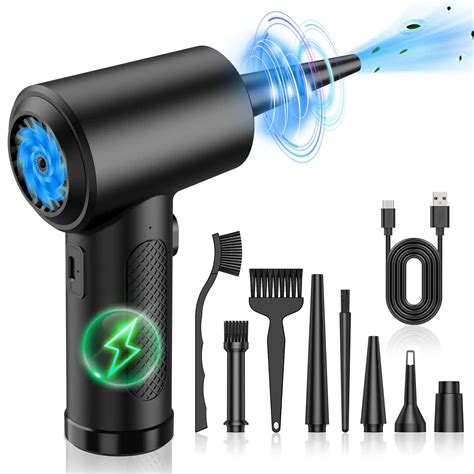
- Tools: Use compressed air, a soft brush, and a microfibre cloth.
- Method: Disconnect power, take your PC outside or to a well-ventilated area, and use short bursts of compressed air to blow dust out of your CPU cooler, GPU heatsink, power supply, and case fans. Hold fan blades gently while cleaning to prevent them from spinning too fast.
2. Optimize Case Airflow
Efficient airflow inside your PC case ensures cool air is drawn in and hot air is expelled. Poor cable management or incorrect fan placement can disrupt this flow.
- Fan Configuration: Aim for a balance of intake (front/bottom) and exhaust (rear/top) fans. A slightly positive pressure (more intake than exhaust) can help keep dust out.
- Cable Management: Route cables neatly behind the motherboard tray or along the case’s edges to prevent them from obstructing airflow.
3. Upgrade Your Case Fans
Stock case fans are often basic. Upgrading to higher-quality fans with better static pressure or airflow (CFM) can make a significant difference.
- Consider Fan Types: Fans designed for airflow (high CFM) are good for unrestricted areas, while static pressure fans excel at pushing air through restrictive areas like radiators or dense heatsinks.
- Size Matters: Larger fans generally move more air at lower RPMs, resulting in less noise.
4. Reapply Thermal Paste
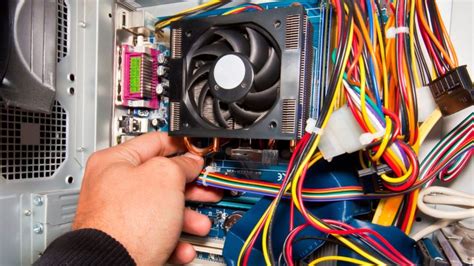
The thermal paste between your GPU die and its cooler helps transfer heat efficiently. Over time, this paste can dry out and lose effectiveness. Replacing it can significantly improve cooling.
- Caution: This is a more advanced task. If you’re uncomfortable disassembling your GPU cooler, seek professional help.
- Method: Carefully remove the GPU cooler, clean off the old thermal paste with isopropyl alcohol, and apply a small dot or line of new, high-quality thermal paste before reassembling.
5. Consider Aftermarket GPU Coolers or AIO/Custom Loops
For high-end GPUs that consistently run hot, an aftermarket air cooler or a liquid cooling solution might be necessary.
- Aftermarket Air Coolers: These are usually larger and more efficient than stock coolers, featuring bigger heatsinks and more powerful fans.
- All-in-One (AIO) or Custom Liquid Cooling: For the ultimate cooling performance, an AIO or custom liquid loop can dramatically reduce GPU temperatures, especially beneficial for heavily overclocked systems.

6. Undervolting and Underclocking
These software-based solutions can reduce your GPU’s power consumption and heat output without necessarily sacrificing much performance.
- Undervolting: Reduces the voltage supplied to the GPU core while maintaining clock speeds. This lowers power draw and heat.
- Underclocking: Reduces the GPU’s clock speed. While it lowers performance slightly, it can drastically reduce heat, especially useful if your GPU is heavily throttling anyway.
- Tools: MSI Afterburner is excellent for both undervolting and underclocking your GPU.
7. Environmental Factors
Sometimes, the problem isn’t just inside the PC. Your environment plays a role too.
- Room Temperature: A cooler room means cooler intake air for your PC.
- PC Placement: Ensure your PC isn’t tucked away in an enclosed cabinet where hot air can recirculate. Give it plenty of breathing room.
- Elevate PC: If your case has bottom intake fans, consider placing your PC on a small stand to improve airflow.
Prevention is Key: Regular Maintenance
The best way to combat GPU overheating is through proactive prevention. Make it a habit to:
- Regularly check your GPU temperatures, especially during demanding games.
- Clean your PC’s interior and filters every 3-6 months.
- Ensure your case has adequate airflow and good cable management.
Conclusion
A hot GPU is a sad GPU, and ultimately, a sad gamer. By understanding key GPU temperature ranges and implementing these actionable cooling solutions, you can prevent overheating, ensure stable performance, extend the lifespan of your valuable hardware, and enjoy your gaming sessions without interruption. Don’t let heat be the enemy of your gaming experience; take control of your PC’s thermal management today.


