





How to troubleshoot sudden FPS drops during intense gaming sessions?

The Frustration of Lag: Understanding FPS Drops
There’s nothing more frustrating than being in the middle of an intense gaming session, perfectly lining up that headshot or executing a critical combo, only for your frames per second (FPS) to suddenly plummet. These sudden drops can turn a thrilling experience into a stuttering mess, costing you victories and immersion. Understanding why these drops occur is the first step toward resolving them and reclaiming your smooth gameplay.

Common Culprits Behind FPS Instability
FPS drops are rarely due to a single, easily identifiable issue. More often, they’re a symptom of underlying problems that can range from software conflicts to hardware limitations. Let’s break down the most frequent offenders:
1. Software and Driver Issues
- Outdated or Corrupt Drivers: Graphics card drivers (GPU drivers) are paramount for gaming performance. Old, buggy, or corrupt drivers are a leading cause of FPS issues. Chipset drivers and other system drivers can also play a role.
- Background Applications: Resource-intensive programs running in the background (web browsers with many tabs, streaming software, antivirus scans) can hog CPU and RAM, leaving fewer resources for your game.
- Game Settings Overload: Pushing graphical settings too high for your hardware can lead to consistent low FPS or sudden drops in demanding scenes.
- Operating System & Game Updates: Sometimes, a recent Windows update or game patch might introduce performance issues or compatibility problems.
- Malware and Viruses: Malicious software can consume significant system resources, leading to performance degradation.
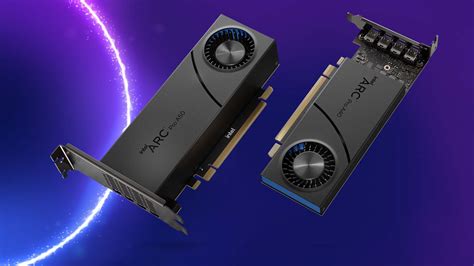
2. Hardware-Related Problems
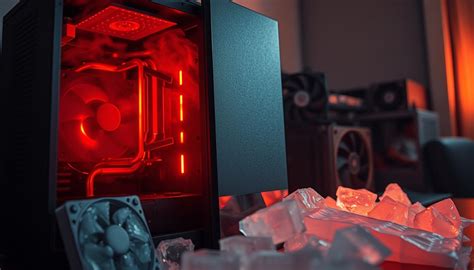
- Overheating Components: Your CPU and GPU generate heat. If cooling is insufficient (due to dust, poor airflow, or failing fans), components will “throttle” – automatically reduce performance to prevent damage – causing sudden FPS drops.
- Insufficient RAM: If your system doesn’t have enough RAM for the game and other background tasks, it will resort to using slower page files on your storage drive, leading to stutters.
- CPU or GPU Bottleneck: One component (either your CPU or GPU) might not be powerful enough to keep up with the other, limiting overall performance. This often manifests as one component constantly hitting 100% usage while the other is underutilized.
- Power Supply Issues: An aging or insufficient power supply unit (PSU) might not deliver stable power to your components, especially during peak load, leading to instability.
- Storage Drive Performance: While less common for in-game FPS drops, a slow HDD can cause stutters during asset loading.
Systematic Troubleshooting Steps
To effectively combat FPS drops, approach the problem systematically:
Step 1: Monitor Your System Performance
Before making any changes, use monitoring tools like MSI Afterburner, HWMonitor, or the Task Manager to observe your CPU and GPU temperatures, usage percentages, and clock speeds while gaming. This data is crucial for identifying bottlenecks or overheating.
Step 2: Update Your Drivers
Start with your graphics card drivers. Visit NVIDIA’s, AMD’s, or Intel’s official website and download the latest stable drivers for your specific GPU. Consider using a clean installation option if available. Also, ensure your chipset drivers and other essential system drivers are up to date.
Step 3: Close Background Applications
Open Task Manager (Ctrl+Shift+Esc), go to the “Processes” tab, and close any unnecessary applications or processes that are consuming significant CPU, RAM, or GPU resources.
Step 4: Adjust In-Game Settings
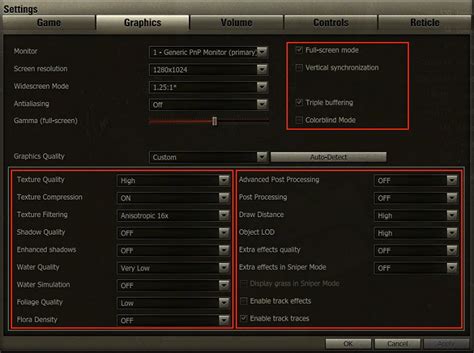
Lower demanding graphical settings such as shadows, anti-aliasing, reflections, and texture quality. Experiment to find a balance between visual fidelity and stable performance.
Step 5: Clean Your PC and Improve Airflow
Dust is a silent killer of PC performance. Use compressed air to clean out dust from CPU coolers, GPU heatsinks, and case fans. Ensure your case has good airflow with intake and exhaust fans properly oriented.
Step 6: Check Power Settings
Ensure your Windows power plan is set to “High Performance” or “Ultimate Performance.” This prevents your CPU from downclocking during intense tasks.
Step 7: Scan for Malware
Perform a full system scan with reputable antivirus software to rule out malicious software interfering with performance.
Step 8: Consider Hardware Upgrades
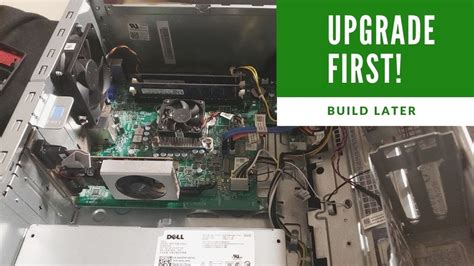
If, after all troubleshooting, your hardware consistently struggles to meet the demands of modern games, it might be time to consider upgrading your GPU, CPU, or RAM.
Conclusion
Sudden FPS drops can be a significant annoyance for any PC gamer. By systematically identifying the potential causes, from outdated drivers and background applications to overheating hardware and insufficient resources, you can effectively diagnose and resolve these performance issues. A bit of patience and methodical troubleshooting will help restore your gaming sessions to their smooth, high-frame-rate glory.


