





How to optimize Windows for maximum gaming FPS and reduce input lag?
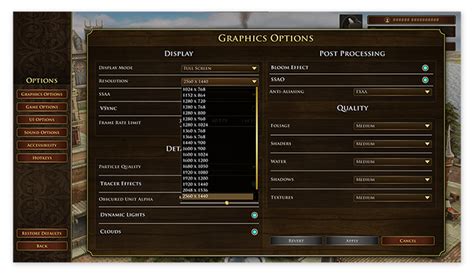
Unleash Your PC’s Full Gaming Potential
For serious gamers, every frame per second (FPS) and millisecond of input lag can make a significant difference. While powerful hardware is a great start, optimizing your Windows operating system is crucial to squeeze out maximum performance and ensure a butter-smooth, responsive gaming experience. This guide will walk you through essential tweaks and settings to help you dominate your favorite titles.
Core Windows Gaming Settings
Windows offers several built-in features designed to improve gaming performance. Make sure these are configured correctly:
Enable Game Mode
Windows Game Mode prioritizes your game, allocating system resources more efficiently. To enable it:
- Go to
Settings > Gaming > Game Mode. - Ensure the toggle is set to
On.
Adjust Graphics Settings
This allows you to specify GPU performance for individual applications.
- Go to
Settings > System > Display > Graphics settings. - Turn on
Hardware-accelerated GPU schedulingif available (requires compatible hardware). - Add your game executables and set their preference to
High performance.
Disable Visual Effects
While aesthetically pleasing, some visual effects consume precious system resources.
- Search for
"Adjust the appearance and performance of Windows". - In the
Performance Optionswindow, select"Adjust for best performance"or manually uncheck unnecessary options like"Animate windows when minimizing and maximizing","Fade or slide menus into view".
Power Management and Background Processes
Proper power configuration and minimizing background clutter are vital for sustained high performance.
Set Power Plan to High Performance/Ultimate Performance
Ensure your CPU and GPU are getting adequate power without throttling.
- Search for
"Choose a power plan". - Select
"High performance"or"Ultimate Performance"(if available, often found in Windows Pro or with certain hardware). - Customize plan settings to ensure
"Turn off hard disk after"and"Sleep after"are set to"Never"when plugged in.
Disable Background Apps
Many apps run in the background, consuming CPU, RAM, and network bandwidth.
- Go to
Settings > Privacy > Background apps. - Turn off apps you don’t need running constantly, or disable
"Let apps run in the background"entirely.
Manage Startup Programs
Unnecessary programs launching with Windows can slow down your system boot and consume resources.
- Open
Task Manager(Ctrl+Shift+Esc). - Go to the
Startuptab. - Disable any programs you don’t need to launch immediately.

Graphics Driver Settings (NVIDIA/AMD)
Your graphics card control panel offers fine-grained control over how your GPU performs. These settings can dramatically impact FPS and input lag.
NVIDIA Control Panel Settings
- Open
NVIDIA Control Panel. - Go to
Manage 3D settings. - Globally or for specific games, consider:
Low Latency Mode: Set toUltrafor minimal input lag.Power management mode: Set toPrefer maximum performance.Texture filtering - Quality: Set toHigh performance.Vertical sync:Off(unless you experience significant screen tearing and prefer V-Sync over higher FPS/lower lag). Consider G-Sync/FreeSync if you have a compatible monitor.Max Frame Rate: Cap your FPS just below your monitor’s refresh rate if you’re hitting it consistently, to reduce input lag.
AMD Radeon Software Settings
- Open
AMD Radeon Software. - Go to
Gaming > Graphics.Radeon Anti-Lag: Enable for reduced input latency.Radeon Boost: Enable for dynamically reduced resolution during fast motion.Radeon Image Sharpening: Adjust to your preference.Wait for Vertical Refresh (V-Sync):Off, unless using FreeSync.
Network Optimization for Online Gaming
For online multiplayer, network performance is just as critical as raw FPS.
Disable QoS Packet Scheduler
While intended to prioritize network traffic, it can sometimes introduce latency for gaming.
- Go to
Network and Sharing Center > Change adapter settings. - Right-click your active network adapter (Ethernet or Wi-Fi) and select
Properties. - Uncheck
"QoS Packet Scheduler".
Update Network Drivers
Ensure your network adapter drivers are up-to-date for optimal stability and performance.
Use a Wired Connection
Whenever possible, use an Ethernet cable instead of Wi-Fi for a more stable connection and lower latency.

System Maintenance and Updates
Regular maintenance ensures your system remains in top shape for gaming.
Keep Drivers Updated
Always update your graphics drivers (GPU), chipset drivers, and other crucial component drivers directly from the manufacturer’s website (NVIDIA, AMD, Intel, motherboard manufacturer). New driver versions often include performance optimizations and bug fixes for games.
Windows Updates
While sometimes problematic, keeping Windows updated is generally a good practice for security and performance. However, be cautious with major feature updates and check community feedback if you notice performance issues.
Disk Cleanup and Defragmentation
- Disk Cleanup: Search for
"Disk Cleanup", select your C: drive, and remove temporary files, old Windows update files, etc. - Defragmentation (for HDDs only): For SSDs, Windows automatically handles TRIM, so manual defragmentation is unnecessary and can reduce drive lifespan. For HDDs, search for
"Defragment and Optimize Drives"and optimize your game drive.
Scan for Malware
Malware can secretly consume system resources. Run regular scans with Windows Defender or your preferred antivirus software.

Conclusion
Optimizing Windows for gaming is an ongoing process, but by systematically applying these tweaks, you can significantly boost your FPS and reduce input lag. Remember that individual results may vary based on your hardware and specific games. Experiment with settings, monitor your performance using tools like MSI Afterburner or GeForce Experience’s FPS counter, and find the configuration that gives you the best balance of visual quality and responsiveness. Happy gaming!


