





How to ensure safe game mod installs & prevent save corruption?

Game modding offers an incredible way to extend gameplay, enhance graphics, or even completely transform your favorite titles. However, the excitement of new content can quickly turn into frustration if not handled carefully, potentially leading to game crashes, performance issues, or, most critically, corrupted save files. This guide will walk you through the essential steps to ensure your modding adventures are safe, stable, and enjoyable.
The Golden Rule: Back Up Everything
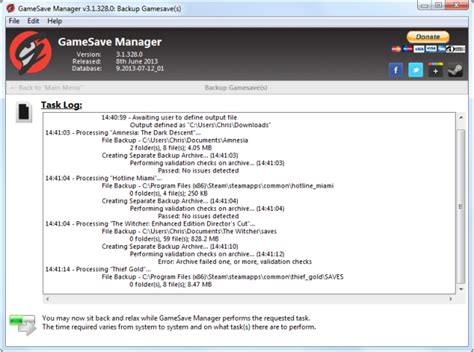
Before you even think about downloading your first mod, the most crucial step is to back up your game save files and, ideally, your entire game directory. Save files are often located in specific user folders (e.g., Documents/My Games/GameName/Saves or C:/Users/YourUsername/Saved Games). Copy these to a separate, easily accessible location. For larger game installations, consider using a cloud service or an external drive for a full backup. This ensures that if anything goes wrong, you can revert to a working state without losing hours of progress.
Embrace Mod Managers
Manual mod installation can be a recipe for disaster, especially with games that have complex file structures or numerous mods. Reputable mod managers (like Nexus Mod Manager, Vortex, Mod Organizer 2, or specific game-centric tools) are indispensable. These tools streamline the installation and uninstallation process, manage file conflicts, handle load orders, and often allow for virtual installation, meaning original game files remain untouched. This significantly reduces the risk of accidental file overwrites and makes troubleshooting much easier.
Research and Read: Know Your Mods
Never download a mod blindly. Always take the time to read the mod’s description page thoroughly. Pay attention to:
- Requirements: Does it need other mods (dependencies) to function?
- Compatibility: Is it known to conflict with other popular mods? Are there patches available for conflicts?
- Installation Instructions: Are there specific steps beyond what your mod manager handles?
- Known Issues: Has the mod author reported any bugs or performance impacts?
- User Comments & Endorsements: What do other users say about its stability and performance?
A well-maintained mod page is a strong indicator of a quality mod.

Understanding Load Order and Conflicts
Many games, particularly those with vast modding communities like Bethesda titles, rely heavily on a proper load order. This dictates the sequence in which game files and mod files are loaded. Incorrect load order can lead to crashes, missing textures, or game-breaking bugs. Mod managers often have built-in tools or integrations with external tools (like LOOT for Bethesda games) to optimize load order automatically. Learn how to use these or how to manually adjust if necessary. Be aware that even with optimal load orders, some mods are simply incompatible and cannot coexist.
Test Incrementally and Keep Records
Instead of installing dozens of mods at once, add them in small batches. After each batch, launch your game and test extensively. Play for a while, visit different areas, and try various game mechanics to ensure everything is stable. If you encounter an issue, you’ll know exactly which recent additions are likely culprits. Keeping a simple text file with a list of installed mods and their installation dates can be invaluable for pinpointing problems.
Clean Installs and Re-installations
Sometimes, despite all precautions, your game installation might become irreparably unstable due to mod conflicts or corrupted files. In such cases, a clean re-installation of the game might be your best bet. This involves uninstalling the game, manually deleting any leftover files in the game directory and save folders, and then re-downloading a fresh copy. Start your modding process from scratch, perhaps even being more selective this time.

Troubleshooting Common Issues
If you encounter problems, here’s a basic troubleshooting checklist:
- Disable Recent Mods: Deactivate the last few mods you installed to see if the issue resolves.
- Check Load Order: Re-run any load order optimizers.
- Read Crash Logs: If your game generates crash logs, they often point to the problematic file or mod.
- Verify Game Files: Use your game launcher (Steam, Epic, GOG) to verify the integrity of game files. This can fix corrupted vanilla files.
- Consult Mod Communities: Forums, wikis, and Discord servers for specific games or modding communities are invaluable resources for help.
Conclusion
Modding can breathe new life into your favorite games, but it requires a methodical and cautious approach. By consistently backing up your saves, utilizing mod managers, thoroughly researching your mods, and understanding load order, you can significantly reduce the risk of save corruption and ensure a smoother, more enjoyable modding experience. Happy modding!

