





How to optimize Wi-Fi or Ethernet for low-latency online gaming & stable ping?

Understanding Latency and Ping in Online Gaming
In the world of online gaming, latency and ping are critical factors that can significantly impact your performance and overall experience. Latency refers to the total time it takes for a data packet to travel from your computer to the game server and back. Ping, often measured in milliseconds (ms), is a common indicator of this latency. A lower ping means faster communication, leading to a more responsive and fluid gaming experience, free from frustrating lag.
While internet speed (bandwidth) is important for downloading games and updates, it’s low latency and stable ping that truly define a smooth online gaming session. A fast connection with high ping will still result in delays, while a moderately fast connection with low, stable ping will always be superior for competitive play.
Optimizing Your Wi-Fi Connection for Gaming
While Ethernet is generally preferred for gaming, Wi-Fi can be optimized to provide a surprisingly stable experience, especially for casual players. The goal is to minimize interference and maximize signal strength.
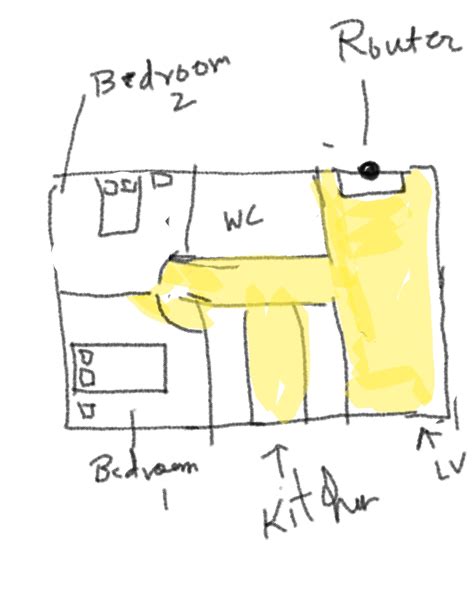
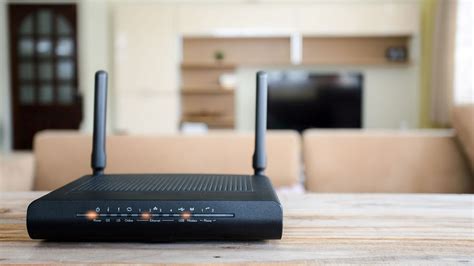
- Router Placement: Position your Wi-Fi router centrally and in an open space, away from walls, large metal objects, and other electronics that can cause interference. Higher is generally better.
- Frequency Band: Whenever possible, use the 5GHz band. It offers faster speeds and less interference than the 2.4GHz band, though its range is shorter. Ensure your gaming device and router support 5GHz.
- Channel Selection: Within the 2.4GHz and 5GHz bands, there are multiple channels. Use a Wi-Fi analyzer app (available on smartphones) to identify the least congested channels in your area and manually set your router to one of these. Channels 1, 6, and 11 are non-overlapping in 2.4GHz.
- Router Firmware: Keep your router’s firmware updated. Manufacturers often release updates that improve performance, stability, and security.
Advanced Wi-Fi features can also help. Technologies like MU-MIMO (Multi-User, Multiple-Input, Multiple-Output) and beamforming, found in modern routers, can improve efficiency by directing Wi-Fi signals more precisely to your devices. Enabling Quality of Service (QoS) on your router can prioritize gaming traffic over other network activities, ensuring your game gets the bandwidth it needs.
Maximizing Your Ethernet Connection for Gaming
For the most reliable and low-latency gaming experience, a wired Ethernet connection is almost always superior to Wi-Fi. It eliminates wireless interference and offers more consistent speeds.
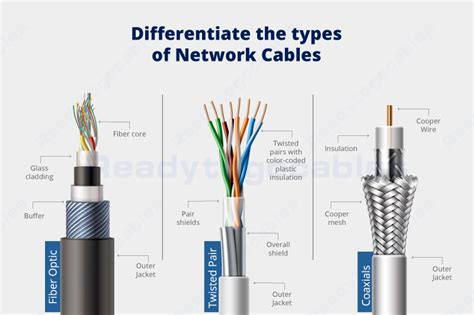
- Use the Right Cable: Invest in a high-quality Ethernet cable, preferably Cat5e or Cat6. While Cat5e is sufficient for most home networks and gigabit speeds, Cat6 offers better shielding and future-proofing, reducing crosstalk and interference.
- Direct Connection: Connect your gaming PC or console directly to your router using the Ethernet cable. Avoid using powerline adapters or Wi-Fi extenders if a direct cable run is feasible, as they can introduce additional latency.
- Network Adapter & Drivers: Ensure your computer’s network adapter drivers are up-to-date. Sometimes, an outdated driver can cause performance issues. For serious gamers, a dedicated Gigabit Ethernet PCIe card can offer superior performance and features compared to integrated motherboard solutions.
Verify that your router has Gigabit Ethernet ports. Most modern routers do, but older models might still be limited to 10/100 Mbps, which can bottleneck your connection.
General Network Optimization Tips (Applicable to Both)
Beyond your direct connection type, several other factors can influence your network’s gaming performance.
- Update Router Firmware: Regularly check for and install firmware updates for your router. These updates often include performance enhancements and bug fixes.
- Quality of Service (QoS): Configure QoS settings on your router to prioritize gaming traffic. This ensures that even if other devices are streaming or downloading, your game data takes precedence, maintaining a stable ping.
- DNS Settings: Experiment with public DNS servers like Google DNS (8.8.8.8, 8.8.4.4) or Cloudflare DNS (1.1.1.1, 1.0.0.1). Sometimes, these can offer faster resolution times than your ISP’s default DNS.
- Close Background Applications: Before gaming, close any unnecessary applications or processes that might be consuming bandwidth or CPU resources, such as torrent clients, cloud syncing services, or large downloads.
- Monitor Bandwidth Usage: Use your router’s interface or third-party tools to monitor real-time bandwidth usage. Identify any devices or applications that are hogging bandwidth and address them.
- Consider Your ISP: While you can optimize your home network, your Internet Service Provider (ISP) and the quality of their infrastructure play a significant role. If you consistently experience high ping to game servers, it might be worth investigating if your ISP offers better gaming-specific plans or if there are known issues in your area.
- Avoid Network Congestion: Schedule large downloads or updates for non-gaming hours. If you live in a household with heavy internet usage, coordinate gaming times to reduce network congestion.
Advanced Settings & Troubleshooting
For those looking to dive deeper, a few advanced techniques and troubleshooting steps can fine-tune your setup.
- Port Forwarding: Some games may benefit from specific port forwarding rules, though this is less common with modern titles. Consult your game’s documentation for any recommended ports. Use with caution, as improper port forwarding can pose security risks.
- Bufferbloat: This refers to excessive buffering in network devices, which can lead to high latency spikes. Some advanced routers offer “Smart Queue Management” (SQM) or “Active Queue Management” (AQM) features to combat bufferbloat.
- Network Drivers: Ensure all network-related drivers on your gaming machine (Ethernet adapter, Wi-Fi adapter) are the latest versions directly from the manufacturer’s website, not just Windows Update.
- Command Prompt Tools: Utilize tools like
pingandtracert(Windows) ortraceroute(Linux/macOS) in the command prompt to diagnose network issues. Ping can test the latency to a specific server, while tracert shows each hop your data takes.

Understanding the path your data takes can help pinpoint where latency is being introduced, whether it’s your local network, your ISP, or the game server itself.
The Ultimate Choice: Wired vs. Wireless Gaming
While Wi-Fi technology has made great strides, an Ethernet connection remains the gold standard for competitive online gaming. It offers unparalleled stability, lower average latency, and virtually eliminates interference.
If you’re a casual gamer who prioritizes convenience, an optimized Wi-Fi setup can be perfectly acceptable. However, for serious or competitive players, running an Ethernet cable directly to your gaming device should be your top priority. The minor inconvenience of a cable is a small price to pay for a consistent, low-latency, and stable gaming experience that can give you a crucial edge.

Conclusion
Achieving low latency and stable ping for online gaming is a multi-faceted endeavor that involves optimizing both your hardware and software settings. By strategically placing your router, utilizing the right cables, updating drivers, configuring QoS, and eliminating background network hoggers, you can significantly enhance your gaming experience. Whether you choose a highly optimized Wi-Fi setup or the tried-and-true Ethernet connection, a stable and responsive network is your gateway to dominating the online arena.


