





How to troubleshoot sudden FPS drops during PC gaming sessions?
There’s nothing more frustrating for a PC gamer than having a smooth session suddenly interrupted by a drastic drop in Frames Per Second (FPS). Whether you’re in the middle of a crucial boss fight or a competitive multiplayer match, sudden FPS drops can ruin the experience and even lead to in-game defeat. This comprehensive guide will help you systematically identify and resolve the most common causes behind these performance hiccups, getting you back to uninterrupted, high-fidelity gaming.
Initial Checks & Software Solutions
Before diving into complex diagnostics, start with the basics. Often, the culprit is a simple software conflict or an outdated driver. First, check your background applications. Resource-hungry programs running simultaneously with your game can significantly impact performance. Close any unnecessary browsers, streaming apps, or other software using Task Manager.
Next, review your in-game graphics settings. While you might want to play everything on ‘Ultra’, your hardware might not always be able to sustain it. Try lowering settings like shadow quality, anti-aliasing, or texture detail to see if the FPS stabilizes. Ensure your game is set to run on your dedicated graphics card if you have one, rather than integrated graphics.
Crucially, ensure all your drivers are up to date, especially your graphics card drivers (NVIDIA, AMD, Intel). Outdated drivers are a frequent cause of performance issues. Visit your GPU manufacturer’s website or use their dedicated software (e.g., GeForce Experience, AMD Adrenalin) to download and install the latest versions. Don’t forget to update chipset drivers and Windows itself.

Hardware-Related Issues
If software adjustments don’t solve the problem, hardware is often the next area to investigate. Overheating is a primary suspect for sudden FPS drops. When components like your CPU or GPU get too hot, they ‘throttle’ performance to prevent damage, leading to a noticeable dip in FPS. Use monitoring software (like HWMonitor, MSI Afterburner) to check your CPU and GPU temperatures during gaming. If they exceed 85-90°C, improved cooling is likely needed. This could involve cleaning out dust from fans and heatsinks, ensuring proper airflow in your case, or even upgrading your cooling solution.
Your power supply unit (PSU) could also be a factor. An aging or insufficient PSU might struggle to deliver consistent power to your components under load, causing instability and performance drops. While harder to diagnose without spare parts, if you suspect your PSU, consider testing with a known good unit or having a professional check it. Additionally, insufficient or faulty RAM, or a struggling hard drive (especially if it’s an old HDD with the game installed), can also contribute to performance issues.
Advanced Diagnostics
For more persistent issues, deeper diagnostics are required. Continuously monitor your system’s performance metrics (CPU usage, GPU usage, RAM usage, VRAM usage) using tools like Task Manager, MSI Afterburner, or HWiNFO64. Look for spikes or drops in usage coinciding with FPS drops. This can help pinpoint which component is struggling. Running synthetic benchmarks (e.g., 3DMark, Unigine Heaven/Superposition) can also help identify if your hardware is performing as expected under controlled conditions.
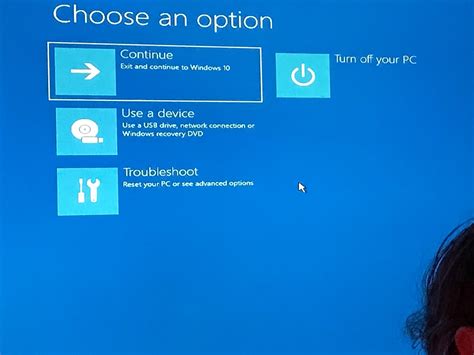
If all else fails and you’ve exhausted other options, a clean installation of Windows can sometimes resolve deep-seated software conflicts or corruptions that are difficult to track down. Always back up your important data before attempting this.

Preventing Future Drops
Proactive maintenance is key to preventing future FPS drops. Regularly clean your PC to prevent dust buildup, which can impede airflow and lead to overheating. Ensure your case has adequate ventilation with properly configured intake and exhaust fans. Keep your drivers and operating system updated, but be cautious with brand new driver releases, sometimes waiting a week or two for community feedback on stability. Regularly defragment HDDs (if you still use them for games) or ensure your SSDs have TRIM enabled and sufficient free space.

When to Seek Professional Help
If you’ve meticulously followed these troubleshooting steps and are still experiencing persistent FPS drops, it might be time to consider professional assistance. A qualified PC technician can perform more in-depth diagnostics, including testing individual components with specialized equipment, which might reveal a subtle hardware defect or incompatibility that’s difficult for an average user to detect. Don’t hesitate to reach out if you feel out of your depth or suspect a major component failure.
Sudden FPS drops can be a significant annoyance for any PC gamer, but with a systematic approach to troubleshooting, most issues can be identified and resolved. By methodically checking software, drivers, and hardware, you can often restore your system’s performance and get back to enjoying your favorite games without frustrating interruptions.


