





Optimize Windows 11 for max gaming FPS and low input lag?

Gaming on Windows 11 offers an immersive experience, but to truly maximize your performance and gain a competitive edge, strategic optimization is key. This comprehensive guide will walk you through essential adjustments to boost your Frames Per Second (FPS) and significantly reduce input lag, ensuring your gaming sessions are smoother, more responsive, and more enjoyable.
1. Keep Your Drivers and Windows Up-to-Date
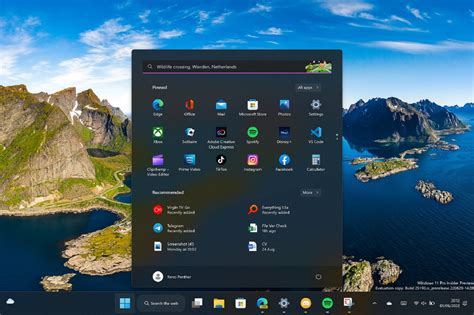
The foundation of any good gaming setup is up-to-date software. Ensure your system’s drivers and Windows itself are current to benefit from the latest performance improvements and bug fixes.
- Graphics Drivers: This is paramount. Download the latest drivers directly from NVIDIA, AMD, or Intel’s official websites. A clean installation is often recommended.
- Chipset Drivers: Update your motherboard’s chipset drivers from your motherboard manufacturer’s website. These drivers are crucial for system stability and performance.
- Windows Update: Go to Settings > Windows Update and check for all available updates. Install any cumulative or optional updates that might improve performance or stability.
2. Adjust Power Settings for Maximum Performance
Windows 11 typically defaults to balanced power plans, which can throttle performance. Switching to a high-performance plan is vital for gaming.
- Power Plan: Search for ‘Edit power plan’ in the Start menu. Click ‘Power Options’ in the address bar. Select ‘High performance’ or ‘Ultimate Performance’ (if available, often found on enthusiast motherboards). If not, you can usually enable it via Command Prompt:
powercfg -duplicatescheme e9a42b02-d5df-448d-aa00-03f147496740then refresh Power Options. - Processor Power Management: Within your chosen power plan, click ‘Change advanced power settings’. Expand ‘Processor power management’, then ‘Minimum processor state’ and ‘Maximum processor state’. Set both to 100%.
3. Optimize Windows 11 Gaming Features
Windows 11 includes several gaming-specific features that can be tweaked for better performance.
- Game Mode: Go to Settings > Gaming > Game Mode and ensure it’s turned ‘On’. Game Mode optimizes your PC for gaming by prioritizing game resources.
- Graphics Settings: Navigate to Settings > System > Display > Graphics. Here, you can add specific games (or browse for their .exe files) and set them to ‘High performance’ mode, ensuring they utilize your dedicated GPU.
- HDR and Variable Refresh Rate (VRR): If your monitor supports HDR, you might choose to disable it in Windows Settings > System > Display for competitive games, as it can sometimes introduce input lag. Ensure VRR (G-Sync/FreeSync) is enabled in both Windows Settings > System > Display > Graphics and your GPU control panel if your monitor supports it.
4. Manage Background Processes and Startup Apps
Unnecessary applications running in the background consume valuable CPU, GPU, and RAM resources, directly impacting FPS and responsiveness.
- Task Manager: Press Ctrl + Shift + Esc to open Task Manager. Go to the ‘Processes’ tab and identify any resource-intensive applications you don’t need while gaming. End their tasks cautiously.
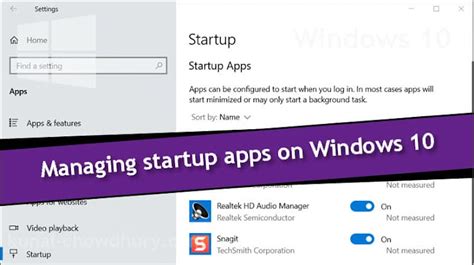
- Startup Apps: In Task Manager, go to the ‘Startup’ tab. Disable any applications that aren’t critical for your system to start with Windows. Many apps needlessly launch at startup, slowing down your PC.
- Background Apps: Go to Settings > Apps > Apps & features. For apps you rarely use, click the three dots next to them, select ‘Advanced options’, and change ‘Let this app run in background’ to ‘Never’.
5. Fine-Tune Visual Effects and Notifications
Some aesthetic features in Windows 11 can consume resources that are better allocated to your games.
- Visual Effects: Search for ‘Adjust the appearance and performance of Windows’ in the Start menu. In the ‘Performance Options’ window, select ‘Adjust for best performance’ or ‘Custom’ and uncheck unnecessary animations and visual effects.
- Focus Assist: Enable Focus Assist (accessible via Quick Settings or Settings > System > Focus) to silence notifications and distractions while you’re gaming. You can set it to automatically turn on when you’re playing a game.
- Notifications: Go to Settings > System > Notifications and turn off notifications from apps you don’t need alerts from during gaming.

6. Network Optimization for Online Gaming
For online gamers, reducing network latency (ping) is just as important as high FPS.
- Use an Ethernet Connection: Always prefer a wired Ethernet connection over Wi-Fi for stability and lower latency.
- Disable Background Downloads: Pause any ongoing downloads (Windows updates, game updates, cloud sync) before starting your game.
Conclusion
By systematically applying these optimizations, you can significantly enhance your Windows 11 gaming experience, achieving higher FPS and notably lower input lag. Remember to test your games after each major change to gauge the impact. Every system is unique, so some fine-tuning might be necessary to find the perfect balance for your specific hardware and games. Enjoy your smoother, more responsive gaming!


