





How to optimize monitor refresh rate and G-Sync for competitive FPS gaming?

The Competitive Edge: Why Refresh Rate and G-Sync Matter
In the high-stakes world of competitive First-Person Shooter (FPS) games, every millisecond counts. Beyond raw aiming skill and game sense, your hardware setup plays a crucial role in providing the responsiveness and visual clarity needed to react faster and perform better. Two pivotal monitor technologies that significantly impact your gaming experience are refresh rate and NVIDIA G-Sync. When optimized correctly, they can virtually eliminate visual distractions like screen tearing and stutter, and deliver buttery-smooth motion, giving you a tangible edge over the competition.

Understanding Monitor Refresh Rate
Your monitor’s refresh rate, measured in Hertz (Hz), indicates how many times per second the display refreshes its image. A 60Hz monitor refreshes 60 times a second, while a 144Hz monitor refreshes 144 times a second. For competitive FPS gaming, a higher refresh rate is unequivocally better. It translates to more up-to-date frames displayed on your screen, reducing input lag and making fast-moving objects appear much smoother and clearer.
This smoothness allows you to track enemies with greater precision, react to peeker’s advantage more effectively, and experience a significantly more fluid visual experience. While 60Hz is the standard, competitive players should aim for at least 144Hz, with 240Hz or even 360Hz becoming increasingly common at the professional level.
The Power of NVIDIA G-Sync
G-Sync is NVIDIA’s adaptive synchronization technology designed to eliminate screen tearing and minimize display stutter and input lag. Traditional monitors have a fixed refresh rate, while your GPU renders frames at a variable rate. When these rates desynchronize, screen tearing occurs (where multiple frames are displayed simultaneously) or stutter (when the display waits for a new frame).
G-Sync solves this by allowing your G-Sync compatible monitor to dynamically match its refresh rate to the exact frame rate output by your NVIDIA GPU. This creates a seamlessly synchronized experience, resulting in incredibly fluid gameplay with no visual artifacts, which is crucial for maintaining focus and consistency in fast-paced scenarios.
Optimizing Your Monitor’s Refresh Rate
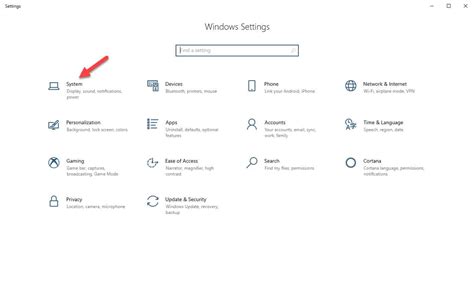
First, ensure your monitor is set to its highest possible refresh rate. This is usually done through your operating system settings:
- Windows Settings: Right-click on your desktop > Display settings > Advanced display settings. Select your monitor and choose the highest available refresh rate from the “Refresh rate” dropdown.
- NVIDIA Control Panel: Open NVIDIA Control Panel > Display > Change resolution. Select your monitor and choose the highest refresh rate under the “Refresh rate” dropdown.
- In-Game Settings: Many games also have an in-game display setting for refresh rate. Ensure this matches your monitor’s maximum setting.
Additionally, your GPU must be able to consistently output frames at or above your chosen refresh rate to fully benefit. Aim for FPS numbers that match or exceed your monitor’s refresh rate in your preferred games.
Fine-Tuning G-Sync for Competitive Play
Once your refresh rate is set, optimizing G-Sync involves a few critical steps to achieve the lowest possible input lag while maintaining visual fluidity:
- Enable G-Sync: Open NVIDIA Control Panel > Display > Set up G-Sync. Check “Enable G-Sync, G-Sync Compatible” and ensure your monitor is selected. Choose “Enable for full screen mode” or “Enable for full screen and windowed mode” based on your preference (full screen is generally recommended for competitive play).
- Cap Your FPS: This is perhaps the most crucial step for competitive G-Sync optimization. While G-Sync matches your monitor’s refresh rate to your GPU’s FPS, if your FPS exceeds your monitor’s maximum refresh rate, G-Sync will deactivate, and you’ll revert to V-Sync behavior (or tearing if V-Sync is off). To avoid this, cap your in-game FPS slightly below your monitor’s maximum refresh rate (e.g., if you have a 144Hz monitor, cap at 141-143 FPS). This keeps G-Sync active, prevents tearing and stutter, and ensures the lowest input lag.
- Methods for FPS Capping:
- NVIDIA Control Panel: Under “Manage 3D settings” > “Max Frame Rate.” Set it globally or per game.
- In-Game FPS Limiter: Many modern FPS games include an in-game FPS limiter.
- RivaTuner Statistics Server (RTSS): A popular third-party tool for precise frame rate capping.
- Low Latency Mode: In NVIDIA Control Panel > Manage 3D settings, set “Low Latency Mode” to “Ultra.” This pre-renders frames just in time for the GPU, further reducing input lag, especially when GPU-bound.
Putting It All Together for Peak Performance
For the ultimate competitive FPS setup, ensure you have:
- Your monitor set to its highest native refresh rate.
- NVIDIA G-Sync enabled for your primary gaming monitor.
- An FPS cap set 2-3 frames below your monitor’s maximum refresh rate (e.g., 141 FPS for 144Hz, 237 FPS for 240Hz).
- NVIDIA Low Latency Mode set to “Ultra.”
Experiment with these settings in your favorite FPS titles. While the theoretical benefits are clear, individual perception of input lag can vary. The goal is to achieve the smoothest visual experience with the lowest possible latency, giving you the best chance to excel in competitive play.
Conclusion
Optimizing your monitor’s refresh rate and NVIDIA G-Sync settings is a non-negotiable step for any serious competitive FPS gamer. By understanding how these technologies work and configuring them correctly, you eliminate visual distractions and significantly reduce input lag, allowing your skills to shine without being hampered by your display. Invest the time to fine-tune your setup, and you’ll likely see a noticeable improvement in your responsiveness and overall game performance.


