





How to fix high ping & lag spikes for stable online PC gaming?

Understanding High Ping and Lag Spikes
There’s nothing more frustrating in online PC gaming than experiencing high ping and sudden lag spikes. These issues can turn a competitive match into a slideshow and ruin immersion in story-driven multiplayer games. High ping refers to the delay (measured in milliseconds) it takes for your computer to send data to the game server and receive a response. Lag spikes are sudden, temporary increases in this delay, causing characters to teleport or actions to become unresponsive. Understanding the root causes is the first step towards a stable online gaming experience.
Several factors contribute to these network hiccups, ranging from your internet service provider (ISP) and home network setup to your PC’s configuration and even the game servers themselves. Identifying the specific culprit requires a systematic approach, which we’ll outline below.
Diagnosing Your Internet Connection
1. Test Your Internet Speed and Latency
Before diving deep, perform a speed test using reliable online tools like Speedtest.net or Google’s own speed test. Pay attention not only to download and upload speeds but also to your ping. A consistently high ping (e.g., over 50-80ms for local servers, or over 100ms for distant servers) even when not gaming indicates a broader internet issue.
2. Wired vs. Wireless Connection
Wi-Fi is convenient, but it’s often the primary cause of unstable connections for gaming. Wireless signals are susceptible to interference from other devices, physical obstructions, and signal degradation over distance. Always prioritize a wired Ethernet connection directly from your PC to your router for the most stable and lowest latency connection. If a wired connection isn’t feasible, ensure your Wi-Fi adapter is up-to-date and you’re using a 5GHz band if available, which offers higher speeds and less interference than 2.4GHz.
3. Check for Network Congestion
Your internet connection’s bandwidth is shared by all devices in your home. Are other family members streaming 4K video, downloading large files, or backing up to the cloud while you’re gaming? These activities can hog bandwidth and cause significant lag. Try gaming during off-peak hours or ask others to pause bandwidth-intensive tasks.
Optimizing Your Router and Network Settings
1. Reboot Your Router and Modem
It sounds simple, but a quick reboot can resolve many temporary network issues. Unplug both your modem and router, wait 30 seconds, then plug the modem back in. Once its lights are stable, plug in the router.
2. Update Router Firmware
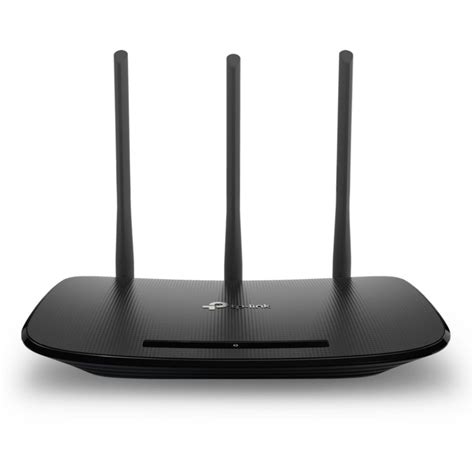
Router manufacturers frequently release firmware updates that improve performance, stability, and security. Check your router’s administration page (usually accessed via a web browser at an address like 192.168.1.1 or 192.168.0.1) for firmware updates.
3. Enable Quality of Service (QoS)
Many modern routers include a Quality of Service (QoS) feature. This allows you to prioritize network traffic for certain applications or devices. Enable QoS and set your gaming PC or the game itself as the highest priority to ensure it gets preferential treatment over other network activities.
4. Change DNS Servers
Your Domain Name System (DNS) server translates website names into IP addresses. Sometimes, your ISP’s default DNS servers can be slow. Switching to public DNS servers like Google DNS (8.8.8.8 and 8.8.4.4) or Cloudflare (1.1.1.1 and 1.0.0.1) can sometimes improve lookup times and overall network responsiveness. This can be changed in your router settings or directly on your PC.
PC System and Game Optimization
1. Close Background Applications
Background applications can consume CPU, RAM, and network bandwidth, contributing to lag. Before gaming, close unnecessary apps, browsers with many tabs open, and especially any downloading or streaming software.
2. Update Network Drivers
Outdated or corrupt network adapter drivers can significantly impact your connection quality. Visit your motherboard manufacturer’s website (for onboard Ethernet/Wi-Fi) or the manufacturer’s website of your dedicated network card to download and install the latest drivers.

3. Adjust In-Game Settings
While often associated with frame rate, some in-game settings can indirectly affect lag. High graphical settings can sometimes strain your PC, potentially leading to micro-stutters that feel like network lag. Reduce settings if your PC is struggling. Also, check for region selection; always choose servers closest to your physical location.
4. Disable VPN or Proxy Servers
While VPNs offer privacy and security, they route your traffic through an additional server, which almost always adds latency. If you’re experiencing high ping, try temporarily disabling your VPN to see if it makes a difference.
Advanced Troubleshooting and External Factors
1. Check for Software Conflicts (Firewall/Antivirus)
Sometimes, overzealous firewall or antivirus software can interfere with game connections, blocking ports or scanning traffic, leading to lag. Ensure your game is whitelisted in your security software or try temporarily disabling them (with caution) to test if they are the cause.
2. Contact Your ISP
If all else fails, the problem might lie with your Internet Service Provider. There could be line issues, network congestion in your area, or problems with their equipment. Contact their technical support, explain the troubleshooting steps you’ve already taken, and request they check your line for issues.

3. Consider Your Gaming Server Location
Even with a perfect home setup, if the game server you’re connecting to is geographically very distant or experiencing its own issues, you will encounter high ping. Always select the closest available server region within the game. Sometimes, certain game servers might simply have poor routing or infrastructure.

Conclusion
Diagnosing and fixing high ping and lag spikes requires patience and a methodical approach. By systematically working through your internet connection, router settings, PC optimization, and game-specific configurations, you can significantly improve your online gaming stability. Remember that a stable wired connection, updated drivers, and minimal background network activity are your best allies in the fight against latency.


