





How to optimize PC cooling for intense gaming sessions & prevent thermal throttling?
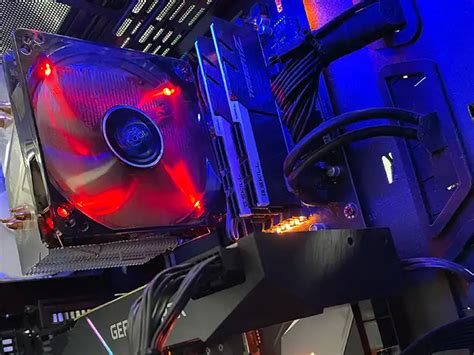
The Critical Role of PC Cooling in Gaming Performance
For any serious gamer, maintaining optimal PC performance during demanding sessions is paramount. Nothing disrupts an immersive experience more than frame drops, stuttering, or even system crashes, often symptoms of an overheating system. Thermal throttling – a mechanism where your CPU or GPU reduces its clock speed to prevent damage from excessive heat – is the primary culprit. Understanding and optimizing your PC’s cooling system isn’t just about longevity; it’s about unlocking and sustaining peak performance.
Understanding Thermal Throttling: The Enemy of Performance
Thermal throttling occurs when components like your Central Processing Unit (CPU) and Graphics Processing Unit (GPU) reach unsafe operating temperatures. To protect themselves, these components automatically scale back their performance, leading to a noticeable drop in frame rates and overall system responsiveness. This protective measure, while essential, directly hinders your gaming experience. Preventing it requires a multi-faceted approach to cooling.
Optimizing Case Airflow: The Foundation of Good Cooling
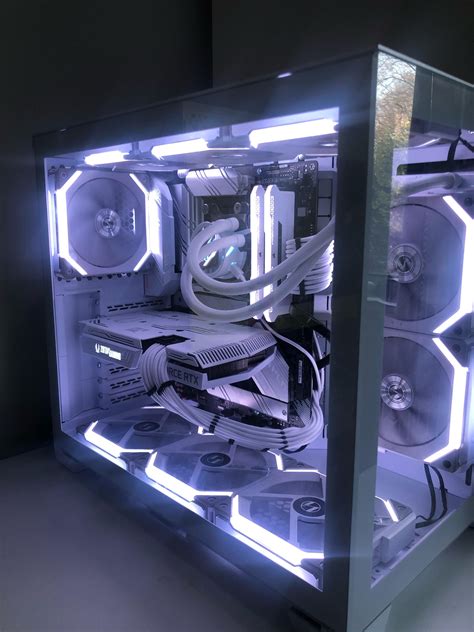
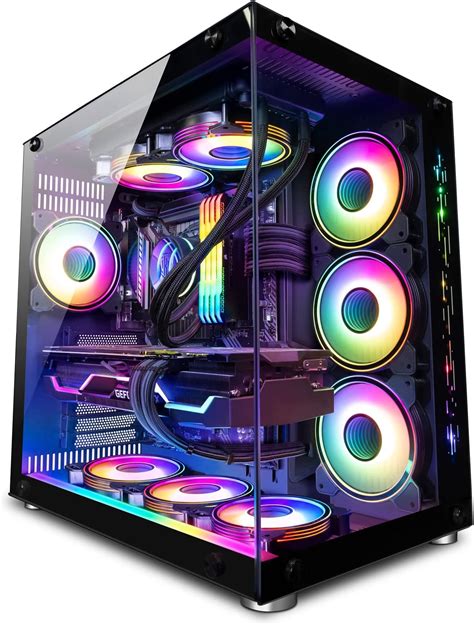
Effective cooling begins with excellent airflow within your PC case. A well-ventilated case ensures that cool air is drawn in, circulates efficiently over heat-generating components, and then exhausts hot air. Key considerations include:
- Case Fans: Install a balanced number of intake and exhaust fans. Generally, more intake fans at the front/bottom and exhaust fans at the rear/top create positive air pressure, which can help keep dust out and improve cooling.
- Fan Placement & Direction: Ensure fans are oriented correctly. Front and bottom fans typically intake cool air, while rear and top fans exhaust hot air.
- Cable Management: Untidy cables obstruct airflow significantly. Route cables neatly behind the motherboard tray or use cable ties to keep them out of the main airflow path.
- Dust Filters: Regularly clean dust filters on intake fans to maintain unrestricted airflow.
CPU Cooling Solutions: Air vs. Liquid
Your CPU is one of the primary heat generators. Choosing the right CPU cooler is crucial:
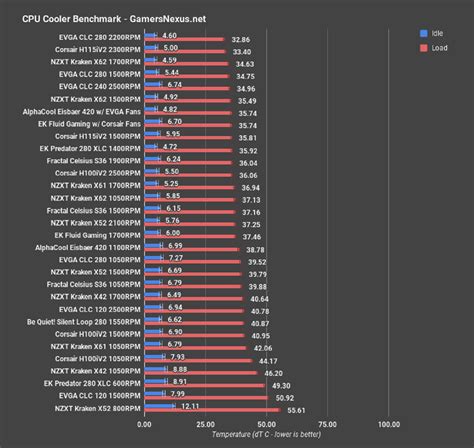
- Air Coolers: These use a heatsink with fins and heat pipes to dissipate heat, aided by a fan. High-end air coolers can be very effective and quieter than some liquid solutions, offering excellent value.
- All-in-One (AIO) Liquid Coolers: AIOs circulate coolant through a pump, cold plate, radiator, and fans. They often provide superior cooling performance, especially for overclocked CPUs, and can offer a cleaner aesthetic. Ensure your case can accommodate the radiator size.
- Thermal Paste: Always use good quality thermal paste between the CPU and its cooler. Reapply it every few years or when reinstalling the cooler.
Taming the GPU: Graphics Card Cooling
The Graphics Processing Unit (GPU) is often the hottest component during gaming. Modern GPUs come with sophisticated cooling solutions from manufacturers, but further optimization is possible:
- Aftermarket Coolers: For enthusiasts, replacing the stock GPU cooler with an aftermarket air cooler or even integrating it into a custom liquid cooling loop can drastically reduce temperatures.
- Case Airflow Impact: Ensure your case’s intake fans provide fresh air directly to the GPU’s fans. Vertical GPU mounts can sometimes hinder airflow depending on case design.
- Undervolting: Reducing the GPU’s voltage slightly while maintaining performance can lower power consumption and heat generation without a significant performance penalty.

Advanced Tips and Regular Maintenance
Beyond hardware upgrades, consistent maintenance and software tweaks can significantly improve cooling:
- Dusting: Regularly clean your PC’s interior, especially heatsinks, fans, and radiators, with compressed air. Dust acts as an insulator, trapping heat.
- Monitoring Software: Use tools like MSI Afterburner, HWMonitor, or NZXT CAM to keep an eye on CPU and GPU temperatures. Understand what normal operating temperatures are for your components.
- Fan Curves: Adjust fan speed curves in your motherboard’s BIOS or through software to ramp up fan speeds when temperatures rise, providing more aggressive cooling during intense loads.
- Ambient Room Temperature: A cooler room temperature directly translates to lower internal PC temperatures.
Conclusion: Stay Cool, Game On
Optimizing your PC’s cooling system is a continuous process that pays dividends in gaming performance, system stability, and component longevity. By focusing on proper airflow, selecting adequate CPU and GPU cooling, and adhering to regular maintenance, you can ensure your gaming rig runs cool, quiet, and consistently delivers the high-fidelity experiences you expect, free from the shackles of thermal throttling.


