





Best practices for managing conflicting mods in a large game load order?

Navigating the Labyrinth: Mastering Mod Conflicts
Building a massive mod collection for your favorite game is a thrilling endeavor, transforming familiar worlds into personalized masterpieces. However, with hundreds, or even thousands, of mods, the likelihood of conflicts skyrockets. A stable, enjoyable game requires more than just installing mods; it demands meticulous management of your load order and a strategic approach to resolving clashes. This guide will walk you through the best practices for taming your colossal mod list and ensuring a smooth gaming experience.

Understanding Mod Conflicts: The Root of Instability
Before you can resolve conflicts, you need to understand what they are and how they manifest. A mod conflict occurs when two or more mods attempt to modify the same game data, record, or file in incompatible ways. This can lead to a myriad of issues, from minor visual glitches and missing textures to game crashes (CTDs), corrupted save files, or broken quests.
Common Types of Conflicts:
- File Overwrites: One mod’s file (e.g., a texture, mesh, or sound) physically replaces another’s, usually managed by your mod manager’s installation order.
- Record Conflicts: Two mods alter the same game record (e.g., an NPC’s stats, an item’s properties, or a cell’s contents). The mod loaded later in your load order usually “wins” and its changes are applied.
- Script Conflicts: Mods attempting to run incompatible scripts or modify the same script functions can lead to unpredictable behavior or complete game freezes.
- Incompatibility: Some mods are fundamentally incompatible by design, often requiring a compatibility patch or a difficult choice between them.
Essential Tools for Large Load Orders
Successful mod management relies heavily on the right tools. Investing time in learning these will save you countless hours of frustration.
- Mod Organizer 2 (MO2) / Vortex: These are indispensable. They virtualize your mod installations, preventing files from being written directly into your game’s data folder. This allows for easy enabling/disabling, reordering, and conflict visualization without altering your base game. MO2 is generally preferred for its robust profile management and explicit file conflict resolution.
- Load Order Optimization Tool (LOOT): LOOT automatically sorts your plugins (.esp, .esm, .esl files) based on a community-maintained masterlist, significantly reducing plugin-level conflicts. It also identifies missing masters and dirty edits.
- xEdit (SSEEdit, FNVEdit, TES5Edit, etc.): This powerful tool (specific to your game, e.g., SSEEdit for Skyrim Special Edition) allows you to view, analyze, and resolve direct record conflicts between plugins. It’s crucial for creating custom compatibility patches.
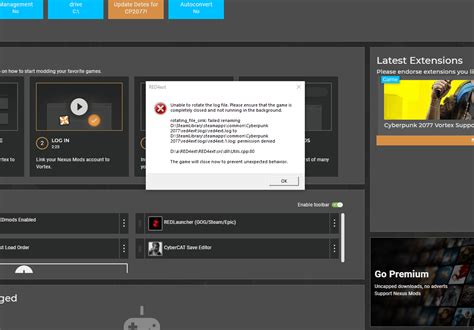
- Crash Logger/Net Script Framework: For more complex issues, these tools generate detailed crash logs, often pointing directly to the problematic mod or file.
Best Practices for Conflict Resolution
Managing conflicts isn’t a one-time fix; it’s an ongoing process that requires a methodical approach.
1. Read Mod Descriptions Meticulously
This is arguably the most critical step. Mod authors often list known incompatibilities, required patches, and recommended load order positions. Skipping this step is a recipe for disaster.
2. Prioritize a Stable Foundation
Install your core framework mods (e.g., SKSE/F4SE, unofficial patches, essential bug fixes, re-texture packs) first. Ensure these are stable before adding anything else. Work from the general to the specific.
3. Master Your Load Order
Use LOOT as your starting point, but don’t treat it as gospel. After LOOT sorts your plugins, critically examine its suggestions. Some mods, especially those with custom rules or compatibility patches, may need manual adjustment (e.g., a patch for Mod A and Mod B must load *after* both Mod A and Mod B). Pay attention to specific instructions from mod authors regarding load order.
4. Identify and Resolve Record Conflicts with xEdit
Once your plugin load order is sorted, open all your plugins in xEdit. Look for entries highlighted in red (critical conflicts) or green/orange (overwritten values). Here’s how to approach them:
- Understanding the “Winning” Record: xEdit shows you which mod’s changes are currently winning. Decide if this is the desired outcome.
- Manual Patching: If no compatibility patch exists, you may need to create one. Right-click on the conflicting entry and select “Copy as override into… <new plugin>.” In this new patch, selectively bring forward the changes you want from each mod, creating a merged record that satisfies all requirements.
- Bashed Patches (Wrye Bash) / Smash Patches (Mator Smash): For games like Skyrim or Fallout, these tools can automatically create a patch that merges leveled lists, worldspace edits, and some record types. While not perfect, they significantly reduce the need for manual patching.

5. Test Incrementally
Never install hundreds of mods at once. Add mods in small batches (5-10 at a time), launch the game, and test thoroughly. This makes it infinitely easier to identify the culprit if a new issue arises. Keep detailed notes of what you’ve installed.
6. Monitor File Overwrites
In MO2, the left pane’s installation order determines which mod’s files win in a direct overwrite. For example, if two texture mods affect the same rock, the one lower in MO2’s left pane will be visible in-game. Use MO2’s conflict tab to manage these or install specific patches.
Ongoing Maintenance and Troubleshooting
Your mod list is a living entity. Regular maintenance is key.
- Backup Your Profile: Before making major changes, creating a backup of your mod manager profile allows you to revert if something goes wrong.
- Keep Mods Updated (Carefully): While updates often bring bug fixes, they can also introduce new conflicts. Always read the changelog and test updates on a stable save.
- Binary Searching for Crashes: If your game starts crashing and you can’t pinpoint the issue, use a binary search method. Disable half your mods, test. If it crashes, the culprit is in the enabled half. If not, it’s in the disabled half. Repeat until you isolate the problematic mod.
- Consult Community Resources: Forums, Discord servers, and wikis for specific games are invaluable resources for troubleshooting and finding compatibility solutions.
Conclusion
Managing a large, conflicting mod load order is a challenging but ultimately rewarding aspect of the modding experience. By understanding the nature of conflicts, utilizing powerful tools like MO2 and xEdit, and adhering to best practices like incremental testing and meticulous patching, you can transform a chaotic collection into a stable, personalized, and unforgettable gaming journey. Patience, persistence, and a methodical approach are your greatest allies.

