





Best tips to improve gaming PC cooling and prevent CPU/GPU thermal throttling?

For any serious gamer, maintaining optimal PC performance is paramount. One of the biggest enemies to sustained high frame rates and smooth gameplay is overheating, which leads to a phenomenon known as thermal throttling. When your CPU or GPU gets too hot, it automatically reduces its clock speed to prevent damage, effectively slowing down your entire system.
Why Good Cooling is Critical for Gaming Performance
Thermal throttling isn’t just an inconvenience; it can significantly degrade your gaming experience, causing frame drops, stuttering, and even system instability. Modern gaming components, especially high-end CPUs and GPUs, generate substantial heat under load. Ensuring efficient heat dissipation is key to unlocking and maintaining their full potential, allowing your hardware to perform consistently at its best.

Optimizing Case Airflow and Fan Configuration
The foundation of good PC cooling starts with proper airflow within your case. A well-designed airflow path ensures that cool air is drawn in and hot air is efficiently expelled. Begin by selecting a case with good ventilation, often characterized by mesh front panels and ample fan mounts. Configure your case fans with a balanced intake-to-exhaust ratio, typically aiming for slightly positive pressure (more intake than exhaust) to help prevent dust buildup. Common setups include front and bottom fans as intake, and rear and top fans as exhaust.
Beyond fan placement, effective cable management is crucial. Tidy cables don’t just look good; they prevent obstructions to airflow, allowing air to move freely throughout the case. Use zip ties or Velcro straps to bundle cables and route them behind the motherboard tray or along the case edges, minimizing their impact on air movement.
![PC Airflow Optimization [Best Way To Setup PC Case Fans]](/images/aHR0cHM6Ly90czMubW0uYmluZy5uZXQvdGg/aWQ9T0lQLlRYUExoSEdWYUF1aWF0c0d2b1VWa1FBQUFBJnBpZD0xNS4x.webp)
Upgrading Your Cooling Hardware
While good airflow is essential, sometimes stock coolers aren’t sufficient for demanding gaming. Upgrading your CPU cooler is often the most impactful step. High-performance air coolers with large heatsinks and multiple heat pipes, or All-in-One (AIO) liquid coolers, offer significantly better thermal performance than stock options. When installing a new cooler, always use high-quality thermal paste and apply it correctly to ensure maximum heat transfer between the CPU die and the cooler’s cold plate.
For GPUs, while aftermarket cooling solutions exist, they are less common for most users. Instead, focus on ensuring your GPU’s existing fans are unobstructed and clean. Some high-end GPUs come with robust cooling systems out of the box, but their efficiency still relies on good case airflow and proper maintenance.
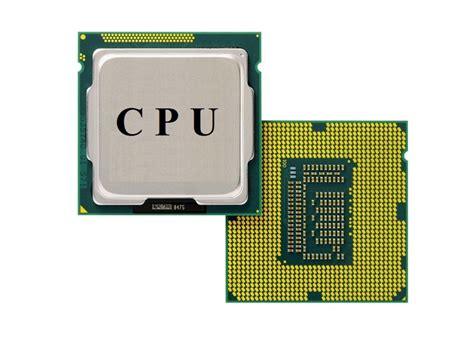
Software Monitoring and Fan Control
Once your hardware is optimized, software plays a vital role in real-time management. Tools like HWMonitor, MSI Afterburner, or NZXT CAM allow you to monitor CPU and GPU temperatures, fan speeds, and clock frequencies. This data is invaluable for identifying hotspots or cooling inefficiencies and making informed adjustments.
Many motherboards and GPU utilities offer customizable fan curves. Instead of relying on default settings, adjust your fan curves to be more aggressive at higher temperatures. This means fans will spin faster when components get hot, providing more cooling precisely when needed, albeit potentially increasing noise levels. Some advanced users also explore undervolting their CPU or GPU, which reduces power consumption and heat generation without significantly impacting performance, but this requires careful testing and understanding.

Environmental Factors and Regular Maintenance
Even the best cooling setup can struggle if the environment isn’t conducive. Ensure your PC is placed in a well-ventilated area, not cramped against a wall or inside a closed cabinet. A cooler room temperature will also naturally help your PC stay cooler. Avoid placing your PC on carpet, as this can block bottom-mounted intake fans and increase dust intake, hindering airflow.
Regular maintenance is non-negotiable. Dust is the enemy of cooling, acting as an insulating layer that traps heat. Periodically (e.g., every 3-6 months), open your PC case and use compressed air to clean dust from fans, heatsinks, and vents. This simple step can dramatically improve thermal performance over time and extend the lifespan of your components.

Conclusion
Preventing CPU and GPU thermal throttling is essential for a smooth and enjoyable gaming experience. By meticulously optimizing case airflow, investing in capable cooling hardware, leveraging software for monitoring and control, and committing to regular maintenance, you can ensure your gaming PC runs at its peak performance, even during intense gaming sessions. A cooler PC is a happier, faster PC, providing you with consistent, high-fidelity gameplay for years to come.


