Tips to prevent GPU/CPU overheating during intense gaming marathons?

Why Your Gaming PC Heats Up
Intense gaming pushes your PC’s core components – the Graphics Processing Unit (GPU) and Central Processing Unit (CPU) – to their limits. This high workload generates significant heat, and if not properly dissipated, it can lead to throttling, reduced performance, system instability, and even long-term damage to your hardware. Understanding the mechanisms behind heat generation is the first step towards effective prevention.
Factors like demanding game graphics, long play sessions, poor case airflow, and accumulated dust all contribute to a rise in internal temperatures. Recognizing these culprits is essential for implementing the right preventative measures.
Optimizing Your PC’s Physical Environment
The immediate surroundings of your PC play a significant role in its cooling efficiency. Ensure your PC case has adequate space around it, especially at the intake and exhaust vents, to allow for unimpeded airflow. Avoid placing it in enclosed cabinets or against walls that block airflow.
Maintaining a cool room temperature can also make a noticeable difference. While not always feasible to keep your gaming room arctic cold, even a few degrees cooler can help your system’s cooling fans work more efficiently without having to spin at maximum RPMs constantly.
Enhancing Your System’s Cooling Hardware
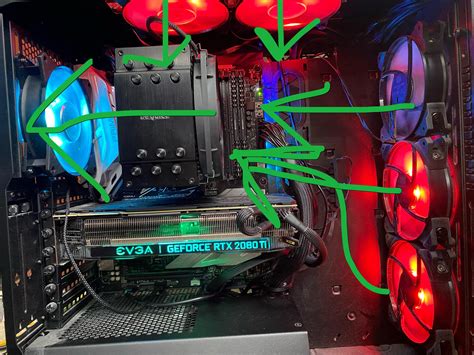
Your PC’s internal cooling solution is its primary defense against heat. Start by ensuring your case has a good airflow configuration, typically with intake fans at the front/bottom and exhaust fans at the top/rear. Larger, well-placed case fans can significantly improve air circulation.
Consider upgrading your CPU cooler if you’re still using a stock cooler, especially for high-performance CPUs. Aftermarket air coolers or All-in-One (AIO) liquid coolers offer superior heat dissipation. For your GPU, ensure its fans are spinning correctly and consider custom fan curves through software if your card allows it, to ramp up cooling during gaming.
Software Solutions and Monitoring
Beyond hardware, software tools can provide crucial insights and controls. Monitoring software like HWMonitor, MSI Afterburner, or NZXT CAM allows you to track GPU and CPU temperatures, fan speeds, and clock speeds in real-time. This helps you identify when temperatures are becoming problematic.
Many graphics card utilities (e.g., MSI Afterburner, ASUS GPU Tweak) allow you to create custom fan curves, so your GPU fans spin faster at higher temperatures. For advanced users, undervolting your CPU or GPU can reduce power consumption and heat generation with minimal impact on performance. Frame rate limiting in games can also reduce the load on your GPU.
Regular Maintenance for Longevity
Dust is the nemesis of PC cooling. Over time, dust accumulates on fans, heatsinks, and components, forming an insulating layer that traps heat and impedes airflow. Regularly clean your PC, ideally every 3-6 months, using compressed air to blow out dust from fans, heatsinks, and vents. Always hold fans in place when cleaning to prevent damage to the bearings.
Cable management also plays a role. Tidy cables inside your case improve airflow, allowing cool air to reach components more effectively. Finally, consider reapplying thermal paste on your CPU (and potentially GPU, if you’re comfortable with the process) every few years, as old thermal paste can dry out and lose its effectiveness.

Adjusting Gaming Habits and Settings
Sometimes, simple adjustments to how you game can prevent overheating. Long gaming sessions, especially with highly demanding titles, naturally generate more heat. Taking short breaks can allow your system to cool down naturally.
Review your in-game graphics settings. While you might aim for the highest fidelity, slightly reducing settings like anti-aliasing, shadow quality, or rendering resolution can significantly lower the load on your GPU and CPU without a drastic impact on visual experience, thereby reducing heat output. Implementing a frame rate cap that matches your monitor’s refresh rate (e.g., 60 FPS for a 60Hz monitor) can also prevent your GPU from rendering unnecessary frames, reducing its workload and heat.
Conclusion
Preventing GPU and CPU overheating during intense gaming marathons is a multi-faceted approach involving environmental awareness, hardware optimization, smart software utilization, and diligent maintenance. By implementing these tips, you can ensure your gaming PC runs cooler, performs better, and enjoys a longer lifespan. A cool PC is a happy PC, and a happy PC means uninterrupted, immersive gaming experiences.