





Why is my new gaming PC lagging? Essential troubleshooting steps for FPS drops.

The Frustration of a Lagging New Gaming PC
There’s nothing quite as disappointing as unboxing a shiny new gaming PC, eager to dive into the latest titles, only to be met with frustrating lag and erratic FPS drops. A new system should offer peak performance, so when it doesn’t, it’s natural to feel bewildered. While it might seem counterintuitive for a powerful new machine to underperform, several factors can contribute to these issues. Don’t panic; most problems are solvable with a systematic approach.
Common Culprits Behind Lag and FPS Drops
Before you blame the hardware entirely, it’s crucial to understand that performance hiccups can stem from a variety of sources, ranging from simple software glitches to more complex hardware misconfigurations. Here’s a breakdown of the most common reasons your new gaming rig might be struggling:
1. Outdated or Corrupt Drivers
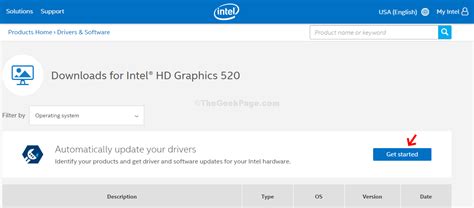
Even a brand new PC might not come with the absolute latest drivers installed. Graphics card drivers (GPU) are particularly critical for gaming performance. Outdated, corrupt, or improperly installed GPU drivers are a leading cause of FPS drops and instability.
- Solution: Always ensure your GPU drivers are up to date. Visit the manufacturer’s website (NVIDIA, AMD, Intel) directly, download the latest stable version, and perform a clean installation. Don’t forget to check for chipset drivers and other essential component drivers as well.
2. Overheating Components
High temperatures can force your CPU and GPU to ‘throttle’ their performance to prevent damage. This thermal throttling manifests as significant FPS drops and lag. New PCs can overheat due to insufficient cooling, poor case airflow, or even a faulty thermal paste application.
- Solution: Monitor your CPU and GPU temperatures using software like HWMonitor, MSI Afterburner, or NZXT Cam. If temperatures consistently exceed 80-85°C during gaming, check your case fan configuration, ensure proper airflow, and verify CPU cooler mounting.
3. Insufficient Power Supply (PSU)
While less common in pre-built gaming PCs, if you’ve assembled your system or upgraded components, an underpowered PSU can be a major issue. Your components, especially the GPU and CPU, require a certain amount of power to run optimally. If the PSU can’t deliver, performance will suffer.
- Solution: Check the recommended PSU wattage for your specific GPU and CPU. If your PSU is at the lower end or below the recommendation, consider upgrading. Ensure all power cables are securely connected to your motherboard, GPU, and other components.

4. Software Conflicts and Background Processes
A fresh Windows installation might still have pre-installed bloatware, or you might have installed applications that consume significant system resources in the background. Antivirus scans, cloud syncing services, or browser tabs can all eat into your CPU and RAM, impacting game performance.
- Solution: Open Task Manager (Ctrl+Shift+Esc) and check the ‘Processes’ tab during gaming to identify resource-hogging applications. Close unnecessary background programs. Ensure Windows Game Mode is enabled and consider disabling Nagle’s algorithm for better network latency if online games are affected.
5. Incorrect Game Settings
It’s tempting to crank every graphical setting to ‘Ultra’ on a new PC, but even high-end hardware has its limits. If your settings are too ambitious for your specific GPU and CPU combination, you’ll experience low FPS.
- Solution: Start by lowering demanding settings like Anti-Aliasing, Shadow Quality, and Volumetric Clouds. Experiment with different presets or individual settings until you find a balance between visual quality and smooth performance. Also, ensure your monitor is set to its native resolution and highest refresh rate in Windows display settings.

6. Storage Drive Performance
While less directly impactful on FPS than the GPU or CPU, a slow storage drive (especially an old Hard Disk Drive – HDD) can cause stuttering and longer loading times, which can feel like lag. If your game is installed on a slow drive, data retrieval can be a bottleneck.
- Solution: Ensure your games are installed on a fast SSD (Solid State Drive), preferably an NVMe SSD for optimal performance. If you only have an HDD, ensure it’s not overly fragmented (though modern Windows largely handles this) and has sufficient free space.
7. Faulty Hardware Components
In rare cases, a component might be faulty right out of the box or become so shortly after use. This could include RAM sticks, the graphics card, or even the CPU itself. Symptoms might be inconsistent, ranging from random crashes to persistent low FPS.
- Solution: Run diagnostic tools like MemTest86 for RAM, or use benchmarking software (e.g., 3DMark, FurMark) to stress-test your GPU and CPU. If issues persist and you’ve exhausted all other options, contacting your PC manufacturer or component warranty support might be necessary.
Advanced Troubleshooting and Benchmarking
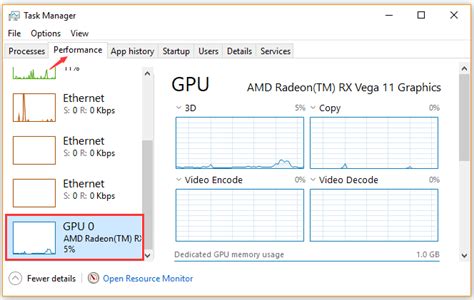
To gain deeper insights, consider using dedicated monitoring and benchmarking tools. Software like MSI Afterburner not only allows you to monitor temperatures and usage but also lets you fine-tune GPU settings. Benchmarking tools can help confirm if your hardware is performing as expected compared to similar systems.
Conclusion
A new gaming PC experiencing lag or FPS drops is frustrating, but rarely a lost cause. By systematically working through these essential troubleshooting steps – checking drivers, monitoring temperatures, optimizing software, and validating settings – you can pinpoint the root cause of the performance issues. Most of the time, a few adjustments are all it takes to unlock the smooth, high-frame-rate gaming experience you invested in.


