How to optimize GPU drivers for max FPS in competitive gaming?
Unleashing Peak Performance: Why Driver Optimization Matters
In the high-stakes world of competitive gaming, every frame per second (FPS) can be the difference between victory and defeat. While powerful hardware is essential, even the most expensive GPU won’t deliver its full potential without optimized drivers. Properly configured GPU drivers can significantly boost FPS, reduce input lag, and provide a smoother, more responsive gaming experience, giving you that crucial edge over your opponents. This guide will walk you through the critical steps to fine-tune your GPU drivers for maximum performance in your favorite competitive titles.
The Foundation: Keeping Your Drivers Current and Clean
The first and most fundamental step in GPU optimization is ensuring your drivers are up-to-date. Graphics card manufacturers like NVIDIA and AMD regularly release new driver versions that include performance optimizations for new games, bug fixes, and general improvements. Running outdated drivers can lead to lower FPS, stuttering, and compatibility issues.
Checking and Updating Your Drivers:
- NVIDIA: Use NVIDIA GeForce Experience to automatically check for and install the latest Game Ready Drivers. For a cleaner install, select “Custom Installation” and then “Perform a clean installation.”
- AMD: Utilize the AMD Adrenalin Software suite to check for updates. Similar to NVIDIA, performing a “Factory Reset” during installation can help ensure a clean slate.
- Manual Download: Alternatively, visit the official NVIDIA or AMD website, select your specific GPU model, and download the latest recommended driver package. Always opt for the latest stable release, not beta drivers, unless you’re troubleshooting a specific issue that a beta driver addresses.
Beyond simply updating, a “clean installation” is vital. This process removes old driver files that can sometimes conflict with new versions, preventing potential performance bottlenecks or stability problems.
Deep Dive: Configuring NVIDIA Control Panel & AMD Adrenalin Settings
Once your drivers are updated, the real optimization begins within your GPU’s control panel. These settings allow you to fine-tune how your graphics card renders games.
NVIDIA Control Panel Settings:
Right-click on your desktop and select “NVIDIA Control Panel.” Navigate to “Manage 3D settings.”
- Global Settings vs. Program Settings: It’s generally best to make changes under “Program Settings” for individual games rather than “Global Settings,” as some optimizations might negatively impact other applications.
- Power Management Mode: Set to “Prefer Maximum Performance.” This ensures your GPU consistently runs at its highest clock speeds, preventing downclocking during intense moments.
- Low Latency Mode: Set to “Ultra” or “On” (depending on driver version). This can significantly reduce input lag, especially in CPU-bound scenarios.
- Texture Filtering – Quality: Set to “High Performance.” This prioritizes FPS over minor texture quality improvements that are often unnoticeable in fast-paced competitive play.
- Vertical Sync (V-Sync): Set to “Off.” V-Sync introduces input lag and should only be enabled if you experience severe screen tearing and cannot utilize adaptive sync technologies (G-Sync/FreeSync).
- G-SYNC/FreeSync: If you have a compatible monitor, enable this. Consider capping your in-game FPS a few frames below your monitor’s refresh rate (e.g., 141 FPS for a 144Hz monitor) to stay within the G-SYNC/FreeSync window and prevent input lag spikes.
- Anti-aliasing – Mode: Set to “Application controlled” or “Off.” Anti-aliasing consumes significant GPU resources, and many competitive players prefer it off for maximum clarity and FPS.

AMD Adrenalin Software Settings:
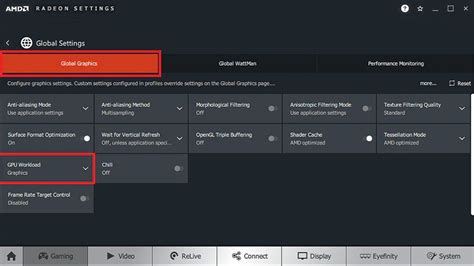
Open AMD Adrenalin Software. Navigate to the “Gaming” tab and then “Global Graphics.”
- Graphics Profile: Start with “eSports” or “Standard” and customize from there.
- Radeon Anti-Lag: Enable this. Similar to NVIDIA’s Low Latency Mode, it helps reduce input lag.
- Radeon Chill: Disable this. While good for power saving, it can dynamically limit FPS, which is detrimental to competitive gaming.
- Image Sharpening: Disable for competitive play or set on a per-game basis if preferred. It can introduce minor latency.
- Texture Filtering Quality: Set to “Performance.”
- Wait for Vertical Refresh (V-Sync): Set to “Always Off.”
- Enhanced Sync: Disable this. It can cause stuttering on some systems. Stick to FreeSync or V-Sync off.
- FreeSync: If you have a compatible monitor, enable this. As with G-SYNC, consider capping in-game FPS slightly below your monitor’s refresh rate.

The Interplay: In-Game Settings vs. Driver Settings
While driver settings provide a powerful baseline, they interact directly with your in-game graphics options. For competitive gaming, the general rule is to prioritize FPS and clarity:
- Texture Quality: High/Medium, depending on VRAM and personal preference.
- Shadows: Low or Off. Shadows are highly resource-intensive and often provide little competitive advantage.
- Post-Processing Effects (Bloom, Motion Blur, Depth of Field): Off. These effects can obscure vision and add latency.
- Draw Distance/Render Scale: Keep these high enough to spot enemies but don’t overdo it. Render scale can often be dropped to 90% or 80% to gain significant FPS with minimal visual impact, but usually, 100% is preferred for sharpness.
Always start with the lowest in-game settings for competitive titles and gradually increase specific settings one by one, monitoring FPS after each change, until you find the perfect balance between visual fidelity and maximum frames.
Monitor and Test: The Iterative Process
Optimization is not a one-time setup; it’s an iterative process. You need to monitor your performance and test changes to see their impact.
- FPS Monitoring Tools: Use tools like MSI Afterburner (with RivaTuner Statistics Server), NVIDIA’s GeForce Experience overlay, or AMD’s Performance Overlay. Many games also have built-in FPS counters.
- A/B Testing: Make one change at a time. Play a few rounds or run a benchmark in your target game, note the average FPS and feel, then make another change. This way, you can isolate which settings have a positive or negative impact.
- Stress Testing: Ensure stability. Play demanding scenarios for extended periods to ensure your system remains stable and free from crashes or significant FPS drops.
Conclusion: Your Path to Competitive Dominance
Optimizing your GPU drivers is a crucial, yet often overlooked, step to achieving peak performance in competitive gaming. By keeping your drivers updated, meticulously configuring your NVIDIA Control Panel or AMD Adrenalin settings, aligning them with smart in-game choices, and consistently monitoring your results, you can unlock higher FPS, reduce input lag, and gain a tangible advantage. Remember, the goal is not just high FPS, but consistent, smooth gameplay that allows your skill to shine through. Dedicate some time to this optimization process, and you’ll undoubtedly feel the difference in your next competitive match.