





My PC stutters in new games. Is my GPU or CPU bottlenecking performance?
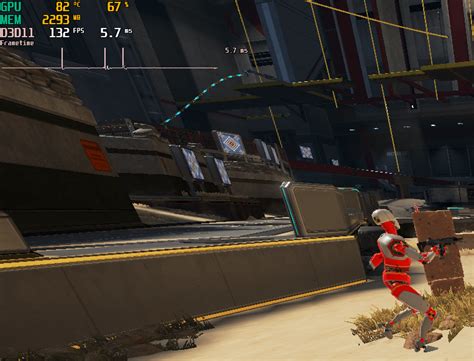
Understanding PC Stuttering: GPU or CPU Bottleneck?
There’s nothing more frustrating than loading up a highly anticipated new game only to be met with choppy frame rates and frustrating stutters. This common issue often points to a “bottleneck” in your system, where one component isn’t keeping up with the others. But how do you pinpoint the culprit: your graphics card (GPU) or your processor (CPU)? Let’s break down the signs and solutions.
What is a Hardware Bottleneck?
A hardware bottleneck occurs when one component in your PC limits the performance of others, preventing your system from reaching its full potential. Imagine a highway with multiple lanes of traffic suddenly merging into a single lane – traffic slows down. Similarly, if your CPU is too slow, it can’t feed data to your powerful GPU fast enough, leaving the GPU underutilized. Conversely, a weak GPU will struggle to render frames even if your CPU is incredibly fast. Identifying the bottleneck is the first step towards smoother gaming.
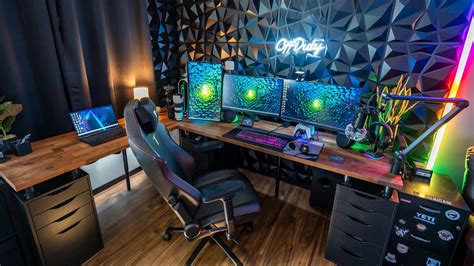
Signs of a GPU Bottleneck
Your graphics card is responsible for rendering all the visuals on your screen. If it’s the bottleneck, you’ll typically observe:
- High GPU Usage (99-100%) with Low FPS: This is the most common indicator. Your GPU is working as hard as it possibly can, but the frame rates are still low or inconsistent.
- Significant FPS Boost from Lowering Resolution/Settings: If dropping from 1440p to 1080p, or reducing texture quality and shadows, dramatically increases your frame rate, your GPU was likely the limiting factor.
- GPU Temperature Maxing Out: While not a direct sign of a bottleneck, an overheating GPU could lead to throttling, which exacerbates a GPU bottleneck.
Essentially, if your GPU is constantly at max utilization and you’re still not getting the performance you desire, it’s a strong sign it’s holding you back.
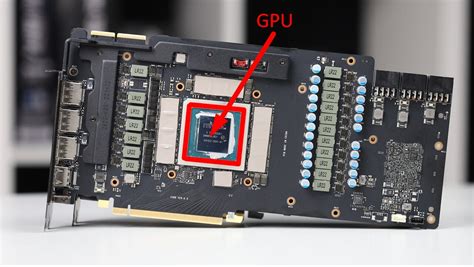
Signs of a CPU Bottleneck
The CPU handles game logic, AI, physics, and instructs the GPU on what to render. A CPU bottleneck can be more insidious:
- High CPU Usage (near 100%) Across Multiple Cores: Especially in new, CPU-intensive games or areas with many NPCs, physics simulations, or complex AI. Your CPU is struggling to process all the necessary game information.
- Low GPU Usage (e.g., 60-80%) with Low FPS: If your GPU isn’t being fully utilized, it means it’s waiting for the CPU to send it data. The CPU is the “traffic controller” that can’t keep up.
- Minimal FPS Change with Resolution/Settings Adjustments: If changing graphical settings (especially resolution) has little to no impact on your frame rate, it suggests the CPU is the limiting factor, as the GPU has spare capacity.
- Stuttering in Specific Game Scenarios: CPU bottlenecks often manifest as stutters in crowded areas, large-scale battles, or open-world games with lots of background processes.
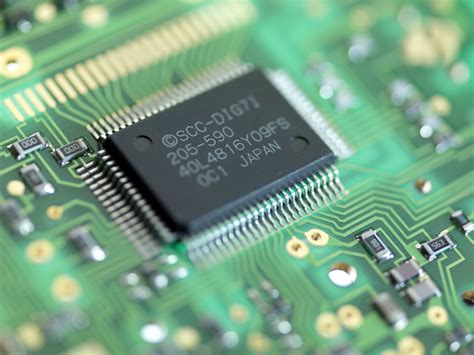
Tools for Diagnosis: Monitoring Your System
To accurately identify your bottleneck, you need to monitor your system’s performance in real-time while gaming. Recommended tools include:
- MSI Afterburner (with RivaTuner Statistics Server): This powerful combination allows you to overlay detailed statistics like GPU usage, CPU usage (per core), VRAM, RAM, temperatures, and frame rates directly on your screen during gameplay.
- Task Manager (Windows): A quick way to see overall CPU and GPU usage, though less detailed than Afterburner.
- Built-in Game Overlays: Many modern graphics drivers (NVIDIA GeForce Experience, AMD Radeon Software) and game launchers offer their own performance monitoring overlays.
While monitoring, pay close attention to the utilization percentages of your GPU and individual CPU cores. If one is consistently maxed out while the other has headroom, you’ve found your bottleneck.
Addressing a GPU Bottleneck
If your GPU is the limiting factor, consider these steps:
- Lower Graphics Settings: Start with resolution, then texture quality, shadows, anti-aliasing, and post-processing effects. These are typically GPU-intensive.
- Update GPU Drivers: Always ensure you have the latest drivers from NVIDIA or AMD, as they often include performance optimizations for new games.
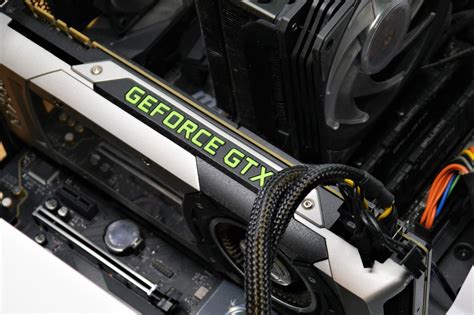
- Upgrade Your GPU: Ultimately, if you want significantly better performance in demanding games, a more powerful graphics card will be necessary.
Addressing a CPU Bottleneck
If your CPU is struggling, here’s what you can do:
- Close Background Applications: Make sure no unnecessary programs are running in the background, consuming CPU cycles.
- Update CPU/Chipset Drivers: Ensure your motherboard chipset drivers and any specific CPU drivers are up to date.
- Check CPU Cooling: An overheating CPU can throttle its performance. Ensure your cooler is effective and clean.
- Overclock Your CPU (Advanced): If your CPU and motherboard support it, a moderate overclock can sometimes provide a small performance boost, but proceed with caution.
- Upgrade Your CPU: This is often the most effective solution. However, a CPU upgrade might also necessitate a new motherboard and RAM if your current components aren’t compatible with newer processors.
Conclusion
Diagnosing a bottleneck can seem daunting, but with the right monitoring tools and a systematic approach, you can pinpoint whether your GPU or CPU is holding your gaming experience back. Once identified, you can make informed decisions about adjusting settings or investing in targeted hardware upgrades to achieve that smooth, stutter-free gameplay you deserve.


