





Experiencing micro-stutters in games. How to diagnose & fix them?
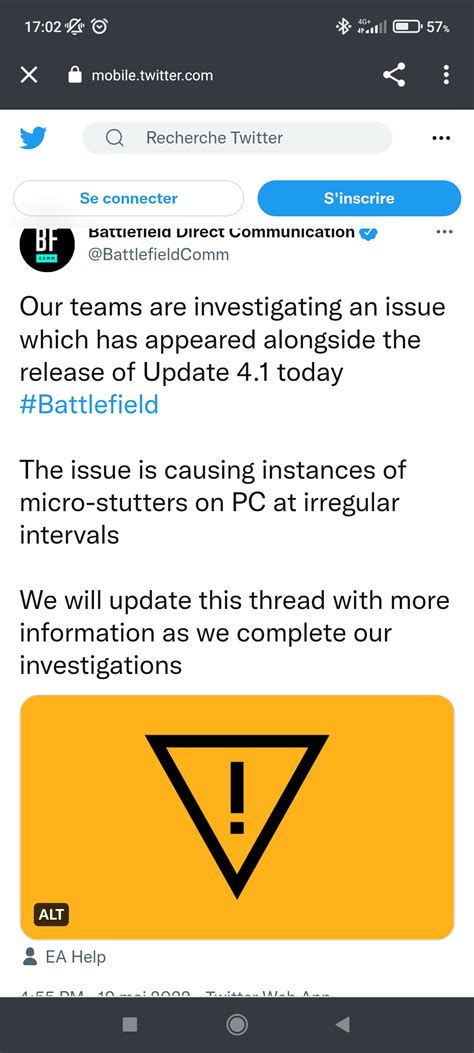
Micro-stutters are one of the most insidious issues a PC gamer can face. Unlike a consistent low frame rate, which is often easier to diagnose, micro-stutters appear as brief, jarring pauses or hitches that interrupt the otherwise smooth flow of your game. They can turn an immersive experience into a frustrating ordeal, making quick reflexes impossible and destroying immersion. This guide will walk you through understanding what micro-stutters are, how to pinpoint their source, and the steps you can take to banish them from your gaming rig.
Understanding Micro-Stutters
At their core, micro-stutters are momentary deviations in frame time. While your frame rate (FPS) might appear high on a counter, frame time, which measures the time taken to render each individual frame, tells a more accurate story. If frame times are inconsistent, with sudden spikes, you’ll experience a stutter even if your average FPS is high. Your monitor might be displaying 60 frames per second, but if some frames take significantly longer to render than others, the visual effect is a momentary halt or hitch.
Common Causes of Micro-Stutters
Micro-stutters can stem from a variety of sources, both software and hardware related. Identifying the root cause is often the most challenging part of the fix.
Software-Related Issues
- Outdated or Corrupt Drivers: Graphics card drivers are prime suspects, but chipset, audio, and network drivers can also contribute.
- Background Applications: Resource-intensive apps, overlays (Discord, GeForce Experience), or even Windows services periodically consuming CPU/RAM.
- Operating System Issues: Windows power plans, Game Mode conflicts, recent Windows updates, or even a fragmented drive.
- In-Game Settings: VRAM overcommitment, conflicting rendering APIs, or features like shader caching.
Hardware-Related Issues
- CPU Bottleneck: The CPU struggling to feed instructions to the GPU quickly enough, especially in CPU-intensive games.
- GPU Bottleneck: While less common for micro-stutters at high FPS, a GPU nearing its VRAM limit or struggling with complex scenes can cause hitches.
- RAM Issues: Insufficient RAM, slow RAM speed, or faulty RAM modules.
- Storage Performance: Games installed on slow HDDs, or a failing SSD.
- Power Supply Unit (PSU): An insufficient or unstable PSU can cause components to underperform, leading to inconsistencies.
- Overheating: CPU or GPU throttling due to excessive temperatures can lead to significant frame time spikes.

Diagnosing Micro-Stutters: A Step-by-Step Approach
Effective diagnosis requires a systematic approach and good monitoring tools.
1. Monitor Your System Thoroughly
Tools like MSI Afterburner (with RivaTuner Statistics Server), HWMonitor, or CapFrameX are essential. Pay close attention to:
- Frame Time Graph: This is your most important metric. Look for consistent spikes.
- CPU Usage (Per Core): Identify if one core is maxing out.
- GPU Usage: Look for drops coinciding with stutters.
- RAM Usage: Check for near-full capacity.
- Temperatures: CPU, GPU, and even VRM temperatures.
- Power Usage: GPU and CPU power draw.
2. Update or Rollback Drivers
Start with your GPU drivers. Use Display Driver Uninstaller (DDU) in Safe Mode to completely remove old drivers before installing the latest stable version. If the problem started after a driver update, try rolling back to a previously stable version.
3. Close Background Applications and Overlays
Temporarily disable all non-essential programs, cloud sync services, antivirus, and game overlays (Steam, Discord, Xbox Game Bar, GeForce Experience, etc.) to see if they are the culprits.
4. Adjust In-Game and Global Settings
Experiment with:
- V-Sync/G-Sync/FreeSync: Disable V-Sync if you have adaptive sync; enable it if you don’t and experience tearing. Try disabling adaptive sync temporarily.
- Shader Cache: Clear or disable it in your GPU control panel or game settings.
- DirectX Version: Some games allow switching between DX11, DX12, or Vulkan. Experiment.
- Graphics Settings: Lower demanding settings (shadows, reflections, anti-aliasing) to reduce strain, especially VRAM usage.
Effective Solutions to Eliminate Micro-Stutters
1. Optimize Your Software Environment
- Windows Power Plan: Ensure it’s set to ‘High Performance’ or ‘Ultimate Performance’.
- Game Mode: Toggle Windows Game Mode on/off to see if it makes a difference.
- Disable Superfetch/SysMain: Some users report this service causing disk-related stutters.
- Check for OS Updates: Ensure Windows is fully updated, but be wary of fresh updates causing new issues.
- Disable ‘Full-Screen Optimizations’: Right-click game .exe > Properties > Compatibility.
2. Address Hardware-Related Issues
- Check Temperatures: Clean out dust from your PC, replace thermal paste if necessary, and ensure good airflow. Overheating is a common culprit.
- Verify RAM: Run a memory test (like MemTest86). Ensure RAM is running at its advertised speed (XMP/DOCP enabled in BIOS).
- SSD Health: Use a tool like CrystalDiskInfo to check your SSD’s health. Ensure you have ample free space.
- PSU Check: If your PSU is old or barely meets your system’s wattage requirements, it might be struggling under load.
- BIOS/UEFI Settings: Ensure your BIOS is up to date. Reset to default and re-apply essential settings like XMP.
3. Advanced Troubleshooting
- Fresh OS Install: As a last resort, a clean Windows installation can eliminate deep-seated software conflicts.
- Test Individual Components: If you have spare parts, try swapping out RAM, GPU, or even the CPU to isolate the problem.
- Firmware Updates: Check for firmware updates for your motherboard, SSDs, and other peripherals.
Conclusion
Micro-stutters are frustrating, but with patience and a systematic approach, they are often fixable. The key is thorough monitoring and isolating variables one by one. Start with the easiest and most common fixes (drivers, background apps, in-game settings) and gradually move to more complex hardware checks. With persistence, you can diagnose and eliminate those pesky hitches, returning to the smooth, immersive gaming experience you deserve.


