





Gaming PC overheating? Best cooling setup tips for stable FPS.
Why Optimal Cooling is Crucial for Your Gaming PC
Is your gaming PC stuttering, freezing, or even shutting down during intense gameplay? Overheating is a common culprit that can severely impact performance, leading to dropped frames (FPS), system instability, and even long-term hardware damage. A well-cooled system not only ensures stable Frame Rates Per Second (FPS) but also extends the lifespan of your valuable components. Understanding the signs of overheating and implementing effective cooling strategies is paramount for any serious PC gamer.
Understanding PC Overheating: Signs and Causes
Symptoms of an Overheating PC:
- Reduced Performance: Lag, stuttering, and significant FPS drops, especially during graphically demanding games.
- Loud Fan Noise: Fans spinning at maximum RPM to compensate for rising temperatures.
- System Crashes: Blue Screen of Death (BSOD), unexpected shutdowns, or freezing.
- Hot Case: The PC case feels unusually warm to the touch.
Common Causes:
- Dust Accumulation: The number one enemy. Dust acts as an insulator, trapping heat and blocking airflow.
- Poor Airflow: Incorrect fan placement, restrictive cases, or tangled cables impeding air movement.
- Degraded Thermal Paste: Over time, the thermal paste between your CPU/GPU and their respective coolers can dry out, losing its effectiveness.
- Overclocking: While boosting performance, aggressive overclocking generates significantly more heat.
- Inadequate Cooling Hardware: Stock coolers or insufficient case fans for your hardware demands.
Essential Tips for Better PC Cooling
1. Clean Your PC Regularly
This is the simplest yet most effective step. Dust build-up on heatsinks, fans, and vents dramatically reduces cooling efficiency.
- Method: Use compressed air to blow out dust from fans (hold them gently to prevent over-spinning), heatsinks, and vents. Do this every 3-6 months, more often if you live in a dusty environment or have pets.

2. Optimize Case Airflow and Cable Management
Proper airflow creates a clear path for cool air to enter and hot air to exit your case.
- Intake/Exhaust: Generally, front and bottom fans should be intake (bringing cool air in), while top and rear fans should be exhaust (pushing hot air out). Aim for positive pressure (slightly more intake than exhaust) to minimize dust entry.
- Cable Management: Route cables behind the motherboard tray or out of the direct airflow path. Neatly tied cables not only look good but also ensure unobstructed air movement.
3. Upgrade Your Cooling Hardware
Case Fans:
Stock case fans are often basic. Upgrading to higher-quality fans with better airflow (CFM) and static pressure can make a significant difference. Consider PWM (Pulse Width Modulation) fans for precise speed control.

CPU Coolers:
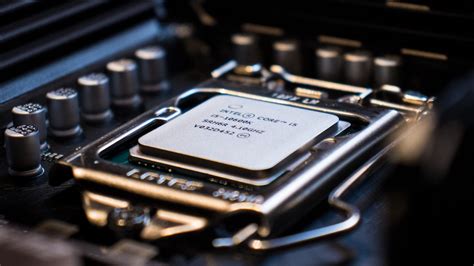
The CPU is a major heat generator. Upgrading from a stock cooler is almost always recommended for gaming.
- Air Coolers: Large tower coolers with multiple heat pipes and fans offer excellent performance and reliability, often at a lower cost than liquid solutions.
- All-in-One (AIO) Liquid Coolers: These sealed units offer superior cooling performance, especially for high-end CPUs or overclocking, and often free up space around the CPU socket.
GPU Cooling:
Your graphics card also generates substantial heat. While aftermarket GPU coolers exist, consider these software solutions first:
- Fan Curves: Use software like MSI Afterburner or AMD Adrenalin to create custom fan curves, allowing your GPU fans to spin faster at lower temperatures.
- Undervolting: Reducing your GPU’s voltage slightly can significantly lower temperatures with minimal impact on performance.
Advanced Cooling Considerations
1. Replace Thermal Paste
If your CPU or GPU is several years old, replacing the thermal paste can revive its cooling efficiency. This process involves carefully removing the cooler, cleaning off old paste, and applying a fresh layer of high-quality thermal compound.

2. Choose the Right PC Case
A good PC case is the foundation of an effective cooling setup. Look for cases with:
- Mesh Front Panels: Maximize airflow compared to solid panels.
- Ample Fan Mounts: More options for fan placement and size.
- Good Cable Management Features: Cutouts and tie-down points.
- Dust Filters: Removable filters simplify cleaning and prevent dust ingress.
3. Monitor Temperatures
Use software like HWMonitor, Core Temp, or MSI Afterburner to keep an eye on your CPU and GPU temperatures. Understand what constitutes safe operating temperatures for your components (generally, below 80-85°C under load is good).
Conclusion
A well-cooled gaming PC is a happy gaming PC. By implementing these tips, from basic maintenance like regular cleaning and proper cable management to more advanced upgrades like better case fans or CPU coolers, you can significantly reduce temperatures, prevent performance throttling, and ensure a smooth, stable gaming experience with consistent FPS. Invest a little time and effort into your PC’s cooling, and your hardware will thank you for it, delivering peak performance for years to come.


