





Game CTD with mods. How to isolate conflicting mod?

The Frustration of Modded Game Crashes
There’s little more disheartening for a modding enthusiast than a game that repeatedly crashes to desktop (CTD) right in the middle of an epic quest or a crucial build. When your game, heavily enhanced with mods, suddenly becomes unstable, the culprit is almost always a conflict between two or more of your installed modifications. Pinpointing the exact source of the conflict can feel like searching for a needle in a haystack, especially with hundreds of mods. However, with a systematic approach, you can effectively isolate the problematic mod and restore stability to your game.
Understanding Mod Conflicts
Before diving into troubleshooting, it’s helpful to understand why conflicts occur. Mods alter game files, scripts, or assets. When two mods try to change the same thing in incompatible ways, or if a mod has incorrect dependencies, it can lead to instability and crashes. Common reasons include:
- Incompatible Alterations: Two mods modify the same game record or resource differently.
- Incorrect Load Order: Mods are loaded in an sequence that overwrites essential data incorrectly.
- Missing Master Files: A mod requires another mod (a ‘master’) to function, but it’s not installed or loaded before the dependent mod.
- Corrupt Files: A mod download or installation might be damaged.
- Engine Limitations: Pushing the game engine beyond its limits with too many complex mods.
Preparation is Key: Backups and Mod Managers
Before you begin the isolation process, always back up your save files! This is crucial. Additionally, a robust mod manager (like Mod Organizer 2, Vortex, or Nexus Mod Manager) is indispensable. These tools allow for easy activation/deactivation of mods and often manage load orders, making troubleshooting significantly less painful than manual installation.

Method 1: The 50/50 (Binary Search) Method
This is arguably the most efficient way to narrow down conflicts when dealing with a large number of mods. It’s based on the binary search algorithm:
- Disable Half: Deactivate roughly half of your installed mods.
- Test the Game: Launch your game and try to reproduce the CTD.
- Evaluate:
- If the game still crashes: The conflicting mod is in the currently active half. Deactivate another half of *those* active mods.
- If the game doesn’t crash: The conflicting mod is in the half you just deactivated. Reactivate your original active mods and then reactivate half of the previously disabled group.
- Repeat: Continue this process, halving the problematic group each time, until you’re left with a very small number of mods (ideally 1-3) that contain the culprit. This method rapidly narrows down the possibilities.
Method 2: One-by-One Disabling (for smaller lists)
If you have a relatively small number of mods (e.g., under 20-30), or if the 50/50 method proves too cumbersome for your specific mod manager, disabling mods one by one can be effective:
- Disable All: Start by deactivating all your mods.
- Reactivate Incrementally: Reactivate your mods one by one (or in small, logical groups if you’re certain about their compatibility).
- Test After Each: After activating each mod or group, launch the game and test for the CTD.
- Identify the Culprit: The last mod you activated before the CTD reappeared is likely the problematic one.
Method 3: Load Order Optimization
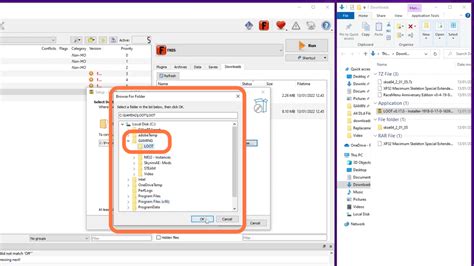
Sometimes, mods aren’t inherently incompatible, but their order of loading causes issues. Tools like LOOT (Load Order Optimization Tool) for Bethesda games can automatically sort your load order. For other games, consult specific modding guides or community resources. If automatic sorting doesn’t fix it, manual adjustment based on mod descriptions (e.g., placing patches after the main mod they patch) might be necessary.
Method 4: Utilizing Conflict Detection Tools
Many games, especially those with extensive modding scenes like Skyrim or Fallout, have dedicated tools for conflict detection and resolution:
- xEdit (SSEEdit/FO4Edit/TES5Edit): These tools allow you to inspect individual records modified by your mods and create ‘merge patches’ to manually resolve conflicts, giving precedence to the changes you desire.
- Merge Plugins: Tools specifically designed to combine multiple small mods into a single plugin, reducing plugin count and potential conflicts.
Advanced Troubleshooting Tips
- Read Crash Logs: Many games or modding frameworks (like SKSE for Skyrim) generate crash logs. These logs often point directly to the problematic file or even the specific function causing the crash. Learning to read them is invaluable.
- Check Mod Requirements: Always double-check that you’ve installed all prerequisite mods (master files, other framework mods) for every mod you’re using.
- Consult Mod Pages and Forums: The mod’s description page often lists known incompatibilities. Game-specific modding communities and forums are excellent resources for known issues and solutions.
- Isolate New Mods: If your game was stable and suddenly started crashing after adding new mods, focus your efforts on those recently installed additions.
Preventive Measures for Future Stability
Once you’ve isolated and resolved your current CTD issue, consider adopting these practices to minimize future conflicts:
- Research Before Installing: Always read mod descriptions, bug reports, and user comments before installing.
- Install Incrementally: Add new mods in small batches, testing stability after each addition.
- Keep Mods Organized: Use your mod manager’s categories and tags to keep track of what each mod does.
- Regularly Update: Keep your game, mod manager, and essential framework mods updated.
Conclusion
Dealing with game crashes due to mod conflicts requires patience and a systematic approach. By utilizing mod managers, applying methods like the 50/50 test, optimizing your load order, and leveraging conflict detection tools, you can effectively isolate problematic mods. Remember that every modding journey involves some troubleshooting, but the reward of a stable, enhanced game is well worth the effort. Happy modding!


