





GPU overheating? Practical tips for better PC airflow and cooling.
The Silent Killer: Why GPU Overheating Matters
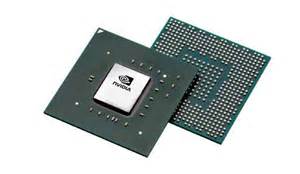
Your Graphics Processing Unit (GPU) is the powerhouse behind your gaming and creative applications. When it runs too hot, however, it can lead to a cascade of problems: stuttering frames, unexpected crashes, reduced performance, and even permanent damage. Understanding and optimizing your PC’s internal airflow and cooling system is crucial for maintaining your GPU’s health and ensuring a stable, high-performance computing experience.

Understanding PC Airflow Fundamentals
Effective cooling begins with a fundamental understanding of how air moves through your PC case. The goal is to create a clear path for cool air to enter, absorb heat from components, and then efficiently exit. This is typically achieved through a balance of ‘intake’ fans (bringing cool air in) and ‘exhaust’ fans (pushing hot air out).
Cleanliness is Key: Combatting Dust
Dust is the mortal enemy of PC cooling. Over time, dust accumulates on fan blades, heatsinks, and vents, forming an insulating layer that traps heat. Regularly cleaning your PC is perhaps the simplest yet most effective step you can take. Use compressed air to blow out dust from heatsinks (GPU, CPU), power supply, and case fans. Ensure you hold fan blades still to prevent overspinning and potential damage.

Strategic Fan Placement and Configuration
The number and orientation of your case fans play a critical role. Most modern cases are designed for front and bottom intake, and rear and top exhaust. This setup creates a natural front-to-back and bottom-to-top airflow path, leveraging the principle that hot air rises. Experiment with fan speeds – often adjustable via your motherboard’s BIOS or dedicated software – to find a balance between noise and cooling performance.
- Intake Fans: Typically placed at the front or bottom of the case to draw in cool ambient air.
- Exhaust Fans: Usually located at the rear or top of the case to expel hot air.
- Positive vs. Negative Pressure: Aim for slightly positive pressure (more intake than exhaust) to help prevent dust from entering through unfiltered gaps.

Cable Management and Component Clearance
Cluttered cables are not just an aesthetic issue; they actively obstruct airflow. Tidy cable management involves routing cables behind the motherboard tray or along the case’s edges, ensuring they don’t block fans or impede the movement of air to your GPU. Additionally, ensure your GPU has adequate clearance from other components and the side panel. Cramped spaces can choke off its ability to draw in cool air and dissipate heat.
Consider Aftermarket Cooling Solutions
If your stock cooling isn’t sufficient, consider upgrading. This can range from replacing loud or inefficient stock case fans with higher-performance alternatives, to investing in a more robust CPU cooler (air or liquid), or even an aftermarket GPU cooler for extreme cases. Liquid cooling (AIO or custom loops) offers superior thermal performance, especially for high-end components, but requires more investment and careful installation.
Thermal Paste Refresh
Over time, the thermal paste between your GPU’s processor die and its heatsink can dry out and become less effective. If your GPU is several years old and showing signs of overheating despite good airflow, reapplying fresh, high-quality thermal paste can make a significant difference. This is a more advanced task and should be done with care.

External Factors and Environmental Control
Your PC’s surroundings play a role too. Ensure your computer isn’t in an enclosed space, like a cabinet with no ventilation, or pressed directly against a wall. Give it room to breathe! The ambient room temperature also impacts your PC’s cooling efficiency; a cooler room means cooler intake air. Keep your PC off the floor if possible, to reduce dust intake.
Choosing the Right PC Case
Not all PC cases are created equal when it comes to airflow. Cases with mesh front panels and ample fan mounting options generally offer better cooling performance than those focused solely on aesthetics with solid front and top panels. When building a new PC or considering an upgrade, prioritize cases known for their excellent airflow design.

Conclusion: Keep Your System Running Cool
GPU overheating is a solvable problem that, left unaddressed, can severely impact your PC’s performance and lifespan. By implementing these practical tips – from regular cleaning and strategic fan placement to thoughtful cable management and environmental considerations – you can ensure your GPU stays within safe operating temperatures. A cool GPU means a happy PC, delivering consistent performance for all your demanding tasks.


