PC overheating during gaming? Top 3 actionable cooling tips now!
Is your gaming PC stuttering, freezing, or even crashing mid-game? A common culprit is overheating. When your system’s components, especially the CPU and GPU, get too hot, they automatically throttle their performance to prevent damage. This leads to frustrating frame drops and a less enjoyable gaming experience. But don’t despair! With a few strategic adjustments, you can bring those temperatures down and keep your PC running smoothly.
Understanding PC Overheating
Before diving into solutions, it’s crucial to understand why PCs overheat. Intense gaming pushes hardware to its limits, generating significant heat. If this heat isn’t effectively dissipated, it accumulates, leading to performance issues and potential long-term damage to your components. Factors like dust accumulation, poor airflow, and aging thermal paste are primary contributors.
Tip 1: Optimize Your PC’s Airflow and Clean Regularly
One of the most immediate and impactful steps you can take is to ensure your PC has excellent airflow and is free of dust. Dust acts as an insulating layer, trapping heat and impeding cooling. Over time, it can clog fans and heatsinks, severely reducing their efficiency.
Actionable Steps:
- Clean Your Fans and Vents: Use compressed air to blow out dust from all case fans, CPU cooler, GPU heatsink, and power supply. Do this every 3-6 months, or more frequently if you live in a dusty environment. Always hold the fan blades when cleaning to prevent over-spinning and potential damage.
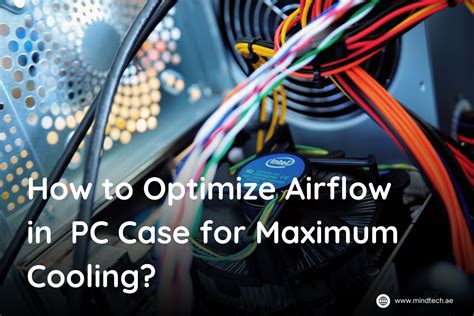
- Improve Case Airflow: Ensure your case has a good intake/exhaust fan setup. Generally, front and bottom fans should be intake (pulling cool air in), while rear and top fans should be exhaust (pushing hot air out). If you only have one or two fans, consider adding more for better circulation.
- Cable Management: Untidy cables can obstruct airflow. Take the time to route your cables neatly behind the motherboard tray or out of the direct path of air, if your case allows.
- Placement of Your PC: Don’t place your PC in an enclosed space like a small cabinet or right against a wall. Give it room to breathe, with at least a few inches of clearance on all sides, especially where air is drawn in or pushed out.
Tip 2: Reapply Thermal Paste on CPU & GPU
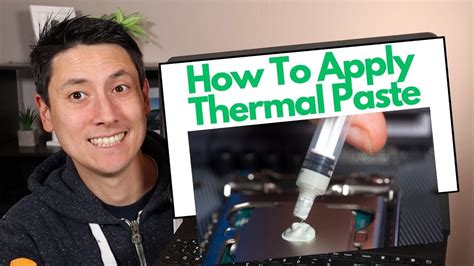
Thermal paste is a crucial interface material that fills microscopic gaps between your CPU/GPU die and their respective heatsinks, maximizing heat transfer. Over years of use, thermal paste can dry out and lose its effectiveness, becoming a bottleneck for heat dissipation.
Actionable Steps:
- Identify the Need: If your PC is a few years old and you’ve tried cleaning and airflow optimization without significant improvement, old thermal paste is a likely culprit.
- Purchase Quality Thermal Paste: Invest in a reputable brand of thermal paste (e.g., Arctic MX-4, Noctua NT-H1, Thermal Grizzly Kryonaut).
- CPU Thermal Paste: You’ll need to carefully remove your CPU cooler, clean off the old paste from both the CPU IHS (Integrated Heat Spreader) and the cooler’s base using isopropyl alcohol, and then apply a small, pea-sized dot of new paste to the center of the CPU before reinstalling the cooler. Consult a video guide if you’re unsure.
- GPU Thermal Paste: This is a more advanced task, as it requires disassembling your graphics card’s cooler. If you’re not confident, consider professional help, as improper handling can damage your expensive GPU.
Tip 3: Adjust Fan Curves and Monitor Temperatures
Default fan settings aren’t always optimal for gaming. Customizing your fan curves allows your fans to spin faster when temperatures rise, providing more aggressive cooling when needed, and quieter operation during light tasks.
Actionable Steps:
- Use Monitoring Software: Download reliable monitoring software like HWMonitor, MSI Afterburner (for GPU), or NZXT CAM (for CPU/system). These tools allow you to see your CPU and GPU temperatures in real-time during gaming. Aim for CPU temps below 80-85°C and GPU temps below 75-80°C under load.
- Adjust Fan Curves (BIOS/Software):
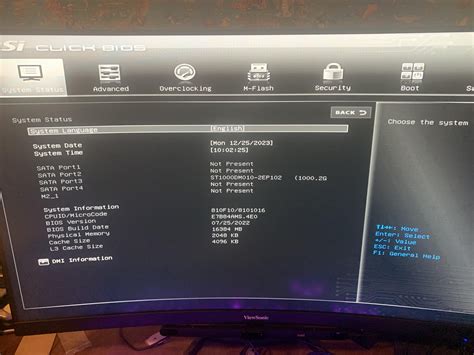
- Case Fans & CPU Fan: Most motherboards allow you to adjust fan curves in the BIOS/UEFI. You can set specific fan speeds (RPM or percentage) for different temperature thresholds.
- GPU Fans: MSI Afterburner or similar GPU utility software allows you to create custom fan curves for your graphics card. Set the fans to spin up more aggressively as the GPU temperature climbs.
- Consider Aftermarket Coolers: If stock CPU coolers or your existing GPU cooler struggle to keep temperatures in check even with optimized fan curves, consider upgrading to a more powerful aftermarket CPU cooler (air or AIO liquid cooler) or a higher-performance GPU cooler.
Conclusion: Keep Cool, Game On!
An overheating PC is more than just an annoyance; it’s a threat to your hardware’s lifespan and your gaming enjoyment. By regularly cleaning your system, ensuring proper airflow, maintaining fresh thermal paste, and optimizing your fan settings, you can significantly reduce temperatures and unleash your PC’s full potential. Don’t let heat hold you back – implement these tips today and get back to immersive, smooth gaming!