





How to optimize PC gaming settings for maximum FPS and visuals?
The Quest for Perfect PC Gaming: FPS Meets Visual Fidelity
For PC gamers, the sweet spot lies where buttery-smooth frame rates (FPS) meet breathtaking visual fidelity. Achieving this balance isn’t always plug-and-play; it requires a strategic approach to your system and in-game settings. Whether you’re chasing competitive advantage with high FPS or immersing yourself in stunning open worlds, understanding and optimizing your setup is key. This guide will walk you through the essential steps to squeeze every ounce of performance and visual quality out of your gaming rig.
1. Keep Your Drivers Up-to-Date
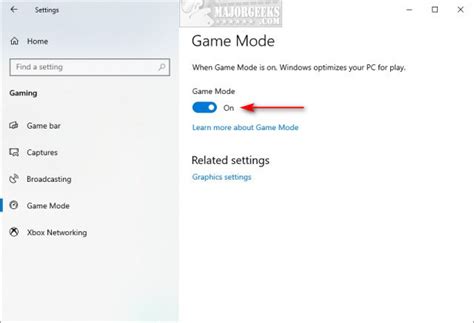
The foundation of any good gaming experience begins with up-to-date drivers, especially for your graphics card (GPU). Manufacturers like NVIDIA and AMD regularly release optimized drivers that can significantly boost performance in new and existing games, often fixing bugs or adding new features.
- Graphics Drivers: Always download the latest stable version directly from NVIDIA (GeForce Experience), AMD (Radeon Software), or Intel’s official websites. Perform a clean installation when updating.
- Chipset Drivers: Ensure your motherboard’s chipset drivers are also current. Check your motherboard manufacturer’s website.
2. Master Your In-Game Graphics Settings
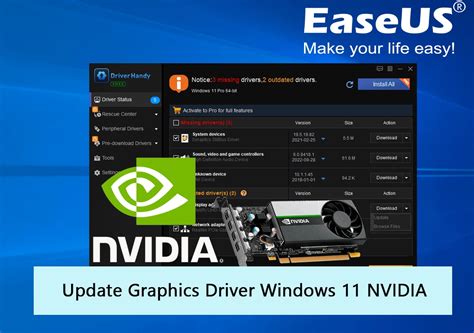
This is where most of the magic happens. Every game offers a plethora of graphics options, and knowing which ones to tweak is crucial for balancing performance and visuals. Start by setting your desired resolution, typically your monitor’s native resolution, and then adjust other settings.
High Impact Settings (Adjust First for FPS)
- Resolution & Render Scale: Lowering render scale (e.g., 90% or 80%) can provide huge FPS gains at the cost of slight blurriness. Your monitor’s native resolution is ideal for sharpness.
- Anti-Aliasing (AA): Techniques like MSAA are very demanding. FXAA or TAA are less resource-intensive alternatives. Try turning it off or using a lighter option if FPS is critical.
- Shadow Quality: Shadows are notoriously performance-intensive. Reducing shadow quality or resolution can yield significant FPS improvements with minimal visual impact for many.
- Volumetric Effects/God Rays: These beautiful effects often come with a heavy performance cost.
- Reflections: Real-time reflections (especially screen-space reflections) can heavily tax your GPU. Lowering this can free up considerable resources.
Moderate Impact Settings (Fine-Tune for Visuals)
- Texture Quality: This impacts VRAM usage more than raw processing power. If you have a GPU with sufficient VRAM (6GB+), you can usually set this to High/Ultra. If you’re VRAM-limited, lower it.
- View Distance / Draw Distance: Affects how far into the distance objects and details render. Has a noticeable impact on CPU and GPU.
- Post-Processing Effects: Bloom, motion blur, depth of field, and chromatic aberration can be aesthetically pleasing but might slightly reduce FPS. Motion blur is often disabled by competitive players.
- Ambient Occlusion (AO): Adds realistic shadowing where surfaces meet. SSAO is less demanding than HBAO/RTX AO.
3. Optimize Your Operating System (Windows)
Your operating system can also be fine-tuned for gaming performance.
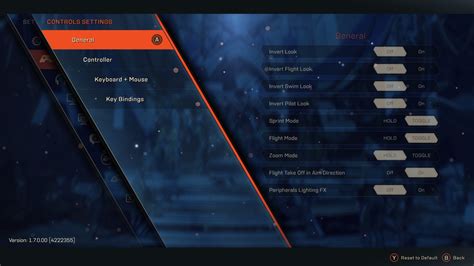
- Game Mode: Windows 10/11’s Game Mode optimizes your PC for gaming by prioritizing game processes and suspending background tasks. Ensure it’s enabled in your Windows settings.
- Disable Background Apps: Close any unnecessary applications running in the background (browsers, chat apps, streaming services) that consume CPU, RAM, or network resources.
- Power Plan: Set your power plan to ‘High Performance’ or ‘Ultimate Performance’ (if available) to ensure your CPU and GPU aren’t throttled.
- Startup Applications: Reduce the number of programs that launch automatically with Windows to free up RAM and CPU cycles.
4. Utilize Your GPU Control Panel
Beyond in-game settings, NVIDIA Control Panel and AMD Radeon Software offer global and program-specific settings that can further optimize your gaming experience.
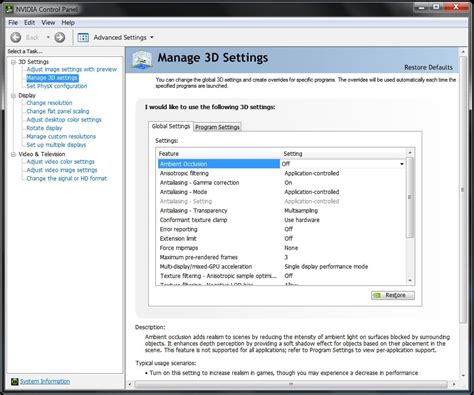
- NVIDIA Control Panel: Navigate to ‘Manage 3D settings’. You can set global preferences or customize settings for individual games. Key settings include: Power Management Mode (Prefer maximum performance), Texture Filtering Quality (High Performance), Low Latency Mode (On/Ultra).
- AMD Radeon Software: Similar to NVIDIA, you can find global graphics settings or create profiles for specific games. Look for settings like Radeon Boost, Anti-Lag, and Image Sharpening.
5. Hardware Considerations and Monitoring
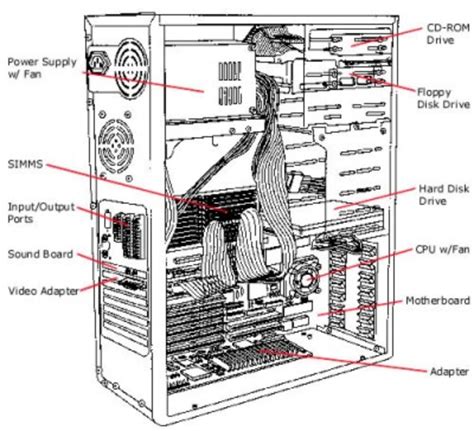
While software optimization is powerful, your hardware sets the ultimate limits. Ensure your components are running optimally and consider upgrades if you consistently fall short of your goals.
- RAM: 16GB is the current sweet spot for most gaming PCs. Ensure your RAM is running at its advertised speed (XMP/DOCP enabled in BIOS).
- CPU: A powerful CPU reduces bottlenecks, especially in CPU-intensive games or high-refresh-rate scenarios.
- Cooling: Good cooling for your CPU and GPU is essential to prevent thermal throttling, which can reduce performance. Clean dust from your fans and heatsinks regularly.
- Monitor Your System: Tools like MSI Afterburner, HWMonitor, or the in-game overlay can help you monitor CPU/GPU usage, temperatures, and FPS in real-time. This data is invaluable for identifying bottlenecks and the impact of your setting changes.
Conclusion: Experiment and Enjoy
Optimizing PC gaming settings is an iterative process. Start with the most impactful settings, make small changes, and test the results. What works best for one game might not be ideal for another. Don’t be afraid to experiment, and use in-game benchmarks or monitoring tools to track your progress. With a little effort, you can transform your gaming experience, enjoying the perfect blend of maximum FPS and stunning visuals your hardware is capable of delivering.


