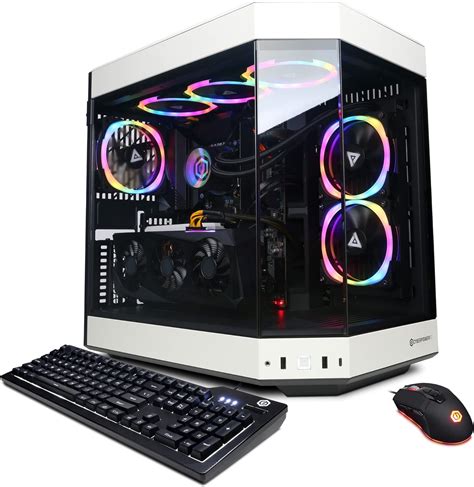
My PC gets hot while gaming. Best cooling setup for stable FPS?

Why Heat Kills Your Gaming Performance
It’s a common dilemma for PC gamers: you’re deep into an intense session, and suddenly your frame rates dip, or the game stutters. Often, the culprit is excessive heat. When your CPU or GPU gets too hot, they automatically reduce their clock speeds – a process called thermal throttling – to prevent damage. While effective for protection, it directly impacts your gaming performance, leading to unstable FPS and a less enjoyable experience.
Understanding the link between temperature and performance is the first step toward building a cooler, more stable gaming rig. Every component generates heat, and without proper management, that heat can quickly accumulate, turning your powerful machine into a throttled one.
Key Cooling Components Explained
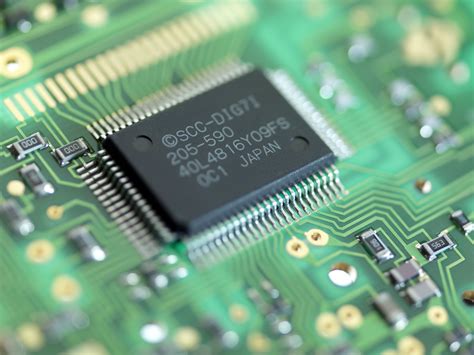
Effective PC cooling isn’t about one magic solution; it’s about a synergy of components working together. Focusing on your CPU and GPU, the two primary heat generators, is paramount.
CPU Cooling Solutions
Your CPU cooler is critical. You generally have two main choices:
- Air Coolers: These use a heatsink with fins and one or more fans to dissipate heat. High-end air coolers can be very effective, often quieter than AIO liquid coolers at similar performance levels, and are generally more affordable. They range from basic stock coolers to massive tower designs.
- All-in-One (AIO) Liquid Coolers: These systems circulate coolant through a pump, cold plate (on the CPU), and a radiator with fans to expel heat. AIOs offer excellent cooling performance, can look cleaner inside a case, and often outperform air coolers in extreme situations, though they typically cost more and have more potential points of failure (e.g., pump failure).
For stable FPS, investing in a good CPU cooler, whether air or AIO, that can handle your CPU’s thermal design power (TDP) is non-negotiable.
GPU Cooling
Most modern GPUs come with sophisticated cooling solutions from the manufacturer, often featuring multiple fans and large heatsinks. While less common for the average user, some enthusiasts might explore:
- Aftermarket GPU Coolers: These can replace the stock cooler, often providing better performance or quieter operation.
- GPU Liquid Cooling: Custom liquid cooling loops can include the GPU, offering the best thermal performance but requiring significant investment and expertise.
Ensuring your GPU’s fans are clean and functioning correctly is usually sufficient for most setups, but good case airflow significantly aids its performance.
![[MECCANICA] Montaggio carrello Shooters Design su Marui G18C](/images/aHR0cHM6Ly90czQubW0uYmluZy5uZXQvdGg/aWQ9T0lQLmc1eUFQZFdQN3lYQ20zamtzZmRESlFBQUFBJnBpZD0xNS4x.webp)
Mastering Case Airflow and Fan Configuration
The best CPU and GPU coolers won’t perform optimally if your PC case has poor airflow. Proper case airflow ensures that cool air enters the system, passes over heat-generating components, and hot air is efficiently exhausted.
Fan Placement and Pressure
- Intake Fans: These draw cooler air into your case, typically placed at the front or bottom.
- Exhaust Fans: These push hot air out, usually located at the rear or top of the case.
The goal is to create a clear path for air. A common and effective setup is to have more intake than exhaust fans, creating ‘positive pressure’ inside the case. This helps prevent dust buildup by forcing air out through small gaps, rather than passively drawing dusty air in.
Ensure your fans are correctly oriented – arrows on the fan frame usually indicate airflow direction. Cable management also plays a crucial role; tidy cables don’t obstruct airflow, allowing your components to breathe easier.
Additional Cooling Strategies and Maintenance
Beyond major components and airflow, several smaller adjustments and regular maintenance practices can significantly contribute to a cooler PC.
Thermal Paste
The thermal paste between your CPU (or GPU) and its cooler is essential for efficient heat transfer. Over time, thermal paste can dry out and become less effective. Re-applying fresh, high-quality thermal paste every few years can make a noticeable difference in temperatures.
Cable Management
As mentioned, organized cables don’t just look good; they prevent obstructions to airflow. Use zip ties or Velcro straps to bundle cables and route them behind the motherboard tray if your case allows.
Regular Cleaning
Dust is the enemy of cooling. It insulates components and clogs heatsink fins and fan blades, severely impeding heat dissipation. Schedule regular cleanings (every 3-6 months) using compressed air to blow out dust from fans, radiators, and heatsinks.
Monitoring Temperatures and Verifying Stability
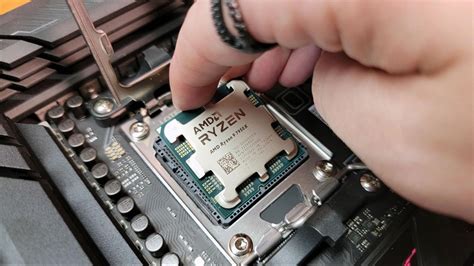
Once you’ve optimized your cooling setup, the next step is to verify its effectiveness. Monitoring your CPU and GPU temperatures is crucial. Tools like HWMonitor, MSI Afterburner, or NZXT CAM can provide real-time temperature readings while gaming.
Play your favorite demanding games and observe your temperatures. Ideally, your CPU should stay below 80°C (176°F) and your GPU below 85°C (185°F) under full load. If temperatures are consistently high, you may need to re-evaluate your cooling solution, fan curves, or airflow setup. Stress testing tools like Prime95 (for CPU) and FurMark (for GPU) can also push your components to their limits to identify any weaknesses in your cooling.
Conclusion
Achieving stable FPS and preventing your PC from getting hot while gaming is a comprehensive task that involves understanding your components, optimizing case airflow, and performing regular maintenance. By investing in a capable CPU cooler, ensuring good fan configuration, and keeping your system clean, you can significantly lower temperatures, eliminate thermal throttling, and enjoy a much smoother, more consistent gaming experience. A well-cooled PC isn’t just about performance; it’s about extending the lifespan of your valuable hardware.