





How to safely install game mods & avoid common compatibility issues?
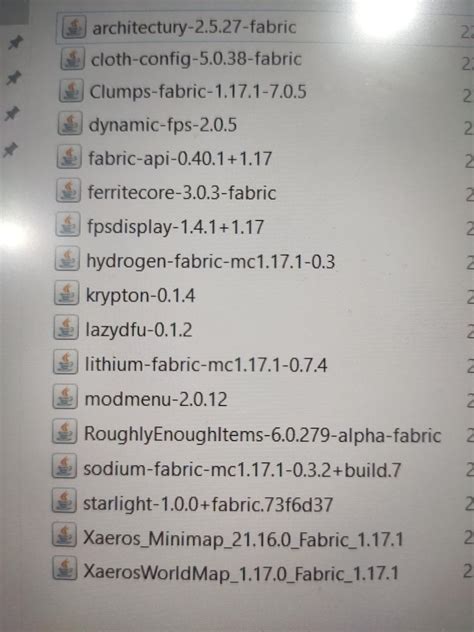
Game modification, or modding, offers an incredible way to extend a game’s lifespan, introduce new content, improve graphics, or even fix issues developers left behind. However, diving into the world of mods without proper precautions can lead to corrupted save files, game crashes, and frustrating compatibility conflicts. This guide will walk you through the essential steps to safely install game mods and effectively troubleshoot common issues, ensuring a smooth and enhanced gaming experience.
Before You Begin: Essential Preparations
The golden rule of modding is preparation. Before downloading a single mod, take these crucial steps:
- Backup Your Game: Always create a backup of your vanilla (unmodded) game files and your save files. This is your safety net, allowing you to revert to a working state if anything goes wrong. Many game launchers offer a “verify integrity of game files” option that can also restore original files.
- Research Mod Sources: Stick to reputable modding websites and communities like Nexus Mods, Mod DB, or official game forums. Avoid unofficial sites that might bundle malware with mods.
- Read Mod Descriptions Carefully: Pay close attention to a mod’s requirements (e.g., specific game version, other mods needed), installation instructions, and known conflicts. Check the comments section for user feedback on stability and issues.
- Understand Your Game’s Directory: Familiarize yourself with where your game is installed and where its core files reside. This knowledge is vital for both manual installation and troubleshooting.

Leveraging Mod Managers for Safer Installation
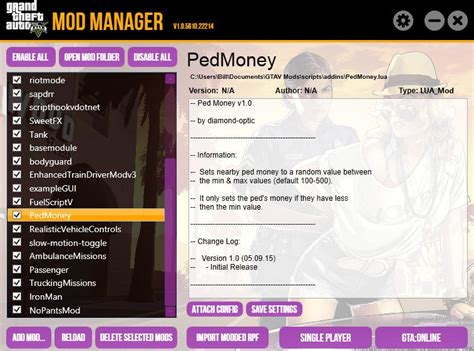
For many modern games, especially those with extensive modding communities like Skyrim or Fallout, mod managers are indispensable. Tools like Vortex, Mod Organizer 2, or specific game launchers (e.g., for Minecraft) streamline the process immensely.
Benefits of Using a Mod Manager:
- Automated Installation: They often handle file placement, archive extraction, and even complex configuration.
- Conflict Resolution: Advanced managers can detect conflicts between mods and help you decide which mod’s files should take priority.
- Load Order Management: Crucial for stability, mod managers assist in arranging mods in the correct loading sequence.
- Easy Uninstallation: Most importantly, they allow for clean uninstallation, removing only the mod’s files without affecting your core game.
Always download the latest version of your chosen mod manager and follow its setup guide carefully.
Addressing Common Compatibility Issues
Even with careful installation, conflicts can arise. Here’s how to identify and resolve them:
1. Incorrect Load Order:
This is arguably the most frequent cause of crashes and bugs. Mods need to load in a specific sequence for them to work together. Many mod managers have built-in tools (like LOOT for Bethesda games) that automatically sort your load order. If not, consult mod pages for recommended load order positions.
2. File Overwrites and Conflicts:
Two mods might try to modify the same game file. A mod manager will usually flag this, allowing you to choose which mod “wins.” Prioritize the mod you want to take precedence. Sometimes, a “patch” mod is available to make conflicting mods work together.
3. Outdated or Incompatible Mods:
A game update can often break older mods. Always check if a mod is compatible with your current game version. If a mod hasn’t been updated in a long time, it might be a source of instability. Look for alternative, actively maintained mods.
4. Missing Dependencies:
Some mods require other mods (called “master files” or “frameworks”) to function. Ensure you have all necessary dependencies installed as per the mod’s description.
Testing and Maintenance
After installing new mods, don’t jump straight into your main save. Start a new game or load a test save to ensure everything is working as expected. Walk around, use new items, and test any features the mods introduce.
Periodically check your installed mods for updates, especially after a game patch. An outdated mod can suddenly cause issues that weren’t present before. Engaging with the modding community on forums or Discord can provide valuable insights and help with specific problems.

When All Else Fails: Reverting Changes
If you encounter persistent crashes or game-breaking bugs that you can’t resolve, don’t panic. This is where your backups come in. You can:
- Disable or Uninstall Recent Mods: If issues started after installing a new mod, disable or uninstall it first.
- Revert to a Previous Save: Load an older save file from before the issues began.
- Use Your Backups: Restore your game’s vanilla files from the backup you made, or use your game launcher’s “verify integrity” option.
Remember, patience and a methodical approach are your best tools in modding. Install a few mods at a time, test them, and only then add more. This makes identifying the source of any problem much easier.
Conclusion
Modding can dramatically enhance your gaming experience, opening up new worlds and possibilities. By prioritizing preparation, utilizing mod managers, understanding common issues, and adopting a methodical approach to troubleshooting, you can safely navigate the exciting world of game modifications. Enjoy the countless hours of extended gameplay and creativity that mods bring!

