





Low FPS & stuttering in games: What hardware tweaks boost gaming performance?

Understanding the Performance Bottleneck
There’s nothing more frustrating for a PC gamer than experiencing choppy gameplay, erratic frame rates, and sudden stutters during an intense session. These issues can turn an immersive experience into a test of patience. While software optimization plays a role, often the root cause lies in your hardware setup. Identifying and addressing these hardware bottlenecks is key to unlocking smoother, more enjoyable gaming performance. This article will guide you through the essential hardware tweaks and considerations to boost your gaming FPS and eliminate stuttering.
The Core Components: GPU, CPU, and RAM
Graphics Card (GPU) – The FPS Engine
Your graphics card is arguably the most critical component for gaming performance. It’s responsible for rendering everything you see on screen. If your GPU is outdated or insufficient for the games you’re playing, it will be the primary source of low FPS. Ensure your graphics drivers are always up-to-date, as new driver versions often include performance optimizations for the latest titles. If driver updates don’t cut it, consider upgrading to a more powerful GPU that matches your desired resolution and frame rate.
Central Processing Unit (CPU) – The Game’s Brain
While the GPU renders the visuals, the CPU handles game logic, AI, physics, and feeding instructions to the GPU. A weak CPU can bottleneck even a powerful graphics card, leading to stuttering, especially in CPU-intensive games or open-world titles. Modern games benefit greatly from CPUs with higher core counts and clock speeds. Ensure your CPU isn’t running too hot, as thermal throttling can severely reduce performance. Aftermarket coolers can often provide better heat dissipation than stock options.
Random Access Memory (RAM) – Multitasking Power
Insufficient or slow RAM can cause significant stuttering as your system struggles to load game assets quickly. For modern gaming, 16GB of RAM is generally considered the sweet spot, with 32GB offering more headroom for heavy multitasking or future-proofing. Equally important is RAM speed; faster RAM (e.g., DDR4-3200MHz or DDR5-6000MHz) can provide a noticeable FPS boost, especially when paired with AMD Ryzen CPUs. Always ensure your RAM is installed in dual-channel configuration for optimal performance.
Storage and Cooling: Often Overlooked Heroes
Solid State Drives (SSDs) – Faster Load Times
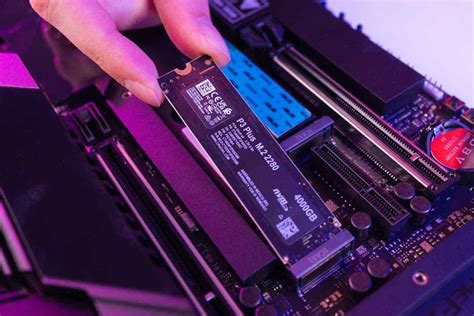
While an SSD won’t directly increase your in-game FPS, it dramatically improves load times and can reduce stuttering related to asset streaming, particularly in open-world games. Upgrading from a traditional Hard Disk Drive (HDD) to an NVMe SSD is one of the most impactful quality-of-life upgrades for any gaming PC. Install your operating system and frequently played games on an SSD for a snappier experience.
Effective Cooling – Preventing Thermal Throttling
Overheating components (CPU, GPU, and even VRMs) will automatically reduce their clock speeds to prevent damage, a phenomenon known as thermal throttling. This is a common cause of sudden FPS drops and stuttering. Ensure your PC case has good airflow with properly placed intake and exhaust fans. Invest in a capable CPU cooler (air or AIO liquid cooler) and monitor your component temperatures during gaming. Regular dust cleaning is also crucial for maintaining optimal cooling.
Advanced Tweaks and Optimization
Driver Updates and BIOS Settings
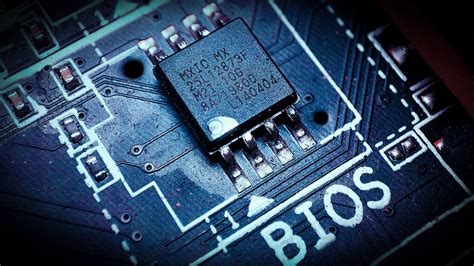
Beyond just GPU drivers, ensure your motherboard chipset drivers are also up-to-date. In your motherboard’s BIOS/UEFI, enable features like XMP (Extreme Memory Profile) for your RAM to run at its advertised speeds. For newer systems, enabling Resizable BAR (AMD Smart Access Memory) can provide a decent FPS uplift in supported titles by allowing the CPU full access to the GPU’s memory.
Overclocking for Extra Juice
Overclocking your CPU, GPU, or RAM can squeeze out additional performance, but it comes with risks. It requires careful monitoring of temperatures and stability testing. If done correctly, a modest overclock can provide a few extra frames per second. However, improper overclocking can lead to system instability or even component damage. Proceed with caution and research thoroughly before attempting.
The Power Supply Unit (PSU) – Stable Foundations
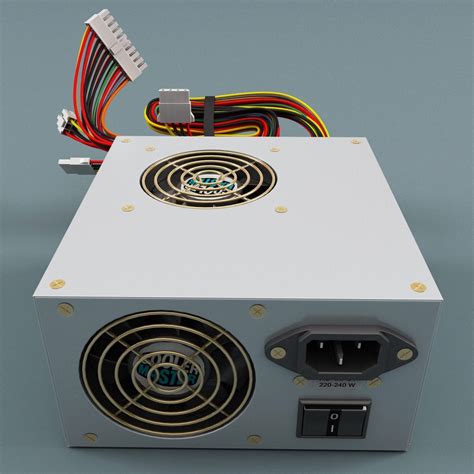
A stable and sufficiently powerful Power Supply Unit is crucial. An underpowered or aging PSU can lead to instability, crashes, and potentially damage components. Ensure your PSU has enough wattage to comfortably power all your components, especially if you’re upgrading your GPU or CPU. A good quality PSU also delivers cleaner power, which contributes to system stability.
Conclusion: A Balanced Approach to Performance
Achieving smooth, stutter-free gaming performance is often a matter of balancing your hardware components and ensuring they work in harmony. Start by identifying your primary bottleneck, whether it’s an aging GPU, an underpowered CPU, or insufficient RAM. Address cooling issues, upgrade to an SSD, and keep your drivers and BIOS up-to-date. By systematically tweaking and upgrading your hardware, you can transform your gaming experience from frustrating to flawlessly immersive. Remember, a well-optimized PC is not just about raw power, but about efficient power delivery and intelligent component synergy.


