





How to optimize NVIDIA Reflex for competitive FPS gaming performance?
In the high-stakes world of competitive First-Person Shooter (FPS) gaming, every millisecond counts. Input lag, or system latency, can be the difference between a headshot and a missed opportunity. NVIDIA Reflex is a game-changing technology specifically engineered to reduce this latency, allowing your actions to register faster and providing a more responsive gaming experience. But simply having Reflex doesn’t guarantee peak performance; proper optimization is key. This guide will walk you through how to fine-tune NVIDIA Reflex for maximum competitive advantage.
Understanding NVIDIA Reflex and Its Importance
NVIDIA Reflex is more than just a setting; it’s a suite of technologies that measures and reduces system latency from click to render. It achieves this by synchronizing the CPU and GPU, ensuring the CPU doesn’t get too far ahead of the GPU in rendering frames. This prevents a render queue from building up, which is a primary source of input lag. For competitive gamers, lower latency means quicker target acquisition, faster peeker’s advantage, and overall improved responsiveness that can translate directly into better in-game performance.
Enabling Reflex in-game Settings
The first and most crucial step is to enable NVIDIA Reflex within your favorite competitive FPS titles. Many modern games like Apex Legends, Call of Duty, Fortnite, and Valorant have integrated Reflex. You’ll typically find this option in the game’s graphics or display settings menu.
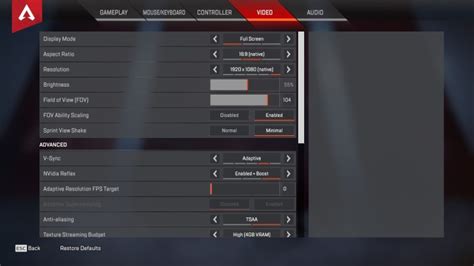
- Reflex Low Latency: On: This is the standard setting, significantly reducing latency by dynamically adjusting CPU work to align with GPU render times.
- Reflex Low Latency: On + Boost: This option further minimizes latency, especially in CPU-bound scenarios, by keeping the GPU clock frequencies higher even when the CPU is bottlenecking. While ‘On + Boost’ can offer the lowest possible latency, it might slightly increase power consumption and heat. Test both settings in your preferred games to see which provides the best balance of performance and stability for your specific setup.
Always restart your game after changing Reflex settings to ensure they are properly applied.
NVIDIA Control Panel Settings for Latency
While the in-game setting is paramount, there are a few adjustments in the NVIDIA Control Panel that can complement Reflex and further reduce overall system latency:
- Manage 3D Settings > Low Latency Mode: Set this to ‘Ultra’. When combined with NVIDIA Reflex, ‘Ultra’ mode ensures that frames are submitted just-in-time, further reducing the render queue.
- Manage 3D Settings > Max Frame Rate: Consider setting a frame rate cap slightly below your monitor’s refresh rate (e.g., 141 FPS for a 144Hz monitor, or 237 FPS for a 240Hz monitor). This helps to keep the GPU from overworking and introducing additional latency by trying to render frames that won’t be displayed.
- Manage 3D Settings > Power Management Mode: Set this to ‘Prefer maximum performance’. This ensures your GPU is always ready to deliver its full potential, preventing latency spikes from power-saving modes.

Monitor Refresh Rate and G-SYNC
Optimizing Reflex goes hand-in-hand with your monitor setup:
- High Refresh Rate Monitor: A high refresh rate monitor (144Hz, 240Hz, or higher) is crucial. Reflex reduces latency, but a high refresh rate ensures those low-latency frames are displayed as quickly as possible.
- G-SYNC Compatibility: If you have a G-SYNC or G-SYNC Compatible monitor, enable it. When G-SYNC is active, and you’re using NVIDIA Reflex, set an in-game frame rate cap that is 3 frames below your monitor’s maximum refresh rate (e.g., 141 FPS for 144Hz, 237 FPS for 240Hz). This strategy keeps G-SYNC engaged while allowing Reflex to operate at its best, providing both tear-free visuals and minimal latency.

System Optimization and Hardware Considerations
Beyond software settings, your hardware and overall system health play a role:
- Latest Drivers: Always keep your NVIDIA graphics drivers up to date. NVIDIA frequently releases Game Ready Drivers that include performance optimizations and Reflex enhancements.
- CPU and GPU Performance: While Reflex helps mitigate CPU bottlenecks, a powerful CPU and GPU combination will naturally yield lower baseline latency. Ensure your components are adequate for the games you play.
- Input Devices: Low-latency gaming mice and keyboards can further complement Reflex. Wired devices generally have lower latency than wireless, though high-end wireless options are very competitive.
- Clean OS Installation: A minimal Windows installation with unnecessary background processes disabled can help reduce overall system overhead and improve responsiveness.
Testing and Validation with Reflex Latency Analyzer
For the ultimate optimization, some G-SYNC Esports monitors feature the NVIDIA Reflex Latency Analyzer. This tool provides real-time, end-to-end system latency measurements (from mouse click to photon on screen). If you have such a monitor, use it to test the impact of your settings adjustments. It allows you to objectively see how different Reflex modes, in-game settings, and hardware changes affect your latency.
Conclusion
NVIDIA Reflex is a powerful ally for competitive FPS gamers, but its full potential is unleashed through careful optimization. By enabling it correctly in-game, fine-tuning NVIDIA Control Panel settings, leveraging high refresh rate monitors, and maintaining a well-optimized system, you can significantly reduce system latency. The result is a more responsive, fluid, and ultimately more competitive gaming experience that could give you the edge you need to climb the leaderboards.


