





Gaming PC FPS drops? Diagnose & fix common performance bottlenecks.
Identifying the Symptoms of FPS Drops
There’s nothing more frustrating than your immersive gaming experience being shattered by sudden, unexplained frame rate drops. Whether it’s stuttering, freezing, or just a noticeable slowdown, FPS (Frames Per Second) drops can turn an enjoyable session into a test of patience. Before you can fix the problem, you need to accurately identify its symptoms and context. Are the drops consistent in specific games, or do they happen randomly? Do they occur after a certain period of gaming, suggesting overheating, or immediately upon launching a game?
Common Performance Bottlenecks & How to Diagnose Them
Most FPS drops stem from one or more components in your PC struggling to keep up with the demands of the game. Pinpointing the exact bottleneck is key to finding a solution.
GPU Overload (Graphics Card)
Your graphics card is the heart of your gaming performance. If it’s constantly at 99-100% utilization in games, it might be struggling. This can be due to:
- Outdated Drivers: Ensure your GPU drivers are always up to date from NVIDIA, AMD, or Intel.
- Aggressive Settings: High resolutions, anti-aliasing, and complex shadows can push your GPU past its limits. Try lowering in-game graphics settings.
- Overheating: A hot GPU will throttle performance. Check its temperatures using monitoring software (e.g., MSI Afterburner, HWMonitor).

CPU Bottleneck (Processor)
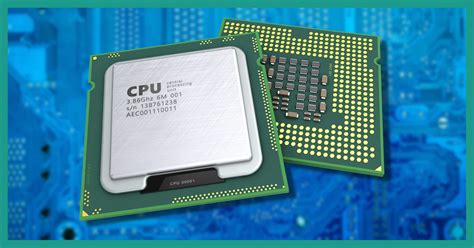
While often less directly involved than the GPU, a weak or overloaded CPU can limit your GPU’s potential. If your CPU is consistently at 100% while your GPU is lower, you likely have a CPU bottleneck.
- Background Processes: Too many applications running in the background can hog CPU cycles.
- Overheating: Like GPUs, CPUs throttle when too hot. Monitor CPU temperatures.
- Older CPU: Some newer games are more CPU-intensive. An aging processor might simply not be enough.
RAM Insufficiency (Memory)
Not having enough RAM, or having slow RAM, can cause your system to rely on slower storage (page file), leading to stutters.
- Capacity: For modern gaming, 16GB is generally recommended, with 8GB being a minimum.
- Speed: Faster RAM (measured in MHz) can significantly improve CPU performance in some scenarios.
Storage Issues (Hard Drive/SSD)
While less common for FPS drops during gameplay (unless textures are loading on the fly), a slow drive can cause stutters, especially if the game or OS is installed on an old HDD. Installing games on an SSD (Solid State Drive) is highly recommended for faster load times and smoother asset streaming.
Power Supply Unit (PSU) Problems
An underpowered or failing PSU can lead to instability, system crashes, and inconsistent performance as components don’t receive adequate power.
- Wattage: Ensure your PSU has sufficient wattage for all your components, especially your GPU.
- Age/Quality: Older or lower-quality PSUs can degrade over time.
Software Conflicts & Drivers
Beyond GPU drivers, other software can interfere:
- Outdated Chipset/Audio Drivers: Can cause system instability.
- Background Applications: Antivirus scans, streaming software, or browser tabs can steal resources.
- Malware/Viruses: Can silently consume system resources.
Overheating
This is a critical point for both CPU and GPU. Components will ‘throttle’ (reduce their performance) to prevent damage when they get too hot. This is a common cause of performance drops after prolonged gaming.
General Troubleshooting Steps
Once you have an idea of the potential culprit, here are actionable steps to take:
- Update All Drivers: Start with GPU drivers, then chipset, network, and audio drivers.
- Monitor Temperatures: Use software like HWMonitor, MSI Afterburner, or NZXT CAM to keep an eye on CPU and GPU temperatures while gaming. If temps exceed 80-85°C, improve cooling.
- Adjust In-Game Settings: Lower graphics presets, shadow quality, anti-aliasing, and resolution to reduce the load on your GPU.
- Clean Up Background Processes: Use Task Manager (Ctrl+Shift+Esc) to close unnecessary applications before launching a game. Adjust startup programs.
- Check for Malware: Run a full scan with a reputable antivirus program.
- Physically Clean Your PC: Dust accumulation can severely hinder cooling efficiency. Use compressed air to clean fans, heatsinks, and vents.
- Optimize Power Settings: Ensure Windows power plan is set to ‘High Performance’ and check GPU-specific power settings.

When to Consider Upgrading
If you’ve tried all the troubleshooting steps and still face significant FPS drops, it might be time for a hardware upgrade. Pay attention to which component is consistently hitting its limits (CPU, GPU, or RAM) to prioritize your upgrade path. A balanced system is key to optimal gaming performance.
Conclusion
FPS drops can be a complex issue with multiple potential causes, but with systematic diagnosis and targeted solutions, you can often restore your gaming PC to its peak performance. By understanding your hardware, monitoring its behavior, and performing regular maintenance, you’ll be well on your way to a smoother, more enjoyable gaming experience.


