





How to fix PC overheating during intense gaming sessions?

Intense gaming sessions push your PC’s components to their limits, generating significant heat. While some heat is normal, excessive temperatures can lead to performance throttling, system instability, and even long-term hardware damage. If your PC is crashing, freezing, or showing stuttering during gameplay, overheating is a prime suspect. Addressing this issue is crucial for maintaining optimal performance and extending the lifespan of your gaming rig.
Identifying Overheating Issues
The first step is to confirm that overheating is indeed the problem. Look for common symptoms such as sudden frame rate drops (thermal throttling), system crashes, blue screens of death, fan noise becoming excessively loud, or a hot-to-the-touch PC case. To get concrete data, use monitoring software like HWMonitor, MSI Afterburner, or NZXT CAM to track your CPU and GPU temperatures during gaming. A GPU temperature consistently above 80-85°C and a CPU temperature above 90°C under load are strong indicators of overheating.
Common Causes and Effective Solutions
1. Dust Accumulation and Poor Airflow
Over time, dust, pet hair, and other debris can build up on fans, heatsinks, and inside your PC case. This layer of grime acts as an insulator, trapping heat and preventing efficient dissipation. Furthermore, poorly managed cables can obstruct airflow, creating hot spots.
Solution: Clean Your PC Thoroughly
Regularly cleaning your PC is one of the most effective and cost-efficient solutions. Power down and unplug your PC. Use compressed air to blow dust out of your CPU cooler, GPU heatsink, power supply, and case fans. Pay close attention to intake and exhaust vents. For stubborn dust, a soft brush or cotton swabs can be helpful. While you’re in there, ensure all cables are tied neatly to allow for unobstructed airflow.

2. Degraded Thermal Paste
Thermal paste is a compound applied between the CPU/GPU and their respective heatsinks to facilitate efficient heat transfer. Over several years, this paste can dry out and lose its effectiveness, leading to higher temperatures.
Solution: Reapply Thermal Paste
If your PC is a few years old, reapplying thermal paste might be necessary. This process involves carefully removing the CPU cooler or GPU heatsink, cleaning off the old paste with isopropyl alcohol, and applying a new, thin layer of high-quality thermal paste. Be cautious, as improper application can worsen the issue or damage components. If you’re unsure, seek professional help.

3. Inadequate Cooling Solutions
Stock coolers that come with CPUs are often sufficient for basic use but can struggle under the heavy load of intense gaming. Similarly, insufficient case fans or a poorly designed case can hinder heat expulsion.
Solution: Upgrade Your Cooling System
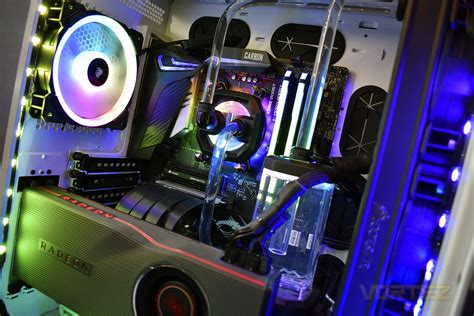
Consider upgrading to an aftermarket CPU cooler, such as a larger air cooler or an all-in-one (AIO) liquid cooler. These offer significantly better heat dissipation. Additionally, evaluate your case’s fan setup. Ensure you have a balanced number of intake and exhaust fans, and that they are positioned to create a positive or neutral airflow pressure to prevent dust buildup while efficiently removing hot air. You might also consider repositioning your PC case to an area with better ambient air circulation, away from walls or enclosed spaces.
4. Software and Settings Optimization
Sometimes, overheating can be exacerbated by software settings or system configurations.
Solution: Adjust Fan Curves and Game Settings
Many motherboards and GPU utilities allow you to customize fan curves, making your fans spin faster at higher temperatures. This provides more aggressive cooling when needed. You can also try undervolting your CPU or GPU – reducing the voltage slightly without significant performance loss, thereby reducing heat generation. Lowering demanding in-game graphics settings, especially those that heavily tax the GPU (like anti-aliasing or shadow quality), can also reduce the heat output during gameplay. Ensure your drivers are up-to-date, as performance optimizations can sometimes impact thermal efficiency.
Preventative Measures and Best Practices
Maintaining a cool PC is an ongoing effort. Regular dust cleaning every 3-6 months is highly recommended. Ensure your gaming environment isn’t too hot itself; air conditioning or a fan in the room can make a difference. Avoid placing your PC on carpet, which can block bottom-mounted power supply intakes. Investing in a good quality PC case with excellent airflow design from the outset can also prevent many future overheating headaches. Remember that a consistently cool PC not only performs better but also lasts longer, saving you money in the long run.

Conclusion
Tackling PC overheating during intense gaming sessions is a critical aspect of PC maintenance. By diligently diagnosing the problem, cleaning your system, potentially reapplying thermal paste, upgrading cooling components, and optimizing software settings, you can significantly reduce temperatures. These efforts will ensure your gaming rig runs smoothly, quietly, and reliably, allowing you to fully immerse yourself in your favorite titles without performance anxieties.


