





How to identify and safely install stable mods for popular games, avoiding common conflicts?
Unlocking New Adventures: The World of Game Modding
Modding can breathe new life into your favorite games, offering everything from graphical overhauls and new gameplay mechanics to custom content and quality-of-life improvements. However, venturing into the world of modifications can also be fraught with peril, leading to crashes, instability, or even corrupted save files. The key to a positive modding experience lies in understanding how to identify stable mods, install them correctly, and manage potential conflicts.
Identifying Stable and Reliable Mods
The first step in safe modding is discernment. Not all mods are created equal, and some can cause more headaches than they’re worth. Here’s how to pick the good ones:
- Community Reputation: Check popular modding websites (Nexus Mods, Steam Workshop, Mod DB) and forums. Mods with high ratings, numerous endorsements, and positive comments from a large user base are generally more reliable.
- Regular Updates: A mod that is actively maintained and frequently updated by its creator indicates dedication and ongoing bug fixes. Check the ‘Last Updated’ date.
- Compatibility Information: Reputable mod authors often list known incompatibilities with other popular mods or specific game versions. Always read the mod description thoroughly.
- Detailed Documentation: A well-documented mod will provide clear installation instructions, troubleshooting tips, and often, a comprehensive list of features and changes.

Essential Pre-Installation Steps
Before you even think about dropping files into your game directory, preparation is crucial. These steps can save you immense frustration down the line:
1. Back Up Your Game and Save Files
This is non-negotiable. Always create a backup of your vanilla game installation and your save files before installing any mods. This allows you to revert to a working state if something goes wrong.
2. Use a Mod Manager
For most popular games (especially Bethesda titles like Skyrim or Fallout), a dedicated mod manager (e.g., Mod Organizer 2, Vortex, NMM) is indispensable. These tools handle installation, uninstallation, load order, and often help identify conflicts, making the process far less risky than manual installation.
3. Ensure Game Version Compatibility
Many mods are built for specific versions of a game. If your game updates, older mods might break. Always check if the mod you’re about to install is compatible with your current game version.
Safe Installation Techniques
With your preparations complete, it’s time to install. Adhering to these principles will minimize issues:
- Always Use Your Mod Manager: For 99% of mods, your mod manager is the safest installation method. It virtualizes file changes, making uninstallation clean and easy.
- Follow Mod-Specific Instructions: Some mods have unique installation requirements, such as running specific executables or editing configuration files. Deviate from these instructions at your peril.
- Install Mods Incrementally: Don’t install dozens of mods at once. Add a few at a time, test the game, and ensure stability before adding more. This makes it easier to pinpoint which mod is causing an issue if one arises.
Avoiding and Resolving Common Conflicts
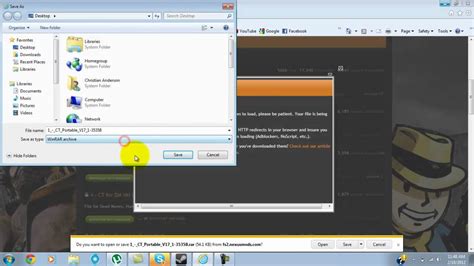
Conflicts occur when two or more mods try to alter the same game files or records. This is perhaps the most common cause of instability in a heavily modded game.
1. Understand Load Order
The order in which your mods load can significantly impact stability. Generally, mods loaded later in the order will overwrite changes made by mods loaded earlier. Mod managers often provide tools for sorting your load order, sometimes using community-generated rules (like LOOT for Bethesda games).
2. Utilize Conflict Resolution Tools
Advanced modding might require dedicated tools (e.g., FO4Edit, SSEEdit) to manually resolve conflicts by merging patches or selectively forwarding changes. This is a more advanced technique and requires careful study.
3. Read & Respond to Warnings
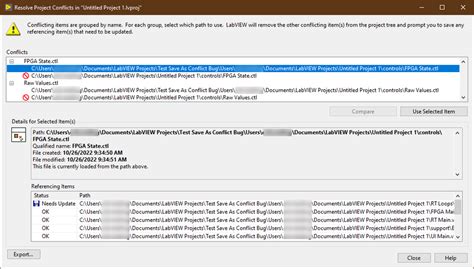
Mod managers often warn you about potential file conflicts. Pay attention to these warnings and decide whether to allow an overwrite based on the mod descriptions and your desired outcome.
4. Test Thoroughly
After installing a new batch of mods or resolving conflicts, run your game and play for a while. Test different game mechanics, visit various locations, and ensure everything is working as expected.

Troubleshooting and Community Resources
Even with the best preparation, issues can arise. When they do:
- Consult Mod Pages: The comments section or ‘Bugs’ tab on a mod’s page is often a treasure trove of information regarding common issues and their solutions.
- Check Forums and Subreddits: Dedicated modding communities are invaluable. Describe your problem clearly, including your game, mod list, and what steps you’ve already taken.
- Revert and Isolate: If you can’t pinpoint the problem, disable recently installed mods one by one until stability returns. This ‘divide and conquer’ method helps isolate the problematic mod.

Enjoying Your Enhanced Gaming Experience
Modding is a rewarding hobby that can vastly extend the life and enjoyment of your favorite games. By following these guidelines for identifying stable mods, preparing your game, installing carefully, and managing conflicts, you’ll be well on your way to a stable and incredibly customized gaming experience. Happy modding!

