





How to resolve load order & file conflicts in complex game mod setups?
The Unseen Battle: Mastering Mod Conflicts
Modding a game can transform it into an entirely new experience, adding countless hours of enjoyment. However, as your mod list grows from a handful to a hundred or more, you inevitably step into the complex world of load order and file conflicts. These hidden battles are often the root cause of crashes, bugs, and unexpected behavior, turning a dream setup into a frustrating nightmare. Understanding and resolving these conflicts is not just a skill; it’s an art crucial for any serious modder.

Understanding the Core Problems
What is Load Order?
Your game loads its data files in a specific sequence, determined by their load order. Each plugin (.esp, .esm, .esl files) listed in your mod manager is assigned an index, and the game processes them from top to bottom. If two mods modify the same game record (e.g., an item’s stats, a character’s appearance, a world cell’s contents), the mod loaded later in the sequence “wins” and its changes take precedence. Incorrect load order can lead to features from one mod overwriting another, or even worse, missing dependencies.
What are File Conflicts?
Beyond plugins, many mods include loose files like textures, meshes, scripts, and sounds. These are typically stored in the game’s data folder structure. A file conflict occurs when two or more mods provide different versions of the same file (e.g., two mods trying to replace the same default sword texture). Mod managers handle these by allowing you to decide which mod’s files “win” and are physically placed or symlinked into the game’s data directory. Unlike plugin conflicts, these often don’t cause crashes but can lead to visual glitches, missing sounds, or incorrect script behavior.
Essential Tools for Conflict Resolution
Tackling conflicts effectively requires the right arsenal of tools. These applications are designed to help you identify, understand, and ultimately fix the discrepancies within your mod setup.
Mod Managers (Vortex & Mod Organizer 2)
- Vortex: Integrates robust conflict resolution features directly into its interface. It alerts you to file conflicts and allows you to set rules for which mod should win. It also has basic load order management and LOOT integration.
- Mod Organizer 2 (MO2): Renowned for its virtual file system, MO2 keeps your game’s data folder pristine. It visually highlights file conflicts in its left pane (showing which mod is overwriting or being overwritten) and provides granular control over load order and file priority. Its profile system is invaluable for testing different mod setups.
Load Order Optimization Tool (LOOT)
LOOT is indispensable for most modern games. It reads your plugin list, identifies known conflicts, and automatically sorts your plugins into a generally optimal load order based on a masterlist maintained by the community. It also reports potential issues like “dirty edits” or missing masters. While LOOT provides an excellent baseline, it’s not a magic bullet and sometimes requires manual tweaks.
xEdit (SSEEdit, FO4Edit, TES5Edit, FNVEdit)
The xEdit suite is the ultimate power tool for resolving plugin conflicts. It allows you to view, compare, and modify individual records within your plugins. With xEdit, you can:
- See exactly which mods are modifying a particular record and which mod is winning.
- Create custom patches (merge patches, conflict resolution patches) to combine desired changes from multiple mods.
- Clean “dirty edits” from official game masters and certain mods, which can cause stability issues.
Strategies for Resolving Conflicts
1. Read Mod Descriptions Meticulously
The most basic, yet often overlooked, step. Mod authors frequently provide specific instructions regarding load order, compatibility patches, and known conflicts. Pay attention to prerequisites, recommended load order positions, and any included patch files.
2. The LOOT Baseline, Then Manual Tweaks
Always run LOOT first to get a stable starting load order. Afterward, use your mod manager to make manual adjustments based on specific mod instructions or your understanding of how mods should interact. For example, a patch for two mods should generally load after both mods it’s patching.
3. Identify and Resolve File Conflicts (Mod Manager Priority)
Your mod manager will highlight file conflicts. Carefully decide which mod’s files you want to take precedence. For textures, you might want a high-resolution pack to win over a lower-res one. For meshes, a bug fix might need to win over a purely aesthetic change. Use the mod manager’s built-in tools to set these priorities.
4. Creating Conflict Resolution Patches with xEdit
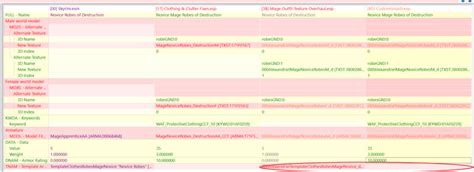
This is where xEdit shines. Open your entire load order in xEdit. Look for records highlighted in red (critical conflicts) or yellow (overwritten records). For conflicting records, you can right-click and “Copy as override into… New File” to create a new plugin. In this new plugin, you can then manually merge the desired changes from various mods into a single record. This patch will then load last and apply your chosen combination of changes.
5. Automated Patchers (Mator Smash, Synthesis)
For games like Fallout 4 and Skyrim, tools like Mator Smash and Synthesis can significantly reduce the need for manual patching. These utilities intelligently analyze your entire load order and create a “smashed patch” or “synthesis patch” that attempts to merge changes from many mods automatically, greatly reducing the number of manual conflicts you need to resolve.
6. Iterative Testing and Debugging
Modding is rarely a one-shot process. Implement a few mods, resolve conflicts, then test thoroughly. If you encounter issues, use tools like PapyrusUtil logs (for script errors in Bethesda games), crash logs (Crash Logger, NET Script Framework), or simply disable recently added mods to narrow down the culprit. Reproduce issues, isolate the conflicting mods, and then delve into xEdit for precise resolution.

Advanced Tips
- Profiles: Use your mod manager’s profile system to create separate mod lists for different playthroughs or for testing purposes.
- Documentation: Keep a personal log of your mod list, especially custom changes or patches you’ve made.
- Community Resources: Don’t hesitate to check mod pages, forums (e.g., Nexus Mods forums), and Discord servers for specific game modding communities. Many common conflicts have well-documented solutions.
- Start Small: When building a new mod list, add mods in small batches and resolve conflicts as you go, rather than installing everything at once.
Conclusion
Resolving load order and file conflicts in complex game mod setups is a foundational skill for any dedicated modder. While it can seem daunting initially, a systematic approach combining powerful tools like mod managers, LOOT, and xEdit with a good understanding of how conflicts arise will empower you to create stable, immersive, and truly personalized game experiences. Patience, persistence, and a willingness to learn are your greatest assets in this journey.

