





My CPU/GPU temps spike during intense gaming. How do I improve cooling and airflow?

Intense gaming pushes your PC hardware to its limits, and often, the first sign of this strain is a spike in CPU and GPU temperatures. High temperatures can lead to thermal throttling, reduced performance, shorter component lifespan, and even system instability. Fortunately, there are several effective strategies you can employ to improve cooling and airflow within your gaming rig, ensuring your components stay cool under pressure and deliver peak performance.
The Importance of Optimal Temperatures
Both your CPU (Central Processing Unit) and GPU (Graphics Processing Unit) generate significant heat during demanding tasks like gaming. While modern components are designed to withstand certain thermal thresholds, consistently running at high temperatures (often above 85-90°C) can be detrimental. This is where thermal throttling kicks in, reducing clock speeds to prevent damage, which directly translates to lower frame rates and a less enjoyable gaming experience. Proactive cooling measures are crucial for maintaining performance and extending the life of your valuable hardware.
Immediate Solutions: Cleaning and Maintenance
The simplest and most often overlooked cause of high temperatures is dust accumulation. Over time, dust acts as an insulating layer, trapping heat and impeding airflow. A thorough cleaning is the first step:
- Dust Removal: Using compressed air, carefully blow out dust from your CPU cooler fins, GPU heatsink, case fans, and power supply. Hold fan blades gently to prevent them from spinning too fast.
- Filter Cleaning: If your PC case has dust filters, remove and clean them with water and soap, allowing them to dry completely before reinstallation.
- Cable Management: While cleaning, take the opportunity to tidy up internal cables. Poor cable management obstructs airflow, creating dead zones where heat can build up.

Optimizing Your Case Airflow
The flow of air through your PC case is critical for dissipating heat. A well-optimized airflow system ensures cool air enters, circulates efficiently, and hot air is exhausted.
- Fan Configuration: Generally, you want positive pressure (more air intake than exhaust) or balanced pressure. Typical setups include front fans as intake, rear and top fans as exhaust. Ensure your fans are oriented correctly (most fans have arrows indicating airflow direction).
- Adding Fans: If your case has empty fan mounts, adding more fans can significantly improve airflow, especially if your current setup is minimal.
- Case Type: Some PC cases are designed with better airflow in mind, featuring mesh fronts and open interiors. If your current case is restrictive, an upgrade might be worth considering.

Upgrading Your CPU Cooling Solution
Your CPU’s stock cooler might be adequate for basic use, but intense gaming often requires something more robust.
- Aftermarket Air Coolers: Larger heatsinks with more heat pipes and powerful fans can drastically improve CPU cooling over stock solutions.
- All-in-One (AIO) Liquid Coolers: For even better performance and often quieter operation, AIO liquid coolers circulate coolant through a radiator to dissipate heat. These are particularly effective for high-end, overclocked CPUs.
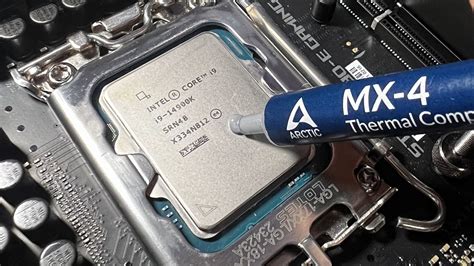
- Thermal Paste: Whether you’re upgrading your cooler or not, ensure your CPU has fresh, high-quality thermal paste applied. Over time, thermal paste can dry out and lose effectiveness. Reapplying it correctly can make a noticeable difference.
Enhancing GPU Cooling
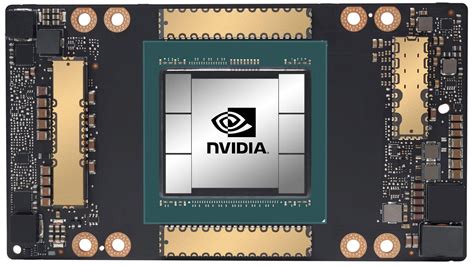
Your graphics card is often the primary heat generator during gaming. Improving its cooling requires specific attention.
- Custom Fan Curves: Using software provided by your GPU manufacturer (e.g., MSI Afterburner, ASUS GPU Tweak), you can create custom fan curves that ramp up your GPU fans earlier and more aggressively based on temperature, keeping it cooler.
- Undervolting: Reducing the voltage supplied to your GPU while maintaining stable clock speeds can significantly lower power consumption and heat output without sacrificing performance. This requires careful testing.
- Aftermarket GPU Coolers: For advanced users, replacing the stock GPU cooler with an aftermarket air or liquid solution can provide superior cooling, though this voids your warranty.
Additional Considerations for Cooler Performance
Beyond the internal components, your environment also plays a role in your PC’s thermal performance.
- Room Temperature: A cooler room means cooler intake air for your PC. Consider air conditioning or improving room ventilation.
- PC Placement: Ensure your PC is not crammed into a tight space or against a wall, as this restricts airflow. Give it some breathing room.
- Monitoring Software: Utilize tools like HWMonitor, Core Temp, or MSI Afterburner to continuously monitor your CPU and GPU temperatures. This helps you identify issues and verify the effectiveness of your cooling improvements.
Conclusion
Addressing high CPU and GPU temperatures during intense gaming is a multi-faceted task, often requiring a combination of cleaning, airflow optimization, and potentially hardware upgrades. By systematically tackling these areas, you can ensure your gaming PC runs cooler, performs better, and provides a more stable and enjoyable experience for years to come. Don’t let high temps be the bottleneck in your gaming adventures—take control of your thermal management today.


