





Is my CPU bottlenecking my gaming GPU? How to check?

Understanding the CPU-GPU Dynamic in Gaming
In the world of PC gaming, achieving smooth, high-frame-rate gameplay often boils down to a harmonious relationship between your Central Processing Unit (CPU) and Graphics Processing Unit (GPU). While the GPU is typically seen as the powerhouse for rendering visuals, the CPU plays a crucial role in feeding it instructions, managing game logic, AI, physics, and draw calls. When one component struggles to keep up with the other, a “bottleneck” occurs, limiting overall system performance.
A CPU bottleneck, specifically, happens when your processor can’t deliver data to your graphics card fast enough, causing the GPU to sit idle for periods, thus underperforming its potential. This can lead to lower frame rates, inconsistent frame delivery, and an overall less fluid gaming experience, even if you have a top-tier graphics card.
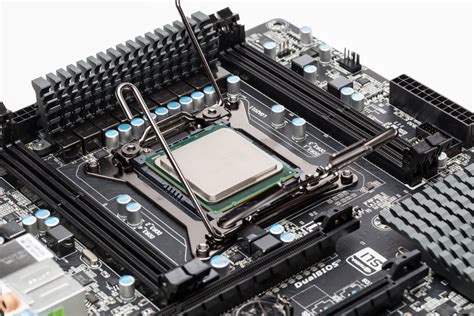
What is a CPU Bottleneck and Why Does It Matter?
Simply put, a CPU bottleneck is a performance limitation where your CPU is working at or near its maximum capacity, while your GPU is underutilized, waiting for the CPU to process game data. Imagine a super-fast highway (your GPU) with a slow on-ramp (your CPU); cars can only enter as fast as the on-ramp allows, regardless of the highway’s potential speed.
For gamers, this manifests as frustrating issues. You might have purchased an expensive new GPU, only to find your frame rates aren’t as high as expected, or you experience frequent stutters, especially in busy game scenes. High refresh rate monitors (120Hz, 144Hz, 240Hz) are particularly susceptible to CPU bottlenecks because they demand a higher number of frames per second, pushing the CPU to process more data at a faster rate.
How to Check for a CPU Bottleneck: The Tools You Need
Diagnosing a CPU bottleneck requires monitoring your system’s resource usage in real-time while gaming. Here are the essential tools and methods:
1. Real-Time Monitoring Software
- MSI Afterburner with RivaTuner Statistics Server (RTSS): This is the gold standard for in-game overlay monitoring. MSI Afterburner allows you to monitor CPU usage (per core and overall), GPU usage, VRAM usage, RAM usage, temperatures, and frame rates. RTSS, which comes bundled with Afterburner, provides the customizable on-screen display (OSD) in your games.
- Task Manager (Windows): A quick and dirty method. While gaming, alt-tab out to Task Manager (Ctrl+Shift+Esc), go to the “Performance” tab, and observe CPU and GPU utilization graphs. This isn’t ideal for real-time, in-game analysis but can give you a general idea.
- NVIDIA GeForce Experience / AMD Radeon Software: Both GPU manufacturers offer their own overlay monitoring tools that can display basic stats like GPU usage, CPU usage, and frame rates. These are simpler to set up but less granular than MSI Afterburner.
Interpreting Your Monitoring Data
Once you have your monitoring software running, launch a demanding game and observe the statistics. Pay close attention to your GPU usage percentage and CPU usage percentage.
Scenario 1: GPU Bottleneck (Ideal for Gaming)
- GPU Usage: 95-99%
- CPU Usage: Varies, often lower (e.g., 50-80%)
This is generally the desired state. Your GPU is working at its maximum capacity, rendering as many frames as possible, meaning your CPU is strong enough to keep it fed with data. Performance is limited by the GPU’s power, allowing you to crank up graphical settings.
Scenario 2: CPU Bottleneck
- GPU Usage: Noticeably lower (e.g., 60-85%, sometimes even lower)
- CPU Usage: 95-99% (or consistently very high across multiple cores)
If your GPU usage is low while your CPU usage is consistently high during gameplay, especially if you’re experiencing frame drops or stuttering, you likely have a CPU bottleneck. Your GPU has more processing power to offer but is waiting on the CPU to catch up. This is particularly noticeable at lower resolutions or very high frame rates.
Scenario 3: Balanced System (Good Performance)
- Both CPU and GPU Usage: Consistently high (e.g., 80-95%)
This indicates a well-balanced system for the game and settings you’re running. Both components are working hard to deliver the best possible performance.
Common Causes and What to Do If You Have a CPU Bottleneck
Common Scenarios:
- Older CPU with a Newer GPU: The most common culprit. A modern, powerful GPU can easily overwhelm an older, less capable CPU.
- High Refresh Rate Gaming: Pushing for 144Hz or 240Hz at 1080p or 1440p requires the CPU to process a massive number of frames per second.
- CPU-Intensive Games: Titles with complex AI, large open worlds, many on-screen characters, detailed physics simulations, or high draw distances are often more CPU-bound (e.g., Grand Theft Auto V, Microsoft Flight Simulator, strategy games).
- Streaming/Recording: These activities add extra load to the CPU, potentially exacerbating a bottleneck.
Solutions to a CPU Bottleneck:
- Upgrade Your CPU (and potentially Motherboard/RAM): This is the most effective but also the most expensive solution. Upgrading to a newer, more powerful processor will directly address the bottleneck. Be aware that a CPU upgrade often necessitates a new motherboard and potentially faster RAM to be fully effective.
- Adjust In-Game Settings:
- Reduce CPU-intensive settings: Lowering settings like population density, draw distance, AI complexity, physics quality, and shadow quality can reduce the load on your CPU.
- Increase GPU-intensive settings: Paradoxically, increasing settings like resolution, texture quality, anti-aliasing (MSAA), or post-processing effects can shift the bottleneck back to the GPU, making it work harder and potentially evening out the load. This might result in slightly lower overall FPS but better GPU utilization.
- Overclock Your CPU (If Applicable): If your CPU and motherboard support it, a stable overclock can provide a modest performance boost and alleviate the bottleneck somewhat. Exercise caution and research thoroughly before attempting.
- Close Background Applications: Ensure no unnecessary programs are running in the background, consuming valuable CPU cycles.
Conclusion
Identifying a CPU bottleneck is crucial for optimizing your gaming PC’s performance and ensuring you get the most out of your hardware. By utilizing monitoring tools like MSI Afterburner and understanding what the data tells you, you can pinpoint whether your CPU is holding back your powerful GPU. Whether you choose to upgrade components or adjust in-game settings, addressing a CPU bottleneck will lead to a smoother, more enjoyable gaming experience, free from frustrating stutters and underperforming hardware.


