





How to optimize PC graphics settings for max FPS in demanding games?

Demanding PC games push hardware to its limits, making frame rate optimization crucial for a smooth and enjoyable experience. While upgrading components is one path, mastering your graphics settings offers immediate and free performance gains. This guide will walk you through the most impactful settings and a strategic approach to squeezing every possible frame per second (FPS) out of your system without completely sacrificing visual fidelity.
Understanding Key Graphics Settings and Their Impact
Before diving into specific adjustments, it’s essential to understand what each major graphics setting does and how it typically affects your FPS. Knowing this allows for targeted optimization.
Resolution
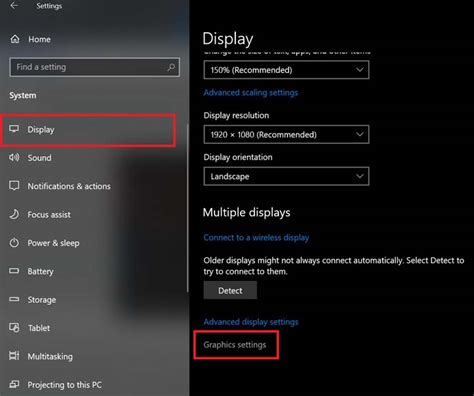
The number of pixels rendered on your screen (e.g., 1920×1080, 2560×1440). This is often the single most significant factor impacting performance. Lowering resolution provides a massive FPS boost, but at the cost of image sharpness.
Texture Quality
Determines the resolution and detail of textures applied to objects in the game world. If your GPU has sufficient VRAM, this setting often has a relatively low FPS impact. However, if VRAM is exceeded, it can lead to stuttering.
Shadow Quality
Controls the resolution, softness, and complexity of shadows. Shadows are notoriously resource-intensive, especially dynamic and high-resolution shadows. Lowering this can yield substantial FPS gains.
Anti-aliasing (AA)
Techniques like MSAA, TAA, FXAA, and SMAA are designed to reduce “jagged” edges on objects. While effective, some forms (especially MSAA and TAA at high settings) can be very demanding on your GPU. Experimenting with different AA types or lowering its intensity is often beneficial.
View Distance / Draw Distance
Determines how far objects, terrain, and details are rendered into the game world. Higher settings mean more objects are drawn at greater distances, significantly increasing CPU and GPU load.
Strategic Approach to Optimization
Optimizing isn’t about blindly turning everything to “Low.” It’s a methodical process:
- Start with a Baseline: Begin by setting the game’s overall graphics preset to “Medium” or “High” if your system is mid-range or better, then observe your average FPS.
- Identify Bottlenecks: Use an FPS monitor (like those built into games, NVIDIA GeForce Experience, AMD Adrenalin, or MSI Afterburner) to observe performance. Pay attention to both average and minimum FPS.
- Adjust Most Impactful Settings First: Focus on the settings known to have the biggest performance cost (shadows, anti-aliasing, post-processing, view distance).
- Test Incrementally: Change one setting at a time, then re-test FPS in a demanding area of the game. Note the improvement or degradation.
- Prioritize Visuals vs. Performance: Decide which visual elements are most important to you. For example, some might tolerate lower shadows for higher texture quality.
Specific Tips for Max FPS
Lower Resolution (If Desperate)
If you’ve tried everything else and still need more frames, lowering the render resolution is your nuclear option. Even a slight drop (e.g., from 1440p to 1080p, or 1080p to 900p) can provide a huge boost. Alternatively, many modern games support resolution scaling or upscaling technologies.
Leverage Upscaling Technologies: DLSS/FSR
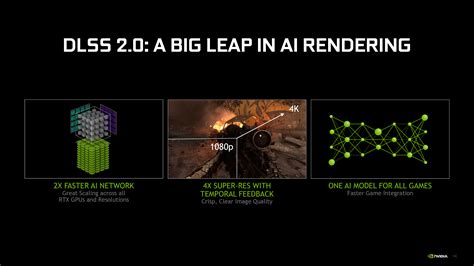
NVIDIA’s DLSS (Deep Learning Super Sampling) and AMD’s FSR (FidelityFX Super Resolution) are game-changers. They render the game at a lower internal resolution and then intelligently upscale it to your monitor’s native resolution, offering near-native image quality with significant FPS gains. Always enable these if available and supported by your GPU.
Shadows & Post-processing: Your First Targets
These two categories often provide the most significant FPS improvements for the least visual degradation (to some eyes). Set shadow quality to “Medium” or “Low” and consider disabling or reducing effects like motion blur, depth of field, bloom, and lens flare.
Anti-aliasing: Find Your Balance
If you’re using high-end AA like MSAA 4x/8x or TAA, try reducing it to 2x or switching to a less demanding option like FXAA or SMAA. Some prefer disabling AA entirely if resolution is high enough or if they use sharpening filters.
Ambient Occlusion & Ray Tracing: Performance Hogs
Ambient Occlusion (SSAO, HBAO, etc.) adds realistic contact shadows but can be quite demanding. Ray Tracing, while visually stunning, is currently the most performance-intensive graphical feature. If your goal is max FPS, both should be set to “Low” or “Off.”

Check GPU Control Panel Settings
Your GPU’s control panel (NVIDIA Control Panel or AMD Adrenalin Software) often has global or per-game settings that can override or complement in-game options. Look for settings like “Power management mode” (set to “Prefer maximum performance”), “Texture filtering – Quality” (set to “Performance”), or “Low Latency Mode.”
Monitor and Refine
Optimization is an ongoing process. As games update or your preferences change, revisit your settings. Always use an FPS counter to quantify your changes. Play through different scenarios in the game (busy combat, open-world exploration, quiet indoor areas) to get a comprehensive understanding of your performance.
Conclusion
Achieving maximum FPS in demanding games involves a blend of understanding graphics settings, strategic adjustments, and patient testing. By focusing on the most impactful settings like shadows, anti-aliasing, and leveraging modern technologies like DLSS/FSR, you can significantly boost your frame rates, ensuring a smoother and more responsive gaming experience without needing to buy new hardware. Experiment, monitor, and fine-tune until you find the perfect balance for your system and visual preferences.


