





What are the essential Windows 10/11 settings to optimize for peak gaming performance?

Introduction: Unleash Your PC’s Full Gaming Potential
Even with top-tier hardware, your gaming experience can be held back by suboptimal Windows settings. Both Windows 10 and Windows 11 come with a myriad of features, some of which are beneficial for everyday use but can inadvertently consume resources and introduce latency during gaming. By making a few key adjustments, you can significantly boost your frame rates, reduce stuttering, and ensure your system is fully dedicated to running your favorite games.
1. Update Graphics Drivers and Chipset Drivers
This is arguably the most critical step. Outdated graphics drivers can severely limit performance and even cause compatibility issues. Always ensure your GPU drivers (NVIDIA, AMD, or Intel) are up to date. Visit the manufacturer’s official website or use their dedicated software (e.g., GeForce Experience, AMD Radeon Software) to download the latest versions. Similarly, keeping your motherboard’s chipset drivers current can improve system stability and component communication, which indirectly benefits gaming.
2. Adjust Power Plan Settings
Windows defaults often prioritize power efficiency, which throttles your CPU and GPU. For gaming, you want maximum performance:
- Go to
Settings > System > Power & sleep(Windows 10) orSettings > Power & battery(Windows 11). - Click on
Additional power settings. - Select High Performance or, if available, Ultimate Performance. The Ultimate Performance plan often needs to be enabled via Command Prompt (run as administrator):
powercfg -duplicatescheme e9a42b02-d5df-448d-aa00-03f147496773. Then, it will appear in the power options.
This ensures your components receive consistent power for peak operation.
3. Enable Game Mode
Game Mode is a built-in Windows feature designed to optimize your PC for gaming. When enabled, it prioritizes your game’s CPU and GPU resources and tries to stop background processes from interfering.
- In Windows 10: Go to
Settings > Gaming > Game Modeand toggle it On. - In Windows 11: Go to
Settings > Gaming > Game Modeand toggle it On.
While some claim marginal benefits, it’s generally recommended to keep it enabled as it rarely causes issues and can help in resource-intensive scenarios.
4. Optimize Graphics Settings
Windows 10/11 offers granular control over graphics performance:
- Hardware-accelerated GPU scheduling: In
Settings > System > Display > Graphics > Change default graphics settings(Windows 11) orSettings > System > Display > Graphics settings(Windows 10). Toggle Hardware-accelerated GPU scheduling to On. This can reduce input latency and improve performance on compatible hardware. - Variable Refresh Rate (VRR): If your monitor supports it (G-Sync, FreeSync), ensure VRR is enabled in your GPU control panel and Windows graphics settings.
- Per-app Graphics Performance: In the same Graphics settings, you can add specific games and set them to High performance. This is crucial if Windows incorrectly assigns a less powerful integrated GPU to a demanding game.

5. Disable Unnecessary Background Apps
Many apps run in the background, consuming CPU cycles, RAM, and network bandwidth. Close or disable those you don’t need while gaming:
- Go to
Settings > Privacy > Background apps(Windows 10) orSettings > Apps > Apps & features > More options (three dots) > Advanced optionsfor individual apps (Windows 11) to manage background permissions. - Alternatively, use Task Manager (
Ctrl+Shift+Esc) to identify and close resource-heavy applications before launching your game.
Additionally, consider turning off notifications by going to Settings > System > Notifications & actions (Windows 10) or Settings > System > Notifications (Windows 11) to avoid interruptions and reduce background processes.
6. Manage Startup Programs
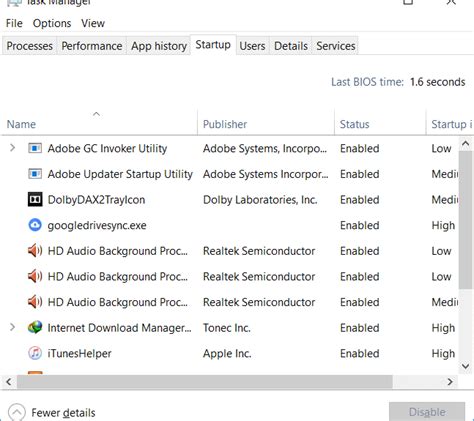
Too many programs launching with Windows can significantly slow down your system boot and consume valuable RAM. Disable non-essential startup items:
- Open Task Manager (
Ctrl+Shift+Esc). - Go to the Startup tab.
- Right-click on any program you don’t need to run immediately after startup and select Disable. Be cautious not to disable critical system processes or drivers.
7. Adjust Visual Effects for Performance
While modern Windows versions look sleek, some visual bells and whistles consume resources that could be better used for gaming.
- Search for
Adjust the appearance and performance of Windowsin the Start Menu. - In the Performance Options window, under the Visual Effects tab, select Adjust for best performance.
- Alternatively, you can choose Custom and selectively uncheck animations and shadows you deem unnecessary while keeping essential visual elements.
8. Disk Management: Defragmentation (HDDs) and Storage Sense (SSDs)
- For Hard Disk Drives (HDDs): Regularly defragment your drive. Search for
Defragment and Optimize Drivesin the Start Menu, select your HDD, and click Optimize. - For Solid State Drives (SSDs): Do NOT defragment SSDs, as it reduces their lifespan without performance benefits. Instead, ensure Storage Sense is enabled (
Settings > System > Storage) to automatically free up space by deleting temporary files and managing your Recycle Bin.
9. Network Optimization (For Online Gaming)
For competitive online gaming, network latency is crucial:
- Use an Ethernet cable: Wired connections are always superior to Wi-Fi for stability and lower latency.
- Update network drivers: Ensure your LAN or Wi-Fi adapter drivers are up to date.
- Disable Windows Update delivery optimization: In
Settings > Update & Security > Delivery Optimization(Windows 10) orSettings > Windows Update > Advanced options > Delivery Optimization(Windows 11), turn off Allow downloads from other PCs. This prevents your PC from uploading updates to other computers on the internet.

Conclusion: A Smoother, Faster Gaming Experience Awaits
By systematically going through these Windows 10/11 settings, you can significantly enhance your gaming performance. Remember that while these optimizations can make a noticeable difference, the most impactful upgrades will always be your hardware (CPU, GPU, RAM, SSD). Regularly maintaining these settings and keeping your system clean will ensure you consistently get the best possible gaming experience from your PC.


