





Gaming PC overheating? Essential tips to lower CPU/GPU temps.

Understanding the Threat of Overheating
For any serious gamer, a high-performance PC is a prized possession. However, intense gaming sessions push your hardware to its limits, generating significant heat. If not properly managed, this heat can lead to system instability, performance throttling, hardware damage, and even a shortened lifespan for your CPU and GPU. Recognizing the signs of overheating – such as unexpected shutdowns, frame drops, or loud fan noise – is the first step towards a healthier gaming rig.

Improve Case Airflow and Fan Configuration
One of the most fundamental aspects of PC cooling is proper airflow within your case. A well-designed airflow path ensures cool air is drawn in and hot air is expelled efficiently. Start by checking your fan setup:
- Intake Fans: Position fans at the front and bottom of your case to draw cool air in.
- Exhaust Fans: Place fans at the rear and top to push hot air out.
- Positive Pressure: Aim for slightly more intake than exhaust to create positive pressure, which helps prevent dust ingress.
Ensure that all fans are running correctly and are oriented in the right direction. Many modern cases have dedicated fan mounts and filters to help optimize this.
Clean Out Dust and Debris
Dust is the enemy of cooling. Over time, dust accumulates on fan blades, heatsinks, and vents, forming an insulating layer that traps heat. This buildup significantly reduces the efficiency of your cooling components. Regularly cleaning your PC is crucial:
- Frequency: Aim to clean your PC every 3-6 months, or more often if you live in a dusty environment or have pets.
- Method: Use compressed air to blow dust out of heatsinks (CPU, GPU), fan blades, and power supply vents. Hold fan blades gently while spraying to prevent over-spinning and damage.
- Tools: A soft brush can help dislodge stubborn dust, but be gentle.

Check and Replace Thermal Paste
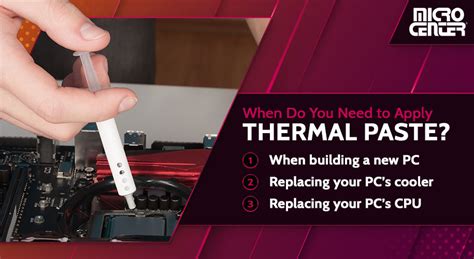
Thermal paste is a critical interface material between your CPU/GPU die and their respective heatsinks. It fills microscopic imperfections, ensuring optimal heat transfer. Over time, thermal paste can dry out and lose its effectiveness. If your components are several years old, or you’ve noticed a sudden increase in temperatures, it might be time for a replacement.
The process involves carefully removing the cooler, cleaning off the old paste with isopropyl alcohol, and applying a new, pea-sized dot of high-quality thermal paste before reattaching the cooler. This is a more advanced step, so if you’re unsure, consult a professional or detailed guides.
Upgrade Your Cooling Solution
Sometimes, stock coolers or entry-level solutions simply aren’t enough for demanding gaming or overclocking. Upgrading your cooling can make a significant difference:
- CPU Coolers: Consider a larger air cooler with more heat pipes and surface area, or an All-in-One (AIO) liquid cooler for superior performance, especially with high-end CPUs.
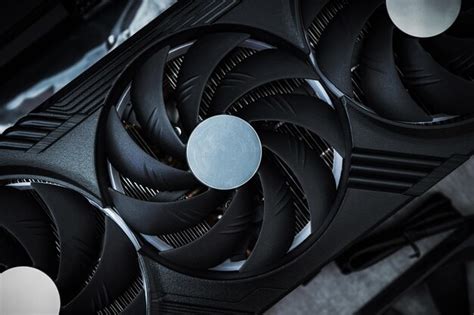
- GPU Coolers: While more involved, aftermarket GPU coolers or hybrid kits (combining air and liquid cooling for the GPU) can drastically lower GPU temperatures.
- Case Fans: Replace generic case fans with higher-quality, higher-airflow fans from reputable brands.
Optimize Cable Management and Monitor Temperatures
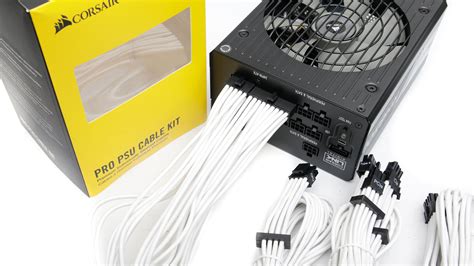
Poor cable management isn’t just an aesthetic issue; it can obstruct airflow within your PC case, creating pockets of hot air. Spend some time routing cables neatly behind the motherboard tray or using zip ties to bundle them away from critical airflow paths.
Finally, consistently monitor your CPU and GPU temperatures using software like HWMonitor, MSI Afterburner, or NZXT CAM. Understanding your idle and load temperatures will help you identify when things are getting too hot and if your cooling efforts are effective. Ideal gaming temperatures typically range from 60-75°C, though some components can safely run hotter under heavy load.
Conclusion
Maintaining optimal operating temperatures is crucial for the performance and longevity of your gaming PC. By implementing these essential tips – from ensuring good airflow and regular cleaning to potentially upgrading components and applying fresh thermal paste – you can keep your CPU and GPU running cool, stable, and ready for countless hours of immersive gaming without the worry of overheating.


