





Optimize game settings for high FPS without sacrificing too much visual quality?
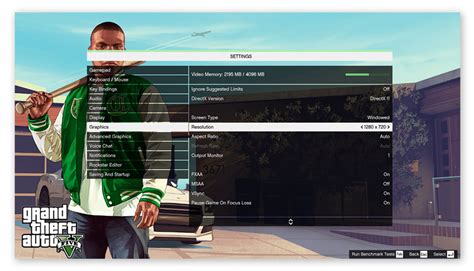
Achieving a smooth, high-frame-rate gaming experience without making your favorite titles look like they’re from a bygone era is the holy grail for many PC gamers. While raw power certainly helps, smart optimization of in-game settings can unlock significant performance gains, allowing you to enjoy buttery-smooth gameplay without sacrificing visual immersion.
Understanding the Performance-Visual Trade-off
Every graphical setting in a game demands resources from your CPU and GPU. Higher settings generally mean more detailed visuals but also more processing power required, leading to lower frame rates (FPS). The trick is to identify which settings have the most significant impact on performance versus those that offer diminishing visual returns.
Key Settings to Tweak for Optimal Balance
1. Resolution and Render Scale
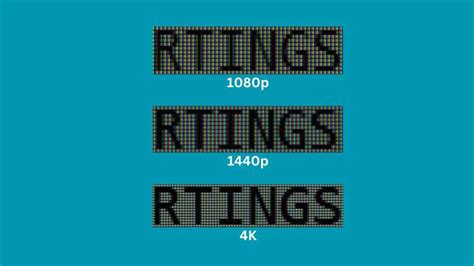
Your display resolution has the single biggest impact on performance. Playing at native resolution (e.g., 1080p, 1440p, 4K) is ideal, but if you’re struggling, consider lowering the “Render Scale” or “Resolution Scale” setting, if available. This renders the game at a lower internal resolution and upscales it to your monitor’s native resolution, providing a significant FPS boost with a moderate visual hit. Avoid lowering your actual display resolution unless absolutely necessary, as it can make text and UI appear blurry.
2. Shadows and Lighting Quality
Shadows are notoriously performance-intensive. Reducing shadow quality from “Ultra” to “High” or even “Medium” often yields substantial FPS gains with only a subtle difference in visual fidelity. Similarly, complex global illumination and volumetric lighting can be demanding; try stepping these down if performance is an issue.
3. Anti-Aliasing (AA)
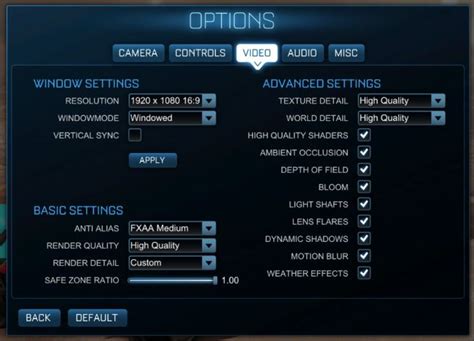
Anti-aliasing smooths jagged edges on objects. Different AA methods have varying performance costs. MSAA (Multi-Sample Anti-Aliasing) is often resource-heavy. TXAA can be demanding but effective. FXAA and SMAA are generally lighter on performance, though they can introduce a slight blur. Experiment to find the balance: often, a lighter AA method or even disabling it at higher resolutions is acceptable.
4. Textures and Filtering
Texture quality primarily affects VRAM usage. If your GPU has ample VRAM (e.g., 8GB+), you can usually keep textures on “High” or “Ultra” without much impact on FPS. If you’re VRAM-limited, lowering texture quality can prevent stuttering. Anisotropic Filtering (AF) affects texture clarity at oblique angles and has a relatively low performance cost; keep it at 8x or 16x if possible.
5. Volumetric Effects and Environmental Details
Settings like volumetric clouds, fog, god rays, and extensive environmental details (e.g., grass density, foliage rendering) can be very taxing. Reducing these can often free up significant GPU resources without drastically altering the overall look of the game, especially during fast-paced action.
6. Post-Processing Effects
Effects such as Bloom, Motion Blur, Depth of Field, and Lens Flares are applied after the main rendering. While some are subjective (many disable motion blur by default), they do consume resources. Experiment with turning them down or off. Depth of Field, in particular, can be heavy.
7. View Distance / Draw Distance
This setting determines how far into the distance objects and details are rendered. While crucial for open-world games, lowering it slightly can improve performance by reducing the number of objects the GPU needs to process. Find a sweet spot where distant pop-in isn’t too noticeable.
Beyond In-Game Settings: Driver Optimization
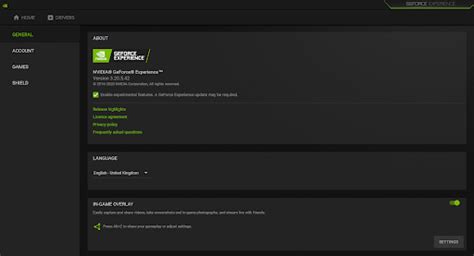
Always ensure your graphics drivers (NVIDIA GeForce, AMD Radeon) are up to date. Manufacturers frequently release performance-enhancing updates and game-specific optimizations. Within your driver’s control panel, you can often set global or game-specific profiles, allowing for further fine-tuning like forcing specific anti-aliasing modes or managing V-Sync.
Monitor Your FPS
To effectively optimize, you need to see the impact of your changes. Use an in-game FPS counter (many games have one built-in) or a third-party tool like MSI Afterburner, NVIDIA’s GeForce Experience overlay, or AMD’s Radeon Overlay. Make one change at a time, test it in a demanding area of the game, and observe the FPS difference.
Conclusion
Optimizing game settings is an iterative process. Start by targeting the most demanding settings (resolution, shadows, volumetric effects) and gradually lower them until you achieve your desired FPS target. Then, experiment with other settings, balancing the visual impact against the performance gain. With a little patience, you can unlock a smoother, more enjoyable gaming experience without sacrificing the beauty of modern game design.


