





Fix PC stuttering & low FPS in new games?
Tackling Stuttering and Low FPS in Modern Games
There’s nothing more frustrating than diving into a highly anticipated new game only to be met with choppy gameplay, stuttering, and abysmal frame rates. These performance issues can quickly turn an exciting experience into a headache. While modern games push hardware to its limits, often the culprit isn’t necessarily underpowered hardware but rather a combination of software conflicts, unoptimized settings, or overlooked system configurations. This guide will walk you through a systematic approach to diagnose and fix stuttering and low FPS, helping you reclaim smooth gameplay.
Start with the Essentials: Drivers and System Requirements
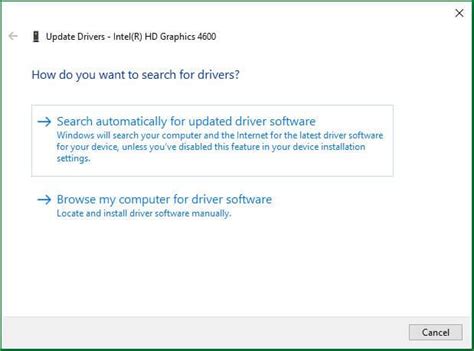
Update Your Graphics Drivers
Outdated or corrupted graphics drivers are by far the most common cause of poor gaming performance. NVIDIA, AMD, and even Intel frequently release new drivers optimized for the latest game titles. Always download drivers directly from the manufacturer’s official website.
- NVIDIA: Use GeForce Experience or download from their website.
- AMD: Use AMD Software: Adrenalin Edition or download from their website.
- Intel: Use Intel Driver & Support Assistant or download from their website.
Consider performing a clean installation of your drivers to remove any potentially problematic residual files from older versions.
Check Minimum and Recommended System Requirements
Before diving deep into troubleshooting, ensure your PC actually meets the game’s minimum requirements, and ideally, its recommended specifications. If your hardware falls short, particularly your CPU, GPU, or RAM, you might be fighting an uphill battle. Websites like Can You Run It? can provide a quick check.
Optimize In-Game Settings for Performance
Many performance issues can be mitigated by adjusting a game’s graphics settings. It’s often a balancing act between visual fidelity and smooth frame rates.
- Resolution: Lowering your display resolution is one of the most impactful ways to boost FPS.
- V-Sync: While V-Sync can prevent screen tearing, it can also introduce input lag and sometimes stuttering if your frame rate drops below your monitor’s refresh rate. Experiment with turning it off or using adaptive sync technologies (G-Sync/FreeSync) if available.
- Texture Quality: High texture quality requires significant VRAM. If you have a GPU with limited VRAM (e.g., 4GB or less), lowering this can help.
- Shadows: Shadows are notoriously demanding. Reducing shadow quality or disabling them completely can provide a substantial FPS boost.
- Anti-Aliasing: Technologies like MSAA, TAA, and FXAA smooth jagged edges but consume considerable GPU power. Try lower settings or less demanding options.
- Draw Distance/Detail: Reduce these for less load on your CPU and GPU, especially in open-world games.
Start by setting everything to low, then gradually increase settings one by one until you find a good balance between visuals and performance.

System-Wide Performance Enhancements
Manage Background Processes
Even powerful PCs can struggle if too many applications are running simultaneously in the background. Close browsers, chat apps, streaming software, and any unnecessary utilities before launching a game.
- Task Manager: Open Task Manager (Ctrl+Shift+Esc), go to the “Processes” tab, and end tasks that are consuming significant CPU, RAM, or GPU resources and aren’t essential.
- Startup Programs: In Task Manager’s “Startup” tab, disable programs you don’t need to launch with Windows.
Adjust Power Plan Settings
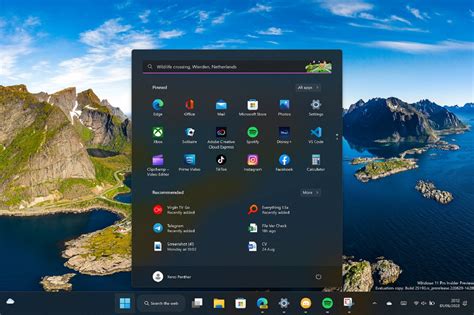
Ensure your Windows power plan is set to “High Performance” or “Ultimate Performance.” This prevents your CPU and GPU from throttling down during intense gaming sessions.
For NVIDIA users, go to NVIDIA Control Panel > Manage 3D settings > Power management mode and set it to “Prefer maximum performance.” AMD users have similar options in AMD Software.
Enable Windows Game Mode and Hardware-accelerated GPU Scheduling
Windows 10/11 includes a “Game Mode” designed to prioritize game performance. Go to Settings > Gaming > Game Mode and ensure it’s turned on. Also, consider enabling “Hardware-accelerated GPU scheduling” (Settings > System > Display > Graphics > Change default graphics settings) if your GPU supports it, as it can reduce latency and improve performance in some scenarios.
Hardware Health and Maintenance
Monitor Your PC’s Temperatures
Overheating is a frequent cause of stuttering and performance drops, as components (CPU, GPU) “throttle” down to prevent damage. Use monitoring software like MSI Afterburner, HWiNFO64, or HWMonitor to keep an eye on your CPU and GPU temperatures while gaming. Ideal temps are typically below 80°C (176°F).
Clean Your PC
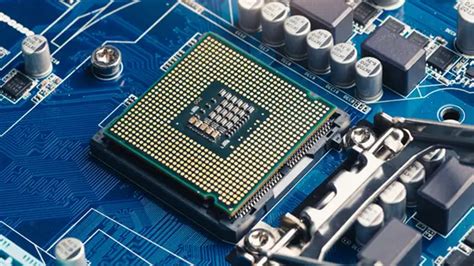
Dust buildup inside your PC can severely impede airflow, leading to higher temperatures. Regularly clean your case fans, CPU cooler, and GPU heatsink with compressed air. Ensure all case fans are working correctly and are configured for optimal airflow (intake/exhaust).
Check RAM and Storage
- RAM: Ensure you have sufficient RAM (16GB is ideal for modern gaming). If you have multiple RAM sticks, verify they are seated correctly and running in dual-channel mode.
- Storage: While not directly impacting FPS, a nearly full or heavily fragmented HDD can cause stuttering, especially during asset loading. Install games on an SSD if possible for faster loading times and smoother streaming of assets.
Advanced Troubleshooting and Upgrades
Update BIOS/UEFI Firmware
Sometimes, motherboard manufacturers release BIOS/UEFI updates that improve stability and compatibility, potentially resolving performance issues. This is an advanced step and should only be done carefully, following your motherboard manufacturer’s instructions precisely.
Consider a Clean OS Installation or Hardware Upgrades
If all else fails, a clean installation of Windows can sometimes resolve deep-seated software conflicts or corruptions that impact performance. As a last resort, if your hardware consistently falls below the recommended specifications for games you want to play, it might be time to consider upgrading your CPU, GPU, or RAM.

Conclusion
Troubleshooting PC stuttering and low FPS can be a daunting task, but by following a systematic approach – starting with basic driver updates and in-game settings, moving to system optimization, and finally checking hardware health – you can often pinpoint and resolve the underlying issues. Patience and methodical testing are key to reclaiming the smooth, immersive gaming experience you deserve.


