





How to maximize gaming FPS: optimal GPU settings & driver advice?

Achieving a high frame rate (FPS) is crucial for a smooth and immersive gaming experience. Whether you’re a competitive gamer seeking an edge or simply want your favorite titles to run flawlessly, optimizing your GPU settings and drivers is key. This comprehensive guide will walk you through the essential steps to maximize your gaming FPS, transforming your gameplay from choppy to silky-smooth.
Understanding the Impact of FPS and Graphics Settings
FPS, or frames per second, dictates how many individual images your graphics card renders and your monitor displays each second. Higher FPS means smoother animation and reduced input lag, which can be particularly critical in fast-paced games. Every graphical setting, from resolution to shadows, consumes GPU resources, directly impacting your frame rate.
Balancing visual fidelity with performance is a constant challenge. The goal isn’t always to run everything on ‘Ultra,’ but to find the sweet spot where your game looks great without sacrificing playability. Understanding what each setting does can help you make informed decisions.
Core In-Game Graphics Settings for FPS Boost
Start your optimization journey within the game itself. Most modern titles offer extensive graphics options that you can tweak:
- Resolution: This has the biggest impact. Running at your monitor’s native resolution is ideal, but dropping to 1080p or even 720p on a powerful monitor can drastically improve FPS if your GPU is struggling.
- V-Sync / G-Sync / FreeSync: V-Sync syncs your FPS with your monitor’s refresh rate to prevent screen tearing, but can introduce input lag if your FPS drops below the refresh rate. G-Sync (NVIDIA) and FreeSync (AMD) are superior adaptive sync technologies that eliminate tearing without significant lag. Enable them if your monitor supports them.
- Anti-Aliasing (AA): Reduces jagged edges on objects. MSAA and SSAA are very resource-intensive. FXAA and TAA are less demanding but can make images softer. Try disabling AA first or using a less demanding option.
- Shadow Quality: Shadows are notoriously demanding. Reducing shadow quality or disabling them entirely can provide a significant FPS boost.
- Texture Quality: This impacts the clarity and detail of surfaces. It primarily uses VRAM (video memory). If you have enough VRAM (4GB+), you can often keep this high without a major FPS hit. If VRAM is a bottleneck, lower it.
- Ambient Occlusion: Adds realistic depth by simulating how light interacts with objects. It’s often very performance-intensive; try reducing or disabling it.
- Post-Processing Effects: Bloom, depth of field, motion blur, and lens flares can look cinematic but often come at a cost. Disable motion blur first, as it can hinder visibility.

Optimizing NVIDIA Control Panel Settings
For NVIDIA GPU users, the NVIDIA Control Panel offers granular control over your graphics settings:
- Right-click on your desktop and select ‘NVIDIA Control Panel.’
- Go to ‘Manage 3D settings.’
- Under the ‘Global Settings’ tab, or ‘Program Settings’ for specific games, consider these changes:
- Power management mode: Set to ‘Prefer maximum performance.’ This ensures your GPU always runs at its highest clock speed.
- Texture filtering – Quality: Change to ‘High performance’ instead of ‘Quality.’
- Low Latency Mode: Experiment with ‘On’ or ‘Ultra’ for reduced input lag, especially in competitive games.
- Shader Cache: Keep ‘On’ to allow the GPU to store compiled shaders, improving loading times and reducing stutter.
- Vertical Sync: Unless you have G-Sync/FreeSync, set to ‘Off’ here and manage it in-game, or disable it entirely for maximum FPS.
Fine-Tuning AMD Radeon Software Settings
AMD users can optimize through the Radeon Software:
- Right-click on your desktop and select ‘AMD Radeon Software.’
- Go to the ‘Gaming’ tab and then ‘Global Graphics.’
- Key settings to adjust:
- Radeon Anti-Lag: Enable for reduced input lag.
- Radeon Boost: Can dynamically lower resolution in fast-motion scenes for higher FPS; enable and experiment.
- Radeon Image Sharpening: Can enhance visual clarity without a major performance hit; experiment with the sharpness level.
- Radeon Chill: Sets an FPS cap to save power and reduce heat, but you can set the minimum and maximum FPS to maintain smooth gameplay while not overproducing frames.
- Texture Filtering Quality: Set to ‘Performance.’
- Tessellation Mode: Set to ‘Optimized’ or ‘Override application settings’ and reduce the maximum tessellation level.
Graphics Driver Advice: Keep Them Updated!
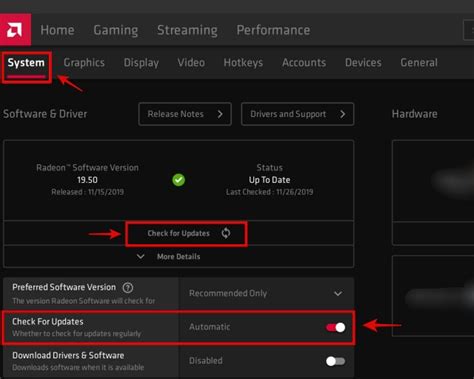
Graphics drivers are software that allows your operating system and games to communicate with your GPU. Outdated drivers can lead to poor performance, bugs, and crashes. Always keep your drivers up to date:
- NVIDIA: Download GeForce Game Ready Drivers from the NVIDIA website or use GeForce Experience software.
- AMD: Download Radeon Software Adrenalin Edition from the AMD support page.
Perform a clean installation when updating drivers, especially if you’re switching GPU brands or experiencing issues. This removes old driver files that could cause conflicts.
Additional FPS Boosting Tips
- Close Background Applications: Browsers, streaming apps, and other programs can consume CPU and RAM, impacting game performance. Close anything unnecessary before gaming.
- Overclocking (Caution Advised): Safely overclocking your GPU and CPU can yield noticeable performance gains, but it requires careful research and monitoring to avoid instability or hardware damage. Only attempt if you’re comfortable with the risks.
- Keep Your PC Clean: Dust buildup in your PC case and on your GPU’s heatsink can lead to higher temperatures, causing thermal throttling and reduced performance. Regularly clean your components.
- Upgrade Hardware: If all else fails, and your hardware is several generations old, a GPU, CPU, or RAM upgrade might be the only way to achieve significantly higher FPS in modern titles.

Conclusion
Maximizing your gaming FPS is a multi-faceted process that involves understanding in-game settings, fine-tuning your graphics card drivers, and maintaining your system. By systematically applying these optimal GPU settings and driver advice, you can unlock smoother gameplay, greater responsiveness, and a more enjoyable experience across all your favorite games. Don’t settle for less – take control of your frames and game on!


