





My new game runs poorly. What are the best GPU settings for max FPS without sacrificing quality?
Experiencing poor performance in a new game can be frustrating, especially when you want both smooth gameplay and stunning visuals. The good news is that with a careful approach to your GPU settings, you can often achieve a significant boost in Frame Rates Per Second (FPS) without making noticeable sacrifices to the overall graphical quality. This guide will walk you through the key areas to tweak, ensuring your gaming experience is as fluid and beautiful as possible.
Understanding the Balance: FPS vs. Quality
The core challenge is finding the sweet spot. Many graphics settings have a disproportionate impact on performance relative to their visual benefit. Our goal is to identify and adjust these “heavy hitters” first, targeting settings that consume a lot of GPU resources for minimal visual gain, or those where a slight reduction in quality is barely perceptible.
Update Your Drivers First
Before diving into specific settings, ensure your graphics drivers are up to date. Both NVIDIA and AMD frequently release Game Ready or Adrenalin drivers optimized for new titles, which can provide significant performance improvements out of the box. Always download drivers directly from the official NVIDIA or AMD websites.
NVIDIA Control Panel & AMD Radeon Software Settings
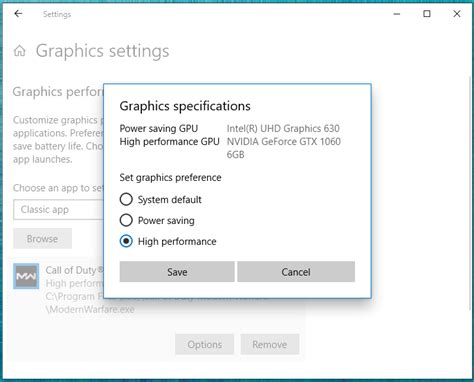
Your GPU’s control panel offers a suite of global and per-game settings that can fine-tune performance. It’s often best to set these globally and then adjust specific games as needed.
Power Management Mode (NVIDIA) / Power Efficiency (AMD)
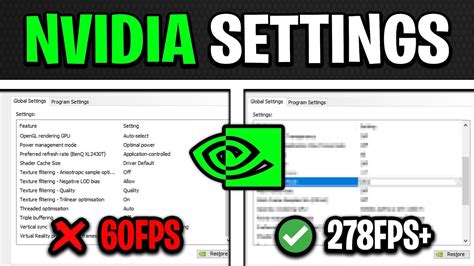
For NVIDIA users, set “Power Management Mode” to “Prefer maximum performance.” This ensures your GPU is always running at its highest clock speeds when gaming. AMD users should ensure “Power Efficiency” is off or set to maximize performance, though driver updates usually handle this well.
Texture Filtering Quality
While often a small impact, setting “Texture Filtering – Quality” to “High Performance” (NVIDIA) or “Performance” (AMD) can offer a minor FPS boost with very little visual difference unless you’re scrutinizing textures up close.
Low Latency Mode (NVIDIA) / Radeon Anti-Lag (AMD)
These settings aim to reduce input lag by limiting the number of frames queued by the CPU. While primarily for responsiveness, reducing CPU overhead can sometimes free up resources that indirectly help maintain higher FPS stability. Experiment with “On” or “Ultra” for NVIDIA, and “Enabled” for AMD.
Image Sharpening / FidelityFX Super Resolution (FSR) / NIS
Modern drivers often include image sharpening or upscaling technologies. NVIDIA Image Scaling (NIS) and AMD FidelityFX Super Resolution (FSR) allow you to render games at a lower internal resolution and then upscale them with a sharpening pass. This can provide a substantial FPS boost while maintaining a surprisingly good visual quality, especially at higher base resolutions. Experiment with a slightly lower render resolution (e.g., 85% of native) combined with sharpening.
In-Game Graphics Settings Explained
These are the settings you’ll find within the game itself and where you’ll make the most impactful changes.
Resolution Scaling
This is arguably the most impactful setting. If the game has a resolution scaler, consider setting it slightly below 100% (e.g., 90% or 85%). This renders the game at a lower resolution internally but outputs it at your monitor’s native resolution, often with a subtle blur or slight loss of detail that is far less noticeable than a full resolution drop, while providing a significant FPS uplift. Combine this with FSR/NIS if available for best results.
Anti-Aliasing (AA)
AA smooths jagged edges, but some methods (like MSAA) are incredibly demanding. TAA (Temporal Anti-Aliasing) is often a good balance, but if you’re struggling, try FXAA, SMAA, or even turning it off entirely if the game’s native resolution is high enough or if you’re using a resolution scaler with sharpening.
Shadow Quality
Shadows are notoriously performance-intensive. Reducing shadow quality from “Ultra” to “High” or even “Medium” often yields a huge FPS gain with minimal impact on the overall game aesthetic, especially during fast-paced gameplay.
Volumetric Lighting & Ambient Occlusion (AO)
These settings add depth and realism but are significant resource hogs. Volumetric lighting creates realistic light rays and fog, while AO simulates realistic indirect shadows. Lowering these (e.g., from Ultra to High or Medium) can provide substantial FPS gains, and often the visual difference is only noticeable when standing still and carefully observing.
View Distance / Level of Detail (LOD)
These control how far objects and textures are rendered in detail. While reducing them too much can lead to pop-in, a slight reduction (e.g., from “Epic” to “High”) can reduce the number of objects your GPU needs to process at a distance, freeing up resources.
V-Sync / G-Sync / FreeSync
V-Sync synchronizes your frame rate with your monitor’s refresh rate to prevent screen tearing. However, it can introduce input lag and cap your FPS, sometimes causing stutters if your FPS drops below the refresh rate. If you have a G-Sync or FreeSync monitor, enable it! These technologies offer the best of both worlds: tear-free gaming without V-Sync’s drawbacks. If you don’t have adaptive sync, consider disabling V-Sync and using an in-game or driver-level FPS limiter slightly below your monitor’s refresh rate (e.g., 140 FPS on a 144Hz monitor) to mitigate tearing and input lag.
Monitor Your Performance
Tools like MSI Afterburner (with RivaTuner Statistics Server) or the built-in performance monitors in your GPU driver software can help you track FPS, GPU usage, and CPU usage in real-time. This is crucial for understanding which settings have the biggest impact and for confirming if your changes are working. Pay attention to GPU utilization; if it’s consistently below 95-100%, your CPU might be the bottleneck, or you’re hitting an FPS cap.
Conclusion
Optimizing your GPU settings for maximum FPS without sacrificing quality is an iterative process. Start by updating drivers, then tackle the most demanding in-game settings like resolution scaling, shadows, and volumetric effects. Use your GPU control panel for fine-tuning and leverage adaptive sync technologies if available. By systematically adjusting and testing, you can transform a poorly running game into a smooth, visually appealing experience.


