How to optimize Windows 11 for max gaming FPS & low latency?
Windows 11, while visually appealing, can sometimes hold back your gaming potential if not properly configured. Achieving maximum Frames Per Second (FPS) and minimizing input latency are crucial for a competitive and immersive gaming experience. This guide will walk you through essential settings and tweaks to unlock your system’s full gaming power.
Enable Game Mode and Graphics Settings
One of the first steps to optimize Windows 11 for gaming is to ensure Game Mode is active. Game Mode prioritizes your gaming experience by dedicating system resources to your game and preventing Windows Update from installing drivers or sending restart notifications during gameplay. To enable it, navigate to Settings > Gaming > Game Mode and toggle it on.
Further enhance your graphics by adjusting related settings. Go to Settings > Gaming > Graphics. Here, you can add specific games to manage their performance. Select ‘Options’ for a game and choose ‘High performance’. Additionally, consider enabling ‘Hardware-accelerated GPU scheduling’ if your GPU supports it, as it can reduce latency and improve performance in some titles. You can find this setting under Settings > System > Display > Graphics > Change default graphics settings.
Adjust Power and Performance Options
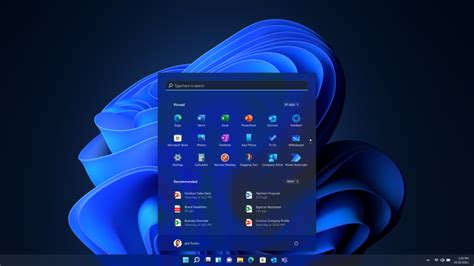
Windows 11 typically defaults to a balanced power plan, which conserves energy but might limit your CPU and GPU performance. For gaming, you’ll want to ensure your system is running at its peak. Search for ‘Edit power plan’ in the Windows search bar and click ‘Change advanced power settings’. Expand ‘Processor power management’ and ensure both ‘Minimum processor state’ and ‘Maximum processor state’ are set to 100% for the active power plan. If available, switch to the ‘Ultimate Performance’ power plan for maximum power delivery, or create a custom high-performance plan.
Update Drivers Regularly
Outdated drivers are a common culprit for performance issues and instability. Always ensure your graphics card drivers (NVIDIA, AMD, Intel) are up-to-date. Visit the official manufacturer’s website or use their dedicated software (e.g., GeForce Experience, AMD Radeon Software) to download the latest versions. Don’t forget other critical drivers like chipset drivers, which can impact CPU performance and system communication. Regularly check for these updates on your motherboard manufacturer’s website.
Disable Background Apps and Notifications
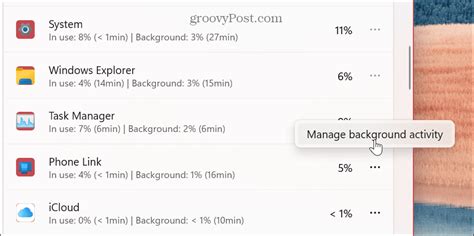
Background applications consume valuable CPU, RAM, and network resources, potentially leading to lower FPS and higher latency. Go to Settings > Apps > Apps & features and uninstall any unused applications. For apps you use but don’t need running constantly, navigate to Settings > Privacy & security > Background apps (under ‘App permissions’) and toggle off those you don’t want running in the background. Similarly, turn off unnecessary notifications via Settings > System > Notifications to prevent interruptions and system overhead during gaming sessions.
Optimize Storage and Network
For storage, ensure your games are installed on an SSD (Solid State Drive) rather than an HDD (Hard Disk Drive) for faster loading times and smoother gameplay. Regularly run Disk Cleanup to remove temporary files and system clutter. For network optimization, a wired Ethernet connection is always superior to Wi-Fi for gaming due to its stability and lower latency. Disable ‘Bandwidth limits’ for Windows Update (Settings > Windows Update > Advanced options > Delivery Optimization > Advanced options) to prevent it from hogging bandwidth. Consider using Quality of Service (QoS) settings on your router to prioritize game traffic.

Advanced Tweaks for Peak Performance
- Disable Visual Effects: While Windows 11 looks good, some visual effects can impact performance. Search for ‘Adjust the appearance and performance of Windows’ and select ‘Adjust for best performance’.
- Startup Programs: Open Task Manager (Ctrl+Shift+Esc), go to the ‘Startup’ tab, and disable any non-essential programs from launching with Windows.
- Game Bar and Xbox Features: While Game Bar can be useful for capturing, it can also add overhead. If you don’t use it, disable it via Settings > Gaming > Xbox Game Bar. Also, consider disabling Xbox background services if not used.
- Disk Defragmentation: While SSDs don’t need defragmentation, HDDs can benefit. Schedule ‘Optimize Drives’ for your HDDs.
- Registry Tweaks: For advanced users, specific registry edits can fine-tune network settings (e.g., TCP NoDelay), but proceed with caution and always back up your registry first.
By systematically applying these optimizations, you can transform your Windows 11 machine into a finely-tuned gaming rig. Remember to test changes one by one to identify what works best for your specific hardware and games. A smooth, high-FPS, low-latency experience awaits!