





How to troubleshoot sudden FPS drops in PC games?
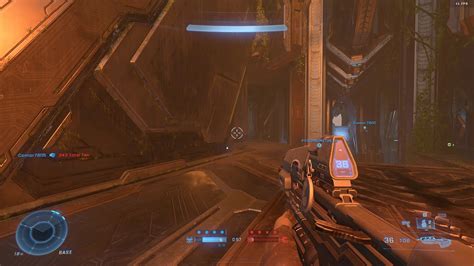
Experiencing sudden Frame Per Second (FPS) drops can quickly turn an immersive gaming session into a frustrating slideshow. These unexpected performance hits can make games unplayable, regardless of how powerful your hardware might seem. Identifying the root cause requires a systematic approach, as various factors, both software and hardware, can contribute to this common PC gaming issue.
Understanding the Culprits Behind FPS Drops
Sudden FPS drops often indicate that one or more components of your system are struggling to keep up with the demands of the game. This could be due to a temporary bottleneck, overheating, driver conflicts, or even background processes consuming vital resources. Before diving into specific fixes, it’s crucial to understand that troubleshooting involves isolating variables to pinpoint the exact problem.

Software-Related Solutions
Often, the simplest solutions lie within your software environment. These steps are usually quick to check and fix.
Update Graphics Drivers
Outdated or corrupted graphics drivers are a leading cause of performance issues. NVIDIA, AMD, and Intel frequently release driver updates that include performance optimizations and bug fixes for popular games. Always download drivers directly from the manufacturer’s official website.
- NVIDIA: GeForce Experience or NVIDIA website.
- AMD: Radeon Software or AMD website.
- Intel: Driver & Support Assistant or Intel website.
Consider performing a clean installation of new drivers to remove any remnants of old files that might cause conflicts.
Close Background Applications
Apps running in the background, such as web browsers with many tabs, streaming services, anti-virus scans, or communication software (Discord, Skype), can consume significant CPU, RAM, and even GPU resources, leading to FPS drops. Open Task Manager (Ctrl+Shift+Esc) to identify and close any non-essential processes before launching your game.
Check In-Game Settings
Sometimes, games automatically set graphics options too high for your system, especially after a game update or if you’ve recently upgraded one component without adjusting others. Experiment with lowering settings like texture quality, shadow quality, anti-aliasing, and view distance. V-Sync can also introduce input lag or performance caps if your monitor refresh rate is inconsistent with your frame output.

Verify Game Files
Corrupted or missing game files can lead to instability and performance issues. Most game launchers (Steam, Epic Games, GOG, Battle.net) have an option to verify the integrity of game files, which will download and replace any problematic data.
Operating System Updates and Power Plans
Ensure your Windows OS is up to date, as updates often include performance enhancements and bug fixes. Also, check your Windows Power Plan settings. Ensure it’s set to “High Performance” or a game-specific power plan rather than “Balanced” or “Power Saver,” which can throttle your CPU.
Hardware-Related Solutions
If software checks don’t resolve the issue, it’s time to investigate your PC’s hardware.
Monitor Temperatures (CPU/GPU Overheating)
Overheating is a very common cause of sudden FPS drops. When components like your CPU or GPU reach critical temperatures, they “throttle” down their performance to prevent damage. Use monitoring software like MSI Afterburner, HWMonitor, or HWiNFO64 to check temperatures while gaming. If temperatures consistently exceed 85-90°C, consider:
- Cleaning dust from your PC’s fans and heatsinks.
- Improving case airflow with additional fans or better cable management.
- Replacing thermal paste on your CPU/GPU (if you’re comfortable with advanced maintenance).

Power Supply Unit (PSU) Issues
An insufficient or failing PSU can lead to unstable power delivery, causing components to underperform or throttle. If your PSU is old, underpowered for your current components, or showing signs of instability (e.g., random shutdowns), it might be contributing to FPS drops, especially during intense gaming moments when components draw maximum power.
RAM and Storage
While less common for sudden drops, insufficient RAM can cause the system to swap data to slower storage, leading to stuttering. Ensure you have enough RAM (16GB is generally recommended for modern gaming). Also, running games from an HDD rather than an SSD can cause longer loading times and occasional stutters, though usually not sudden, consistent FPS drops unless the drive is failing or fragmented.
GPU and CPU Health
In rare cases, a failing GPU or CPU can cause performance issues. If you’ve exhausted all other options, consider running diagnostic tools specific to your hardware (e.g., FurMark for GPU stress testing, Prime95 for CPU). However, proceed with caution as stress tests can push components to their limits.
Advanced Troubleshooting & Diagnostics
For persistent issues, more in-depth analysis might be needed.
System Monitoring Tools
Tools like MSI Afterburner (for GPU monitoring) combined with HWMonitor or HWiNFO64 (for overall system stats including CPU/RAM usage, temperatures, clock speeds) can provide valuable insights. Log your system’s performance metrics while gaming to identify any anomalies right before an FPS drop. Look for sudden spikes in temperature, drops in clock speed, or unusual usage patterns.

Reinstalling Windows (Last Resort)
If all else fails and you suspect deep-seated software corruption or driver conflicts that can’t be resolved, a clean installation of Windows can often resolve many mysterious performance issues by providing a fresh operating system environment. Remember to back up all your important data first.
Conclusion
Troubleshooting sudden FPS drops requires patience and a methodical approach. By systematically checking software configurations, driver statuses, background processes, and ultimately your hardware’s health and temperatures, you can often pinpoint and resolve the cause. Remember to test changes one by one to isolate the effective solution. A smooth gaming experience is achievable with a bit of detective work!



